
Edit Article
How to Add a Branding Intro to All Your YouTube Videos
Would you like to promote your brand on your YouTube Videos? If your answer is yes. Follow this simple step-by-step guide that shows you How to Add a Branding Intro on All Your Your YouTube Videos.
EditSteps
-
 1Open your favorite browser.
 -
 2Go to YouTube.com.
 -
 3Log in to your YouTube account. Click on the "Sign In" button, which can be found on the top right corner of the page.
 -
 4Enter your email address and password, and click on "Sign In".
 -
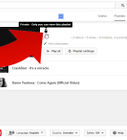
 5Click on your thumb image at the top right corner of the page. This will open a drop-down menu.
 -
 6Click the small gear icon.
 -
 7Click on “View Additional Features”.
 -
 8Look for a menu on the left hand side. Click on “In video Programming”.
 -
 9Scroll Down and Click on “Add a Branding Intro” Button.
 -
 10Now, we need to upload intro video which is less than 4 seconds. To do that, Click on the "Upload" Link.
 -
 11Select the Intro video on your computer and click "open".
 -
 12Set Video Privacy Settings to Unlisted.
 -
 13Click “Done” when processing is complete.
 -
14Repeat the Same Steps done before.
-
 15Click on “Add a Branding Intro” Button.
 -
 16Select the Intro Video that you have just uploaded and Click “Save”.
 -
 17Select the Videos on which the Branding intro should be added.You May choose “Upload after a specific date” or “All Uploads”.
 -
 18Click “Update” after making your selection.
 -
 19Wait for Some time. Then, Go to Video Manager and Open any one of your video.
 -
 20As you can see, Branding Intro has been added on all your uploaded videos.
 -
21This is How You Can Add a Branding Intro to All Your YouTube Videos.


We could really use your help!
Can you tell us about
computers?
computers?
Yes
No
computers
how to dock a laptop

Can you tell us about
raising children?
raising children?
Yes
No
raising children
how to get kids to sleep

Can you tell us about
soldering?
soldering?
Yes
No
soldering
how to solder aluminum

Can you tell us about
cleaning carpet?
cleaning carpet?
Yes
No
cleaning carpet
how to clean vomit out of a carpet

Thanks for helping! Please tell us everything you know about
...
EditVideo
EditRelated wikiHows


EditSources and Citations
- How to Add a Branding Intro to All Your YouTube Videos - Original source of article, shared with permission





About this wikiHow