
Testing an API backend follows the typical App Engine pattern of using the development server to run the web app locally during development and incremental testing, followed by deployment to production when you are ready for real-world testing.
Running and testing API backends locally
To test the backend, you'll use the API Explorer, which is a tool that lets you
test APIs interactively without using a client app. This tool is
automatically run for you when you navigate to your backend API's subdirectory
/_ah/api/explorer as we'll describe in the instructions below.
To test the API backend locally on the development server:
-
If necessary, specify a different port and address other than the defaults. For example, if you want the app to listen to the local network, you may need to change the address to
0.0.0.0. For instructions, see Specifying a port for local testing. -
Start the API backend by invoking the development app server. Using Maven, invoke the command from the project's
<app>-earsubdirectory (not from the<app>-war):mvn appengine:devserverWait til the backend loads; if it loads successfully, this message is displayed:
INFO: Dev App Server is now running. -
In your browser, visit the URL
http://localhost:8080/_ah/api/explorer -
Double-click the API you created to display the list of its methods.
-
Click the method you wish to test, fill in any request fields as needed, then click Execute to test the method: the request will be displayed along with the response.
If you want to use curl instead of the API Explorer, you can alternatively
test the API backend by sending an test request using
curl. The following request makes a call to
a sample Board API backend to send a request to our sample tictactoe game:
curl --header "Content-Type: application/json" -X POST -d '{"state": "----X----"}' http://localhost:8888/_ah/api/tictactoe/v1/board
Testing clients against the backend
You can test your client against a backend API running in production App Engine at any time without making any changes. However, if you want to test your client against a backend API running on the local development server, you'll need to make changes as described below:
- For more information on testing JavaScript clients locally, see Testing a JavaScript client against a local development server.
- For more information on testing Android clients locally, see Testing an Android client against a local development server.
Deploying an API backend
When you are satisfied that your API backend works as expected, you can deploy it to App Engine. Deploying an API backend is no different from deploying a regular App Engine app.
To deploy:
If you use Maven for your project, you deploy the app as follows:
-
Change directory to your project main directory containing the
pom.xmlfile. -
Invoke Maven as follows:
mvn appengine:updateThe first time you deploy to production App Engine, you may be prompted to supply login information; supply it as directed.
If the deployment fails with the error
403 Forbidden You do not have permission to modify this app (app_id=u'your-app-id'), check your source fileyour-app/src/main/webapp/WEB-INF/appengine-web.xmland make sure the value for the<application>element is set to a valid application ID.
If you don't use Maven, follow the instructions for deploying provided in Uploading and Managing a Java App.
After you deploy, you can use the API Explorer to experiment with your API without using a client app by visiting
https://your_app_id.appspot.com/_ah/api/explorer
Alternatively, use the discovery service to view your API by visiting
https://your_app_id.appspot.com/_ah/api/discovery/v1/apis
Checking for a Successful Deployment
After you upload the API, you will see a success message if the files upload correctly. However, after the files are uploaded, App Engine does more work unpacking the API and deploying it. If there is a failure during this process, you are not informed about it. You must check the logs to determine success.
To check the logs after you deploy your API,
- Visit the Google Developers Console.
- Click on your API project.
- Click on App Engine in the sidebar to the left.
- Click on Logs in the sidebar to the left.
-
Look at the logs nearest in time to the time you deployed. A successful API deployment results in a log that looks something like this:
013-09-30 18:39:09.781 Endpoints: https://2-dot-test-pont.appspot.com/_ah/api/helloWorld@v2 Savedor
2013-09-30 16:07:17.987 Endpoints: https://7-dot-test2.appspot.com/_ah/api/guestbook@v1 OKAn unsuccessful deployment has this kind of log:
https://7-dot-test2.appspot.com/_ah/api/Guestbook@v2 ERROR
If the logs indicate a deployment failure, refer the the following Troubleshooting section to see how to handle the failure.
Troubleshooting a deployment failure
Here are some common deployment error messages you might find in your application log, along with suggested remedies:
| Error | Remedy |
|---|---|
| Endpoints configuration not updated. Check the app's AppEngine logs for errors. | There is a some type of exception being thrown by your app that is preventing your app from starting. Check your app's logs to narrow down the exception being thrown. Check for errors logged from the /_ah/spi/BackendService.getApiConfigs handler, which the Google Cloud Endpoints server uses to retrieve your API configuration. Here is what such a log might look like: 2014-09-04 13:03:46.531 /_ah/spi/BackendService.getApiConfigs 200 4 ms 28kb module=default version=1. . . |
Endpoints configuration not updated. There are authentication requirements on the /_ah/spi handler that are preventing the Google Cloud Endpoints server from accessing the app. |
Remove the authentication requirements on that handler from your app's web.xml file (see Security and Authentication for the lines to remove). Note: this error is not caused by setting the file to require HTTPS, as described in Secure URLs, because this does work with Endpoints.If you want to require authentication for your Endpoints API, follow the process described in Using Auth with Endpoints. |
Deploying to multiple app versions
When you deploy your backend API, you deploy it to the
Cloud project ID you created for your API. This ID is the same one used by App Engine for your
backend API. When you deploy, in addition to the App Engine/Cloud Project ID,
you must also specify the App Engine version you deploy to.
You specify the App Engine/Cloud Project ID in the <application> field in the
/WEB-INF/appengine-web.xmlfile; you specify the application version in the
<version> field. Notice that the App Engine app version is not the same thing
as the backend API version number, which you specify in the version attribute
of the @Api annotation.
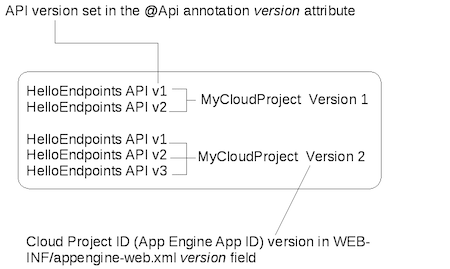
As shown in the figure above, you can deploy multiple API versions to the same App Engine App version. And, you can have many App Engine App versions.
Accessing backend API versions deployed to an application default version
The first App Engine version you deploy your backend API to is the default version. That remains the default version until you explicitly change it using the Google Developers Console; select your project in the console, then navigate to Compute > App Engine > Versions.
The UI allows you to specify which version is the default.
The default is the version running at the URL http://your_app_id.appspot.com.
All of the backend API versions deployed to that App Engine app version can be accessed using that URL.
Accessing backend API versions deployed to non-default application versions
If you need to access API versions that are not deployed to the default App Engine app version, you use a version-specific URL.
To access backend API versions that are deployed to non-default App Engine
versions of your app, you must include the version specifier in the URL, like
this: https://version-dot-your_app_id.appspot.com. For example, suppose your
default app version is 1, but you want to access a backend API version
deployed to App Engine app version 2; you would use this URL:
https://2-dot-your_app_id.appspot.com.
Accessing backend API versions deployed to non-default modules
If you need to access API versions that are not deployed to the default App Engine module, you would use a version-specific URL using the dot syntax as follows:
`https://<module-name>-dot-<app-name>.appspot.com/_ah/spi/...`
Managing your backend API versions
In managing your API versions, consider these recommendations:
- When you want to introduce an incremental, but non-breaking change, keep the API version constant and deploy over the existing API.
- When you introduce a breaking change to your API, increment the API version.
- For additional protection, increment the App Engine app version as well and then deploy the new API version to that new App Engine app version. This lets you use the built-in flexibility of App Engine to quickly switch between App Engine versions and serve from the old working versions if you run into unexpected problems.
The following table is an illustration of cascading backend API versions to different App Engine app versions:
| App Version | backend API version |
|---|---|
| 1 |
|
| 2 |
|
| 3 |
|
As shown in the table, incremental, non-breaking updates to v1 of the API are rolled out, each overwriting the previous version. When breaking changes are introduced, the API version is incremented to v2 and it is deployed to a new App Engine app version. That allows you to switch back to the previous app version if needed.
In the table, notice that app version 2 supports both the latest v1 version
and the new v2 version of your API. If you don't delete the existing v1 code
from your project, deploying the project will result in both v2 and vl (n)
of your API being deployed to App version 2.