
It’s easy to get started using Google Compute Engine in the Google Developers Console. This quickstart provides step-by-step instructions on how to get started using Compute Engine through the Google Developers Console web interface.
By the end of this quickstart, you should know how to:
-
Use the Developers Console.
The Developers Console is a web interface where you can create and manage your Google Cloud Platform resources. You can also manage your projects, team members, and billing through the console. For information on the console, see the Google Developers Console Help.
-
Start a virtual machine and enable HTTP traffic.
Create a virtual machine with a machine type, an operating system, and a root persistent disk. Also, enable HTTP traffic for the instance.
-
Log on to your machine.
Use SSH from the browser to log onto your virtual machine and configure it for web serving.
-
Install an Apache server to serve web pages.
Install an Apache web server and serve web pages.
-
Lastly and optionally, we'll discuss how to delete your resources after you're done with them.
Contents
Prerequisites and setup
Prerequisites
This quickstart assumes that you have a Google account and are comfortable running some commands on a command-line tool.
Setup
To use this quickstart, you must have access to a Developers Console project with Compute Engine enabled. If you do not have a Developers Console project, you can create one.
- Go to the Developers Console. When prompted, select an existing project or create a new project.
-
You should now be on the Google Compute Engine page. Click on Enable API to enable the API. If the API is already enabled, you can skip this step.
-
Follow the prompts to set up billing and complete the setup process.
Start a virtual machine and enable HTTP traffic
A virtual machine instance runs on the Compute Engine infrastructure and functions like a regular computer, except that the physical machine runs in a Google datacenter. You can connect to virtual machines using ssh to configure them, install and run software, create a network, create a server farm, and much more.
When you create an instance, Compute Engine automatically creates a root persistent disk for you, using an operating system that you specify. The root persistent disk stores the root filesystem and OS image that your instance needs to boot.
Here are the steps to create your first instance:
- Go to the VM instances page in the Google Developers Console.
- Click on New instance.
- Name the instance
my-first-instanceand check Allow HTTP traffic. - In the Location and resources section, select
us-central1-afor the zone. -
In the Boot disk section, select the latest
debian-7-wheezy-vYYYYMMDDimage. -
Click Create to create your instance!

Congratulations, you have created your first virtual machine and given it access to the Internet. In detail, you:
- Created an instance named
my-first-instance. - Chose
us-central1-afor the zone. - Selected the latest debian-7 image as the operating system.
- Set up an external HTTP connection for the instance.
Your new virtual machine should appear in the VM instances page.
Log on to your virtual machine
You can log on to your virtual machine through the
SSH from a browser feature, the
gcloud compute command-line tool, or
through your own SSH client.
For this quickstart, log on using SSH from a browser:
- Go to the VM instances page in the Google Developers Console.
- Click on the name of a virtual machine. In this case,
my-first-instance. - On the top of the instance’s page, click on SSH. You can also see other options for logging in by clicking on the right-hand menu of the SSH button.
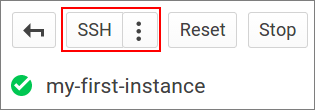
You should now be at the command prompt in the instance home directory. Once you
have logged in, you can do anything you could do on any other standard Linux
machine, including installing applications. You have root permissions on your
instance and full control over everything. If you need to log out of your
instance, type exit:
user@my-first-instance$ exit
Serve web pages
It is easy to configure your instance to serve HTTP requests from outside its network. Once your instance is running, install Apache on your instance, as follows.
-
Install Apache HTTP Server
You have full administrator privileges on any instance that you start in Google Compute Engine. Instances have access to package repositories by default.
Debian 7 Within your instance, run the following commands:
me@my-first-instance$ sudo apt-get update
me@my-first-instance$ sudo apt-get install apache2
Ubuntu 14.04 Within your instance, run the following commands:
me@my-first-instance$ sudo apt-get update
me@my-first-instance$ sudo apt-get install apache2
CentOS 6 / RHEL 6 Within your instance, run the following commands:
me@my-first-instance:~$ sudo yum install httpd
me@my-first-instance:~$ sudo service httpd start
SUSE 11 Within your instance, run the following commands:
user@my-first-instance$ sudo zypper update
user@my-first-instance$ sudo zypper in apache2
user@my-first-instance$ sudo /usr/sbin/rcapache2 start
-
Create a new home page
The Apache web server comes with a default web page that we can overwrite to prove that we really control our server. ssh in to your instance and run the following command to overwrite the existing Apache home page:
Debian 7 me@my-first-instance$ echo '<!doctype html><html><body><h1>Hello World!</h1></body></html>' | sudo tee /var/www/index.html
Ubuntu 14.04 me@my-first-instance$ echo '<!doctype html><html><body><h1>Hello World!</h1></body></html>' | sudo tee /var/www/html/index.html
CentOS 6 / RHEL 6 me@my-first-instance$ echo '<!doctype html><html><body><h1>Hello World!</h1></body></html>' | sudo tee /var/www/html/index.html
SUSE 11 user@my-first-instance$ echo '<!doctype html><html><body><h1>Hello World!</h1></body></html>' | sudo tee /srv/www/htdocs/index.html
-
Browse to your home page
To test that your webserver is serving traffic, you can browse to the external IP of the virtual machine. To get an instance’s external IP:
- Go to the VM instances page in the Google Developers Console.
- Look for your instance and take note of the external IP under the EXTERNAL IP column.
Next, browse to the IP in a new browser window. The full URL of your home page is
http://EXTERNAL_IP.If your webserver is working, the web page should print Hello World!
Clean up
When you are finished using your instance, you can delete it and the associated root persistent disk. Deleting an instance stops the virtual machine and removes it from the project.
To delete a virtual machine instance:
- Go to the VM instances page in the Google Developers Console.
- Click on the name of a virtual machine. In this case,
my-first-instance. - On the top of the instance’s page, click on Delete.
Next steps
Congratulations! You've just run your first Google Compute Engine instance to host a web server. Learn more about Google Compute Engine on the following pages:
- See the
gcloud computequickstart to learn how to use the command-line tool. - Read the Overview Page to get an idea of the basic elements of the Google Compute Engine architecture.
- Review the quota page for more information about Google Compute Engine quotas, and review the pricing for information about persistent disk and machine type pricing.
- Read the details pages for the various resources including instances, networks and firewalls, and disks.