
Chrome Custom Tabs
Last updated: Friday June 12, 2015.
What are Chrome custom tabs?
App developers face a choice when a user taps a URL to either launch a browser, or build their own in-app browser using WebViews.
Both options present challenges — launching the browser is a heavy context switch that isn't customizable, while WebViews don't share state with the browser and add maintenance overhead.
Chrome custom tabs give apps more control over their web experience, and make transitions between native and web content more seamless without having to resort to a WebView.
Chrome custom tabs allow an app to customize how Chrome looks and feels. An app can change things like:
- Toolbar color
- Enter and exit animations
- Add custom actions to the Chrome toolbar and overflow menu
Chrome custom tabs also allow the developer to pre-start Chrome and pre-fetch content for faster loading.
You can test this now with our Chrome custom tab sample on Github.
When should I use Chrome custom tabs vs WebView?
The WebView is good solution if you are hosting your own content inside your app. If your app directs people to URLs outside your domain, we recommend that you use Chrome custom tabs for these reasons:
- Simple to implement. No need to build code to manage requests, permission grants or cookie stores.
- UI customization:
- Toolbar color
- Action button
- Custom menu items
- Custom in/out animations
- Navigation awareness: the browser delivers a callback to the application upon an external navigation.
- Performance optimization:
- Pre-warming of the Browser in the background, while avoiding stealing resources from the application.
- Providing a likely URL in advance to the browser, which may perform speculative work, speeding up page load time.
- Lifecycle management: the browser prevents the application from being evicted by the system while on top of it, by raising its importance to the "foreground" level.
When will this be available?
As of Chrome 45, Chrome custom tabs are available in Chrome Dev Channel, on all of Chrome's supported Android versions (Jellybean onwards). Please note that the API will change slightly over the coming weeks.
The below spec only applies to Chrome 45.
We are looking for feedback, questions and suggestions on this project, so we encourage you to file issues on crbug.com and ask questions to our Twitter account @ChromiumDev.
Implementation guide
A complete example is available at https://github.com/GoogleChrome/custom-tabs-client. It contains re-usable classes to customize the UI, connect to the background service, and handle the lifecycle of both the application and the custom tab activity. It also contains the AIDL files required to connect to the service, as the ones contained in the Chromium repository are not directly usable with Android Studio.
If you follow the guidance from this page, you will be able to create a great integration.
- Customizing the UI and interaction with the custom tabs.
- Making the page load faster, and keeping the application alive.
The first one is done by appending extras into the ACTION_VIEW Intent sent to Chrome; the second by connecting to a service exported by Chrome.
Note: These notes are accurate for Chrome 44; several changes will need to be made in Chrome 45.
Enable Chrome Custom Tabs
//  Must have. Extra used to match the session. Its value is a long returned by
//  BrowserConnectionService. See newSession() below. Even if the service is not
//  used and there is no valid session id to be provided, this extra has to be present
//  to launch a custom tab.

private static final String EXTRA_CUSTOM_TABS_SESSION_ID = "android.support.CUSTOM_TABS:session_id";
String url = ¨https://paul.kinlan.me/¨;
Intent intent = new Intent(Intent.ACTION_VIEW, Uri.parse(url));
intent.putExtra(EXTRA_CUSTOM_TABS_SESSION_ID, -1); // -1 or any valid session id returned from newSession() call
What happens if the user doesn’t have a recent version of Chrome installed?
We are using the ACTION_VIEW Intent, this means that by default the page will open in the system browser, or the user's default browser.
If the user has Chrome installed and it is the default browser, it will automatically pick up the EXTRAS and present a customized UI. It is also possible for another browser to use the Intent extras to provide a similar customized interface.
How can I check whether Chrome supports Chrome custom tabs?
All versions of Chrome supporting Chrome custom tabs expose a service (see the later section "Connect to the Service"). To check whether Chrome supports custom tabs, try to bind to the service. If it succeeds, then custom tabs can safely be used.
Configure the color of the address bar
One of the most important (and simplest to implement) aspects of Chrome Custom Tabs is the ability for you to change the color of the address bar to be consistent with your theme.
// Extra that changes the background color for the omnibox. colorInt is an int
// that specifies a Color.

private static final String EXTRA_CUSTOM_TABS_TOOLBAR_COLOR = "android.support.CUSTOM_TABS:toolbar_color";
intent.putExtra(EXTRA_CUSTOM_TABS_TOOLBAR_COLOR, colorInt);
Configure custom enter and exit animations
Many Android applications use custom View Entrance and Exit animations when transition between Activities on Android. Chrome custom tabs is no different, you can change the entrance and exit (when the user presses Back) animations to keep them consistent with the rest of your application.
// Bundle constructed out of
ActivityOptions that Chrome will be running when
// it finishes CustomTabActivity. If you start the Custom Tab with
// a customized animation, you can specify a matching animation when Custom Tab
// returns to your app.

public static final String EXTRA_CUSTOM_TABS_EXIT_ANIMATION_BUNDLE =
"android.support.CUSTOM_TABS:exit_animation_bundle";
Bundle finishBundle = ActivityOptions.makeCustomAnimation(context, R.anim.clientEnterAnimResId, R.anim.CustomTabExitAnimResId).toBundle;
intent.putExtra(EXTRA_CUSTOM_TABS_EXIT_ANIMATION_BUNDLE, finishBundle);
Bundle startBundle = ActivityOptions.makeCustomAnimation(context, R.anim.CustomTabEnterAnimResId, R.anim.clientExitAnimResId).toBundle;
startActivity(intent, startBundle);
Configure a custom action button

As the developer of your app, you have full control over the Action Button that is presented to your users inside the Chrome tab.
In most cases, this will be a primary action such as Share, or another common activity that your users will perform.
The Action Button is represented as a Bundle with an icon of the action button and a pendingIntent that will be called by Chrome when your user hits the action button. The icon is currenlty 24dp in height and 24-48 dp in width.
// Key that specifies the Bitmap to be used as the image source for the
// action button.

private static final String KEY_CUSTOM_TABS_ICON = "android.support.CUSTOM_TABS:icon";
// Key that specifies the PendingIntent to launch when the action button
// or menu item was tapped. Chrome will be calling PendingIntent#send() on
// taps after adding the url as data. The client app can call
// Intent#getDataString() to get the url.
public static final String KEY_CUSTOM_TABS_PENDING_INTENT = "android.support.CUSTOM_TABS:pending_intent";
// Optional. Use a bundle for parameters if an the action button is specified.
public static final String EXTRA_CUSTOM_TABS_ACTION_BUTTON_BUNDLE =
"android.support.CUSTOM_TABS:action_button_bundle";
Bundle actionButtonBundle = new Bundle();
actionButtonBundle.putParcelable(KEY_CUSTOM_TABS_ICON, icon);
actionButtonBundle.putParcelable(KEY_CUSTOM_TABS_PENDING_INTENT, pendingIntent);
intent.putExtra(EXTRA_CUSTOM_TABS_ACTION_BUTTON_BUNDLE, actionButtonBundle);
Configure a custom menu
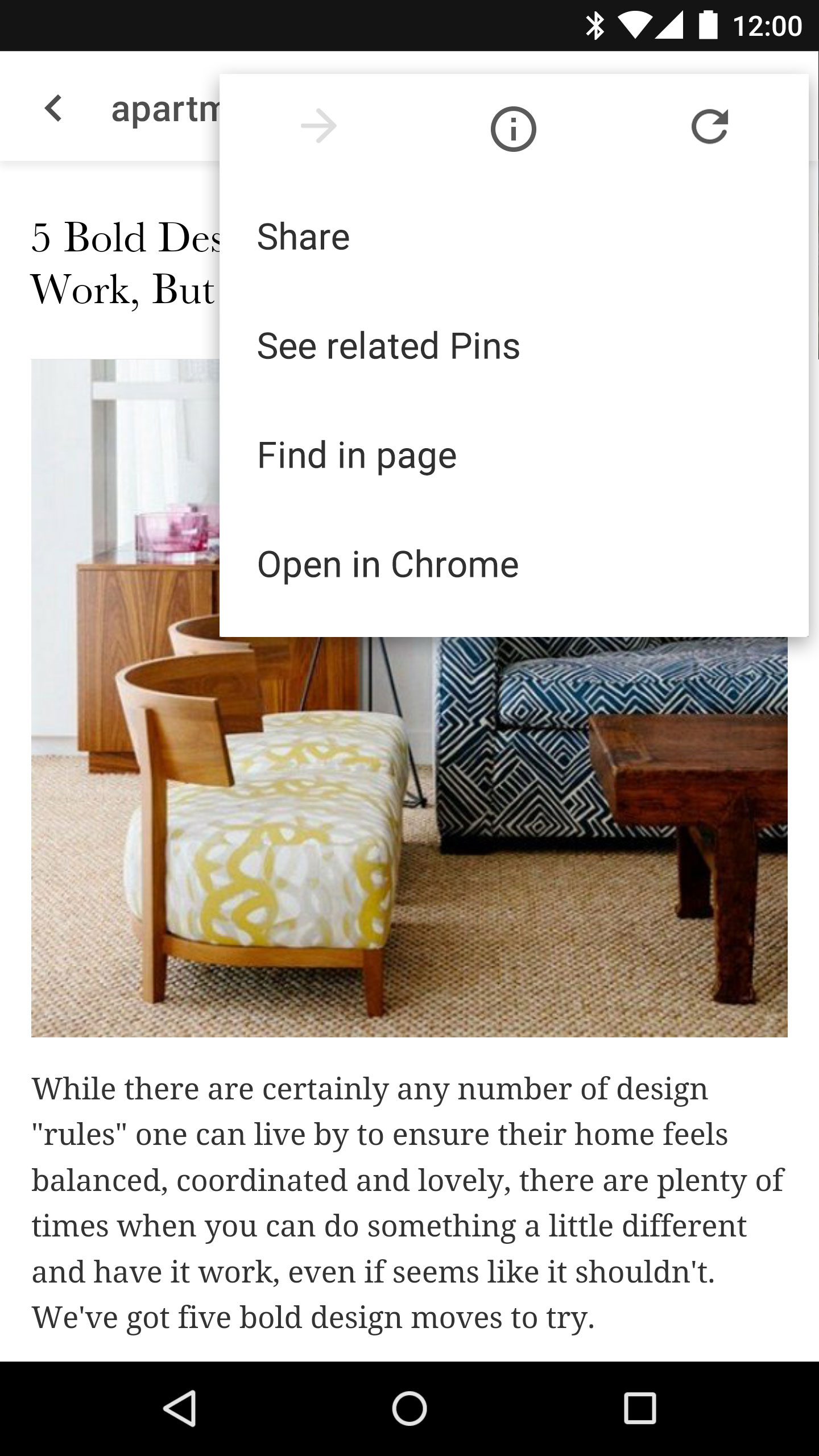
The Chrome browser has a comprehensive menu of actions that users will perform frequently inside a browser, however they may not be relevant to your application context.
Chrome custom tabs will have a three icon row with "Forward","Page Info" and "Refresh" on top at all times, with "Find page" and "Open in Browser" on the footer of the menu.
As the developer, you can add and customize up to menu three items that will appear between the icon row and foot items.
The menu is represented as an Array of Bundles (currently without an icon), menu text and a pendingIntent that Chrome will call on your behalf when the user taps the item.
// Key for the title string for a given custom menu item public static final String KEY_CUSTOM_TABS_MENU_TITLE = "android.support.CUSTOM_TABS:menu_title"; // Use an ArrayListfor specifying menu related params. There // should be a separate Bundle for each custom menu item. public static final String EXTRA_CUSTOM_TABS_MENU_ITEMS = "android.support.CUSTOM_TABS:menu_items"; ArrayList menuItemBundleList = new ArrayList<>(); // For each menu item do: Bundle menuItem = new Bundle(); menuItem.putString(KEY_CUSTOM_TABS_MENU_TITLE, menuItemTitle); menuItem.putParcelable(KEY_CUSTOM_TABS_PENDING_INTENT, pendingIntent); menuItemBundleList.add(menuItem); intent.putParcelableArrayList(EXTRA_CUSTOM_TABS_MENU_ITEMS, menuItemBundleList);
Warm up Chrome to make pages load faster
By default, when startActivity is called with the correctly configured ACTION_VIEW Intent it will spin up Chrome and launch the URL. This can take up precious time and impact on the perception of smoothness.
We believe that users demand a near instantaneous experience, so we have provided a Service in Chrome that your app can connect to and tell Chrome to warm up the browser and the native components. We are also experimenting with the ability for you, the developer to tell Chrome the likely set of web pages the user will visit. Chrome will then be able to perform:
- DNS pre-resolution of the main domain
- DNS pre-resolution of the most likely sub-resources
- Pre-connection to the destination including HTTPS/TLS negotiation.
The process for warming up Chrome is as follows:
- Connect to the service.
- Attach a navigation callback with
finishSetupso that you know a page was loaded. - On the service, call
warmupto start Chrome behind the scenes. - Create a
newSession, this session is used for all requests to the API. - Tell Chrome which pages the user is likely to load with
mayLaunchUrl. - Launch the VIEW Intent with the session ID.
Connect to the Chrome Service
If you are not familiar with Connecting to Android Services, the interface is created with AIDL and automatically creates a proxy service class for you.
The AIDL that defines this service interface can be found in our Sample on Github.
// Package name for the Chrome channel the client wants to connect to. This
// depends on the channel name.
// Stable = com.android.chrome
// Beta = com.chrome.beta
// Dev = com.chrome.dev
public static final String CUSTOM_TAB_PACKAGE_NAME = "com.chrome.dev";  // Change when in stable

Intent serviceIntent = new Intent(Intent.ACTION_MAIN);

// Category to add to the service intent. This category can be used as a
// way generically pick apps //that handle custom tabs for both activity and service
// side implementations.

public static final String CATEGORY_CUSTOM_TABS = "android.intent.category.CUSTOM_TABS";
serviceIntent.addCategory(CATEGORY_CUSTOM_TABS);
serviceIntent.setPackage(CUSTOM_TAB_PACKAGE_NAME);
context.bindService(serviceIntent, mServiceConnection, flags);
Attach Navigation Callback
long finishSetup(IBrowserConnectionCallback callback)
Set the callback triggered on an external navigation. This method must be called right after the service connection, and must be called again if the service gets disconnected. Only one call to this method is allowed, following ones will return an error.
If you plan to warm up Chrome, this must also be called immediately after your app is bound to service and before the VIEW Intent is sent to the browser. Otherwise it won't be possible to link the tab created to the provided callback and you will not receive notifications of navigation.
Returns 0 for success.
Warm up the Browser Process
long warmup(long flags)
Warm up the browser process and loads the native libraries so that the Chome custom tab lauches instantly. The Warmup process is asynchronous, and the return value indicates that the request has been accepted.
Returns 0 for success.
Create a new tab session
long newSession()
Session ID is used in subsequent calls to link mayLaunchUrl call, the VIEW Intent and the tab generated to each other. Using this ID, it is possible to send mayLunchUrl calls and intents to an already created tab as well.
Returns the sessionID. A negative number to signal an error, or a positive new session ID.
Now this sessionID can be used to associate the VIEW Intent with any preparation that has been done for the given session.
Tell Chrome what URL's the user is likely to open
long mayLaunchUrl(long sessionId, String url, Bundle extras, List<Bundle>
otherLikelyBundles)
Indicate to the browser of a likely future navigation to a URL so that it can pre-cache and prepare the connection and the page before it is shown to the user. The most likely URL must be specified first. Optionally, a list of other likely URLs can be provided. They are treated as less likely than the first one, and have to be sorted in decreasing priority order. These additional URLs may be ignored.
Note: The method warmup() has to be called first. Each bundle inside otherLikelyBundles has to provide a url string value. All previous calls to this method will be deprioritized.
Returns the sessionId if it is known by the service, a number < 0 to signal an error.
Custom Tabs Connection Callback
void onUserNavigationStarted(long sessionId, String url, Bundle extras)
To be called when the user triggers a navigation inside a custom tab, providing the url and more extras. The session ID for the corresponding tab is also provided.
void onUserNavigationFinished(long sessionId, String url, Bundle extras)
To be called when a navigation is done loading inside a custom tab with the above given parameters.
FAQ
- Is this available on iOS?
- No. There is a project that allows you to integrate Chrome into your app on iOS but in a completely separate way.
- When will this be available on stable channel?
- We don't have a fixed date or version of Chrome yet. The normal release cycle from being in the Dev Channel of Chrome is about 12 weeks, however we are looking for feedback from developers first.
- Where can I ask questions?
- Stackoverflow tag: Chrome custom tabs