Cloning a repository from GitHub to GitHub Desktop
You can use GitHub to clone remote repositories to GitHub Desktop.
Tip: You also can use GitHub Desktop to clone repositories that exist on GitHub. For more information, see "Cloning a repository from GitHub Desktop."
-
Sign in to GitHub and GitHub Desktop before you start to clone.
-
On GitHub, navigate to the main page of the repository.
-
Under your repository name, click Clone or download.

-
Click Open in Desktop to clone the repository and open it in GitHub Desktop.

-
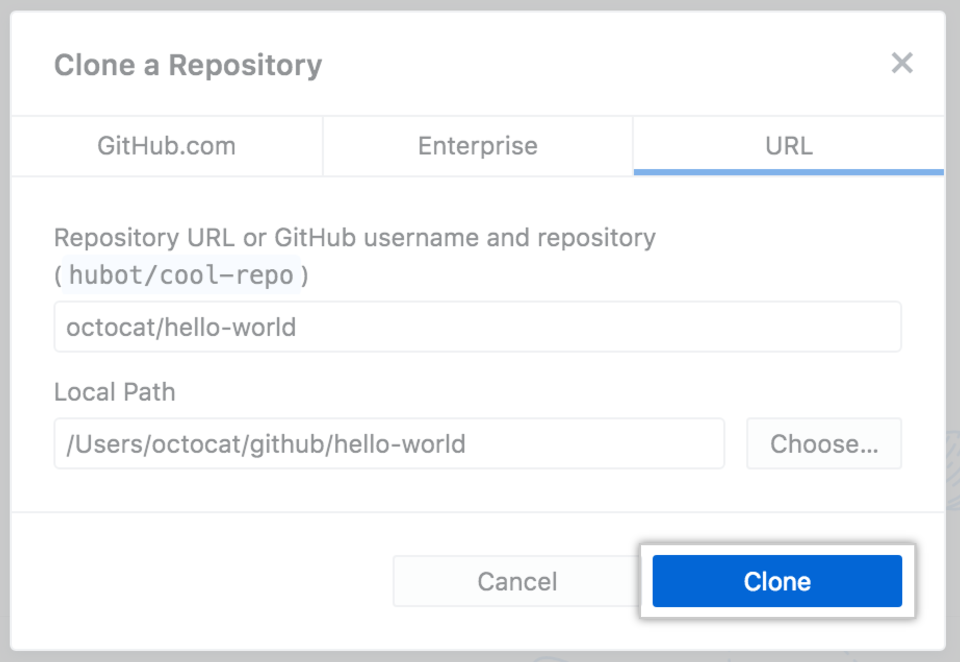
Click Choose... and, using the Finder window, navigate to a local path where you want to clone the repository.

Note: If the repository is configured to use LFS, you will be prompted to initialize Git LFS.
-
Click Clone.
-
Sign in to GitHub and GitHub Desktop before you start to clone.
-
On GitHub, navigate to the main page of the repository.
-
Under your repository name, click Clone or download.
-
Click Open in Desktop to clone the repository and open it in GitHub Desktop.
-
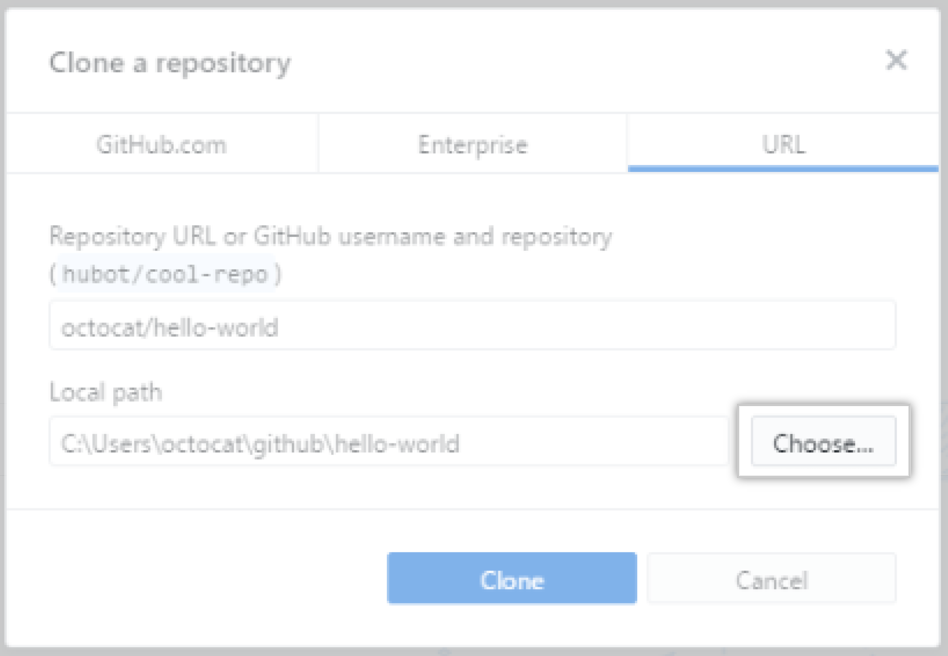
Click Choose... and, using Windows Explorer, navigate to a local path where you want to clone the repository.
Note: If the repository is configured to use LFS, you will be prompted to initialize Git LFS.
-
Click Clone.
