About the default branch name
When a member of your organization creates a new repository, GitHub will create a single branch and set it as the repository's default branch. GitHub currently names the default branch master, but you can set the default branch to be named anything that makes sense for your development environment.
If you have admin permissions to a repository, you can change the default branch to another existing branch. For more information, see "Setting the default branch."
While you can rename your repository's existing default branch, GitHub plans to provide tools to simplify the process of renaming the default branch. For more information on these plans, see github/renaming.
If you have already renamed the default branch, GitHub will automatically redirect links on GitHub.com that contain a deleted master branch name to the equivalent link on the repository's default branch.
Setting the default branch name
-
In the top right corner of GitHub, click your profile photo, then click Your profile.

-
On the left side of your profile page, under "Organizations", click the icon for your organization.

-
Under your organization name, click Settings.

-
In the left sidebar, click Repository defaults.

-
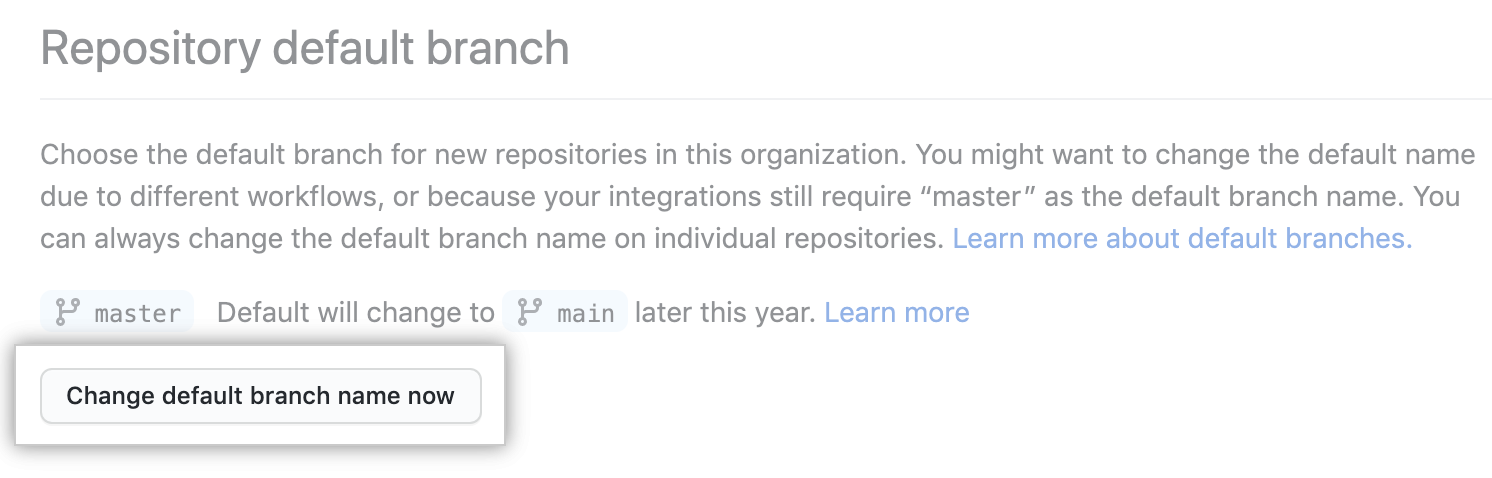
Under "Repository default branch", click Change default branch name now.
Note: If your enterprise owner has enforced a policy for the default name, you won't be able to change it here. You will be able to set the default branch on individual repositories. For more information, see "Enforcing a policy on the default branch name" and "Setting the default branch."
-
Type the default name that you would like to use for new branches.

-
Click Update.
