Hallo, Entdecker! An dieser Seite wird aktiv gearbeitet, oder sie wird noch übersetzt. Die neuesten und genauesten Informationen findest Du in unserer englischsprachigen Dokumentation.

Organisationskonto löschen

Wenn Du eine Organisation löschst, werden alle Repositorys, Forks von privaten Repositorys, Wikis, Issues, Pull Requests und Projekt- respektive Organisationsseiten ebenfalls gelöscht. The organization name becomes available for use on a new user or organization account, and your billing will end.

Inhalt dieses Artikels

Did this doc help you?

Help us make these docs great!

All GitHub docs are open source. See something that's wrong or unclear? Submit a pull request.

Make a contribution

Oder, learn how to contribute.

Tipp: Wenn Du Dein bezahltes Abonnement stornieren möchtest, kannst Du Deine Organisation zu GitHub Free herabstufen, anstatt die Organisation und ihre Inhalte zu löschen.

1. Sichere die Inhalte Deiner Organisation

Wenn Du eine Organisation gelöscht hast, kann GitHub Deine Inhalte nicht wiederherstellen.. Bevor Du also Deine Organisation löschst, stelle sicher, dass Du eine Kopie aller Repositorys, Wikis und Issues des Kontos besitzt.

2. Lösche die Organisation

  1. In der oberen rechten Ecke von GitHub klicke auf Dein Profilfoto und dann auf your profile (Dein Profil).
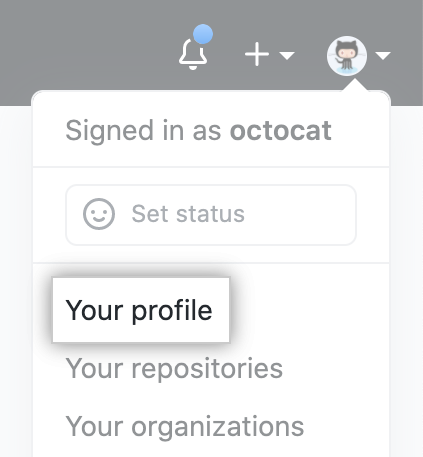
    Profilfoto
  2. Klicke auf der linken Seite Deiner Profilseite unter „Organizations" (Organisationen) auf das Symbol für Deine Organisation.
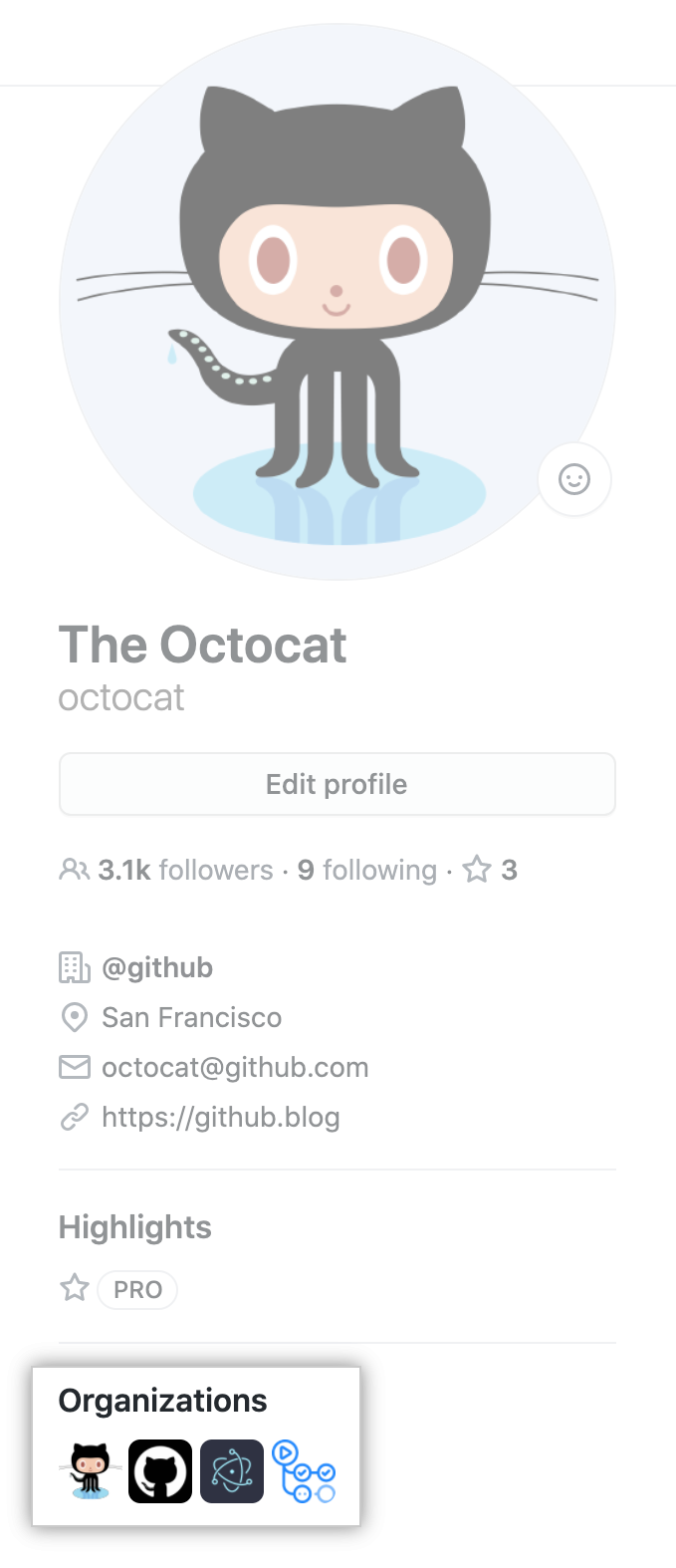
    Organisationssymbole
  3. Klicke unter Deinem Organisationsnamen auf Settings (Einstellungen).
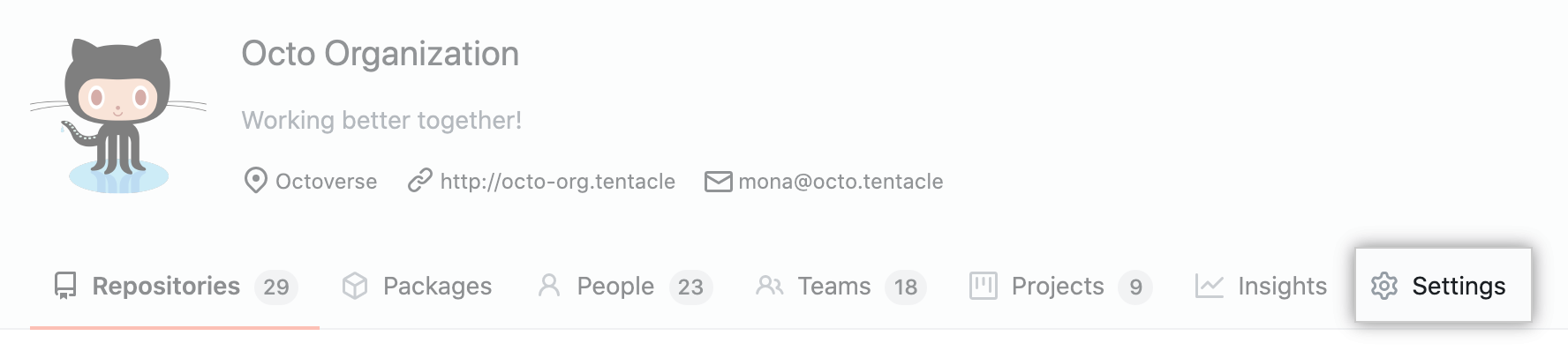
    Schaltfläche „Organization settings" (Organsationseinstellungen)
  4. Klicke fast am Ende der Seite mit den Einstellungen der Organisation auf Delete this organization (Diese Organisation löschen).

    Schaltfläche „Delete this organization“ (Diese Organisation löschen)

Did this doc help you?

Help us make these docs great!

All GitHub docs are open source. See something that's wrong or unclear? Submit a pull request.

Make a contribution

Oder, learn how to contribute.