Before adding a new SSH key to your GitHub Enterprise account, you should have:
After adding a new SSH key to your GitHub Enterprise account, you can reconfigure any local repositories to use SSH. For more information, see "Switching remote URLs from HTTPS to SSH."
Nota: Las llaves DSA de se obsoletizaron en OpenSSH 7.0. Si tu sistema operativo utiliza OpenSSH, deberas utilizar una tipo de llave alterno cuando configures SSH, tal como una llave RSA. Por ejemplo, si tu sistema operativo es macOS Sierra, puedes configurar SSH utilizando una llave RSA.
-
Copy the SSH public key to your clipboard.
If your SSH public key file has a different name than the example code, modify the filename to match your current setup. When copying your key, don't add any newlines or whitespace.
$ pbcopy < ~/.ssh/id_ed25519.pub
# Copies the contents of the id_ed25519.pub file to your clipboard
Tip: If
pbcopyisn't working, you can locate the hidden.sshfolder, open the file in your favorite text editor, and copy it to your clipboard. -
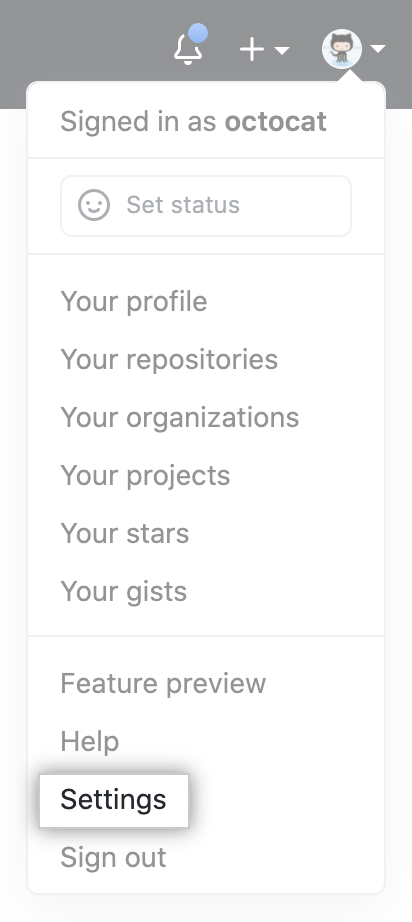
En la esquina superior derecha de cualquier página, da clic en tu foto de perfil y después da clic en Configuración.
-
En la barra lateral de configuración de usuario, da clic en Llaves SSH y GPG.

-
Click New SSH key or Add SSH key.

-
In the "Title" field, add a descriptive label for the new key. For example, if you're using a personal Mac, you might call this key "Personal MacBook Air".
-
Paste your key into the "Key" field.

-
Click Add SSH key.

-
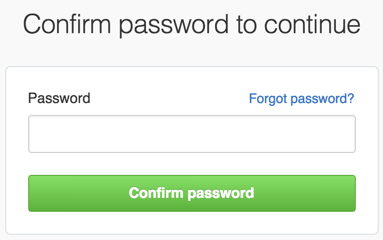
Si se te solicita, confirma tu contraseña GitHub Enterprise.
-
Copy the SSH public key to your clipboard.
If your SSH public key file has a different name than the example code, modify the filename to match your current setup. When copying your key, don't add any newlines or whitespace.
$ clip < ~/.ssh/id_ed25519.pub
# Copies the contents of the id_ed25519.pub file to your clipboard
Tip: If
clipisn't working, you can locate the hidden.sshfolder, open the file in your favorite text editor, and copy it to your clipboard. -
En la esquina superior derecha de cualquier página, da clic en tu foto de perfil y después da clic en Configuración.
-
En la barra lateral de configuración de usuario, da clic en Llaves SSH y GPG.
-
Click New SSH key or Add SSH key.
-
In the "Title" field, add a descriptive label for the new key. For example, if you're using a personal Mac, you might call this key "Personal MacBook Air".
-
Paste your key into the "Key" field.
-
Click Add SSH key.
-
If prompted, confirm your GitHub Enterprise password.
-
Copy the SSH public key to your clipboard.
If your SSH public key file has a different name than the example code, modify the filename to match your current setup. When copying your key, don't add any newlines or whitespace.
$ sudo apt-get install xclip
# Downloads and installs xclip. If you don't have `apt-get`, you might need to use another installer (like `yum`)

$ xclip -selection clipboard < ~/.ssh/id_ed25519.pub
# Copies the contents of the id_ed25519.pub file to your clipboard
Tip: If
xclipisn't working, you can locate the hidden.sshfolder, open the file in your favorite text editor, and copy it to your clipboard. -
En la esquina superior derecha de cualquier página, da clic en tu foto de perfil y después da clic en Configuración.
-
En la barra lateral de configuración de usuario, da clic en Llaves SSH y GPG.
-
Click New SSH key or Add SSH key.
-
In the "Title" field, add a descriptive label for the new key. For example, if you're using a personal Mac, you might call this key "Personal MacBook Air".
-
Paste your key into the "Key" field.
-
Click Add SSH key.
-
If prompted, confirm your GitHub Enterprise password.