People with admin permissions for a repository can use the theme chooser to add a theme to a Páginas de GitHub site.
About the theme chooser
The theme chooser adds a Jekyll theme to your repository. For more information about Jekyll, see "About Páginas de GitHub and Jekyll."
How the theme chooser works depends on whether your repository is public or private.
- If Páginas de GitHub is already enabled for your repository, the theme chooser will add your theme to the current publishing source.
- If your repository is public and Páginas de GitHub is disabled for your repository, using the theme chooser will enable Páginas de GitHub and configure the default branch as your publishing source.
- If your repository is private and Páginas de GitHub is disabled for your repository, you must enable Páginas de GitHub by configuring a publishing source before you can use the theme chooser.
For more information about publishing sources, see "About Páginas de GitHub."
If you manually added a Jekyll theme to your repository in the past, those files may be applied even after you use the theme chooser. To avoid conflicts, remove all manually added theme folders and files before using the theme chooser. For more information, see "Adding a theme to your Páginas de GitHub site using Jekyll."
Adding a theme with the theme chooser
-
En GitHub, navega al repositorio de tu sitio.
-
Debajo de tu nombre de repositorio, da clic en Configuración.

-
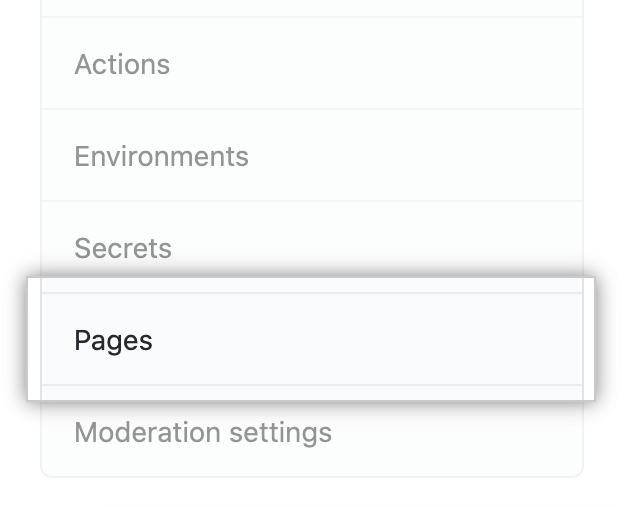
In the left sidebar, click Pages.
-
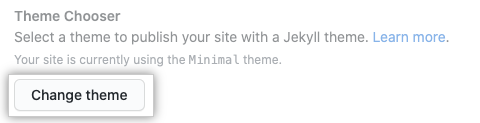
Under "Páginas de GitHub," click Choose a theme or Change theme.
-
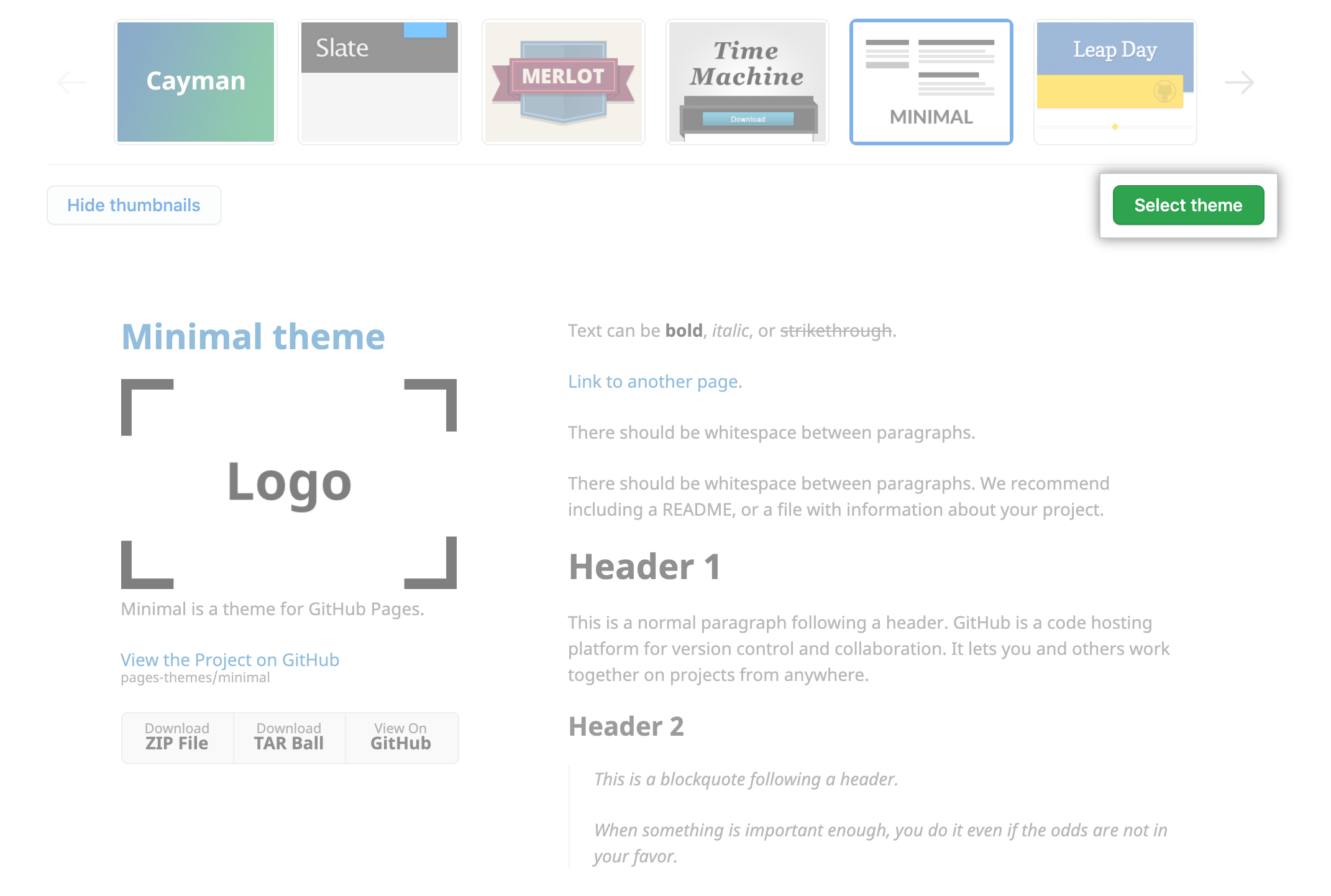
On the top of the page, click the theme you want, then click Select theme.
-
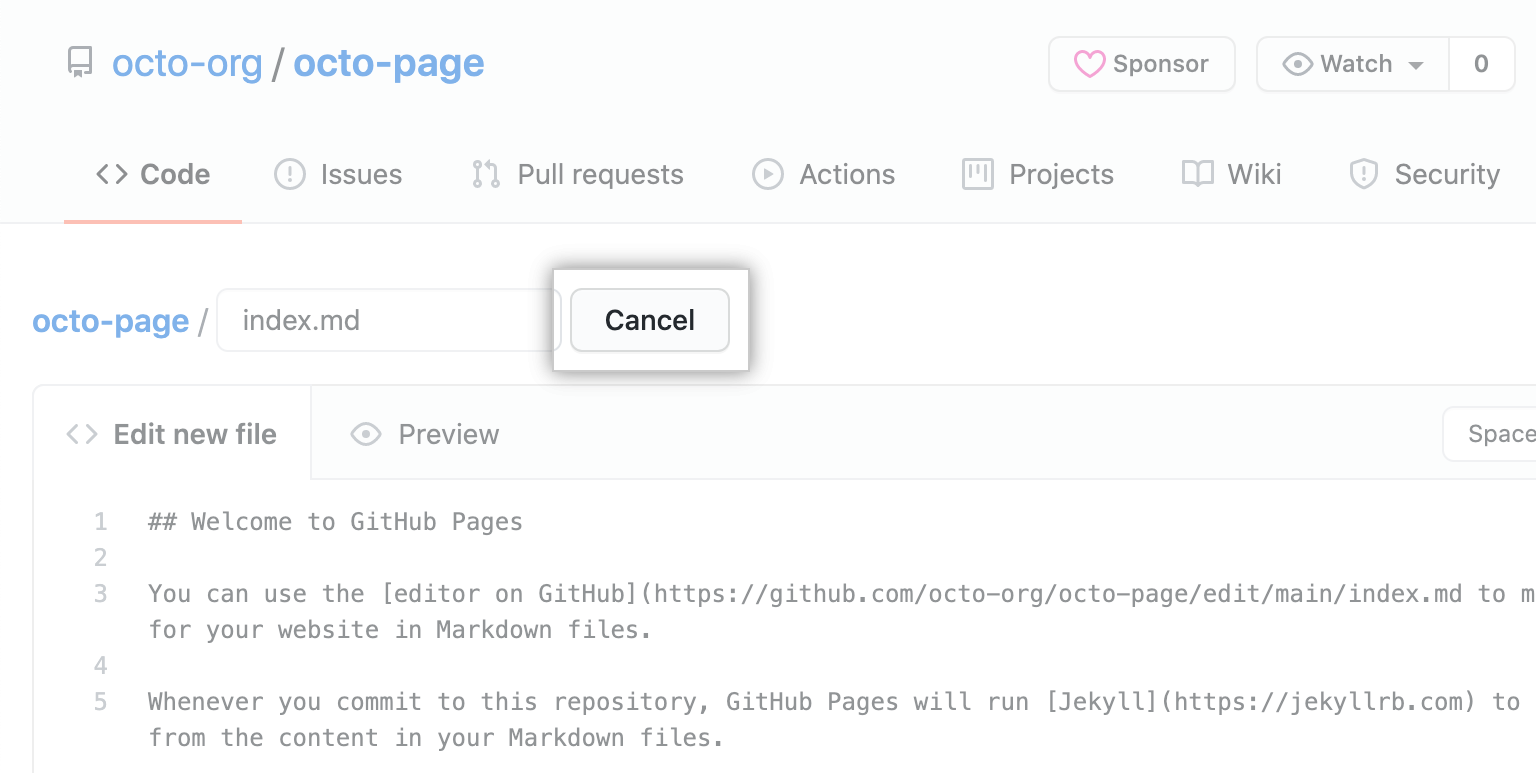
You may be prompted to edit your site's README.md file.
- To edit the file later, click Cancel.
- To edit the file now, see "Editing files in your repository."
- To edit the file later, click Cancel.
Your chosen theme will automatically apply to markdown files in your repository. To apply your theme to HTML files in your repository, you need to add YAML front matter that specifies a layout to each file. For more information, see "Front Matter" on the Jekyll site.
Further reading
- Themes on the Jekyll site