Note: Sponsoring on behalf of an organization is currently in beta and subject to change.
About sponsorship downgrades
When you downgrade or cancel a sponsorship, the change will become effective on your next billing date. Es gibt keine Rückerstattung für Zahlungen für GitHub Sponsors.
Sponsoring herabstufen
- On GitHub, navigate to the sponsored account's profile.
- Navigate to your sponsorship dashboard for the account.
- If you're sponsoring a user account, under the user's name, click Sponsoring.
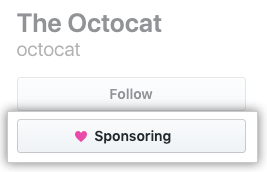
- If you're sponsoring an organization, to the right of the organization's name, click Sponsoring.

- If you're sponsoring a user account, under the user's name, click Sponsoring.
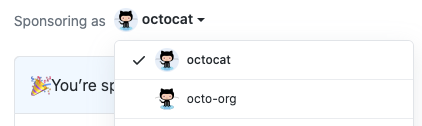
- Optionally, to manage a sponsorship on behalf of an organization, on the right side of the page, use the Sponsoring as drop-down menu, and click the organization.
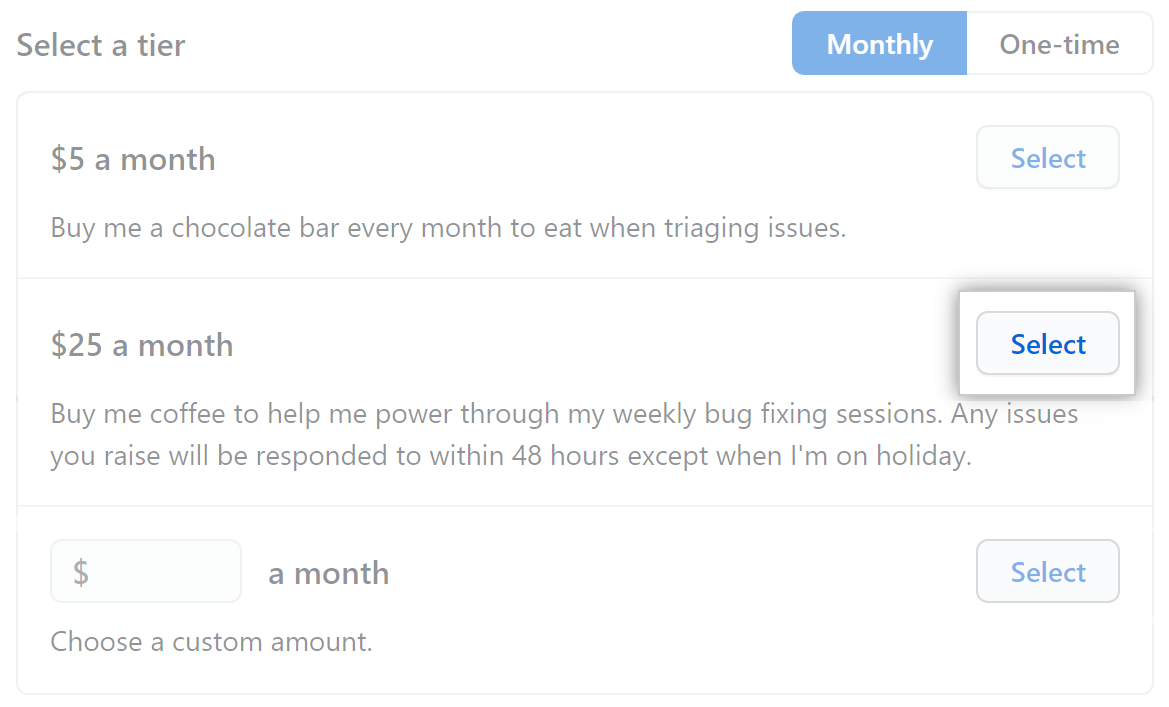
- Überprüfe rechts auf der Seite unter „Select a tier" (Eine Stufe wählen) die verfügbaren Sponsorship-Stufen. If more than one type of tier is available "Monthly" tiers are shown, click One-time to show the tiers for one-time payments.

- To the right of the tier you want, click Select. If want to select a custom amount, enter the sponsorship amount before clicking "Select."
- Klicke auf Update sponsorship (Sponsoring aktualisieren).

Sponsoring beenden
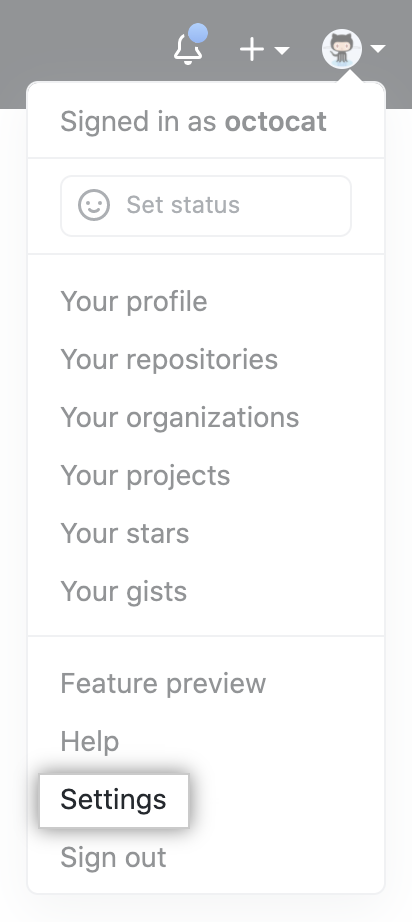
- Klicke in der oberen rechten Ecke einer beliebigen Seite auf Dein Profilfoto und klicke dann auf Settings (Einstellungen).
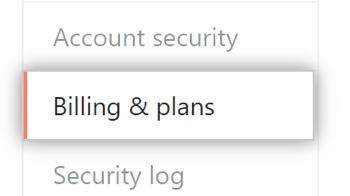
- In your user settings sidebar, click Billing & plans.
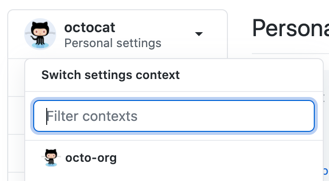
- Optionally, to manage your sponsorship on behalf of an organization, in the upper-left corner, use the Personal settings drop-down menu, and click the organization.
- Klicke unter „GitHub Sponsors" rechts neben dem unterstützten Open-Source-Mitwirkenden auf direkt neben dem geleisteten Betrag, dann klicke Cancel sponsorship (Sponsoring beenden).

- Lies die Informationen zum Beenden des Sponsorings, und klicke dann auf OK.
