Disabling a workflow allows you to stop a workflow from being triggered without having to delete the file from the repo. You can easily re-enable the workflow again on GitHub.
Temporarily disabling a workflow can be useful in many scenarios. These are a few examples where disabling a workflow might be helpful:
- A workflow error that produces too many or wrong requests, impacting external services negatively.
- A workflow that is not critical and is consuming too many minutes on your account.
- A workflow that sends requests to a service that is down.
- Workflows on a forked repository that aren't needed (for example, scheduled workflows).
Warning: To prevent unnecessary workflow runs, scheduled workflows may be disabled automatically. When a public repository is forked, scheduled workflows are disabled by default. In a public repository, scheduled workflows are automatically disabled when no repository activity has occurred in 60 days.
You can also disable and enable a workflow using the REST API. For more information, see the "Actions REST API."
Disabling a workflow
- On GitHub, navigate to the main page of the repository.
- Under your repository name, click Actions.

- In the left sidebar, click the workflow you want to disable.
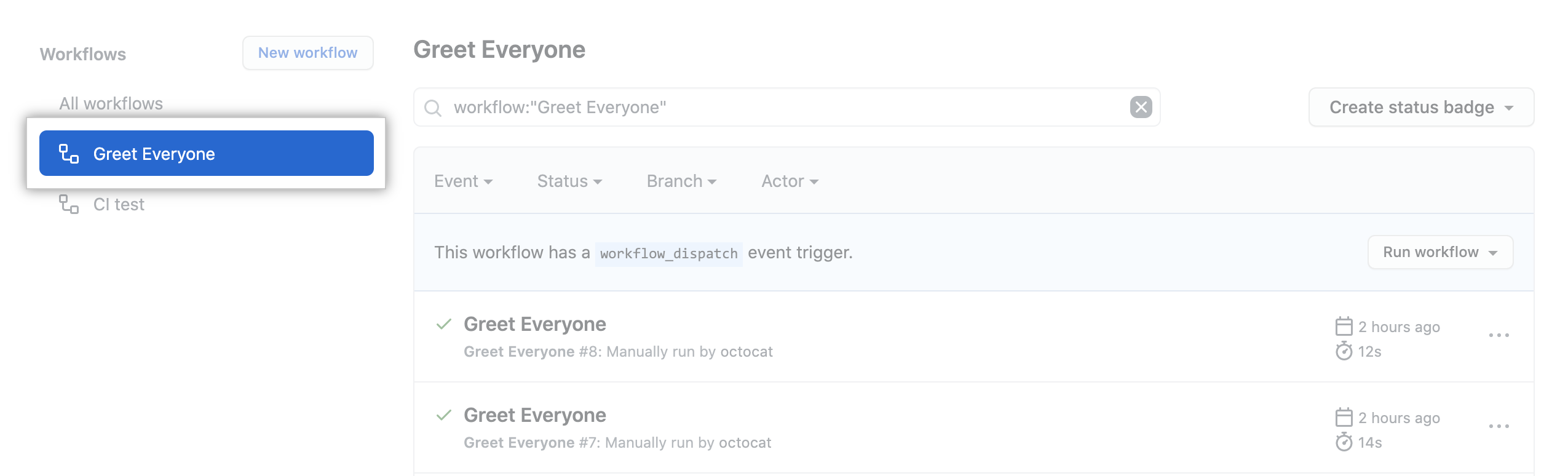
- Click .
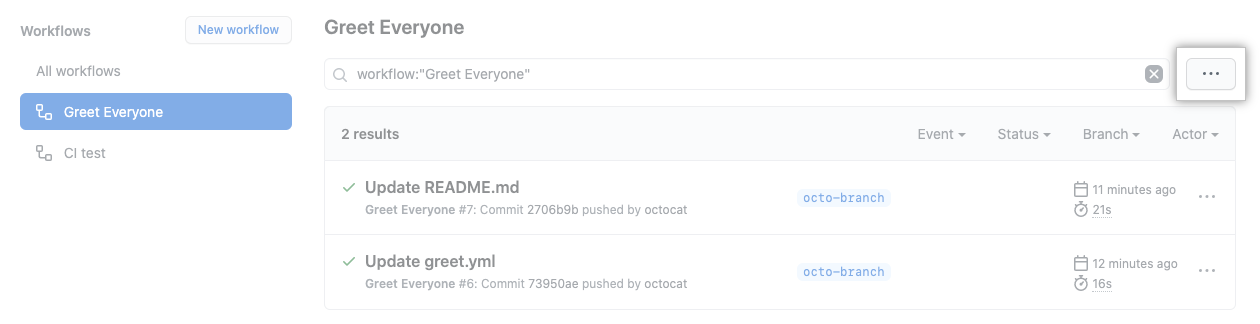
- Click Disable workflow.
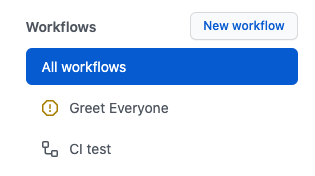
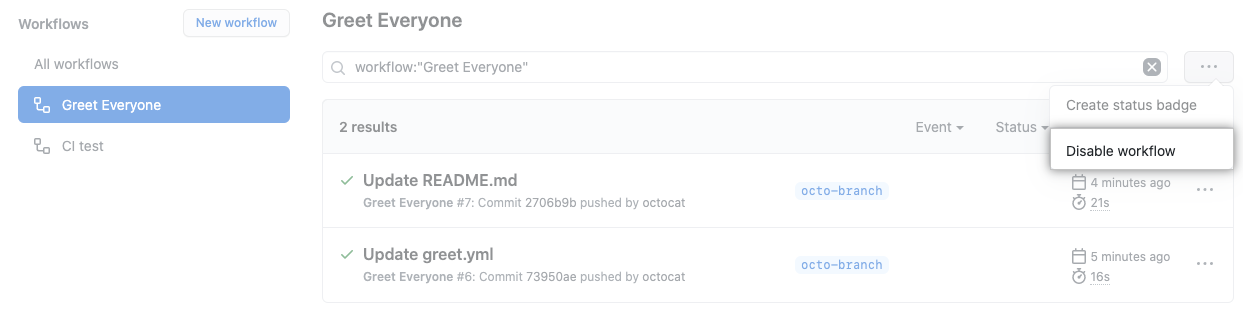 The disabled workflow is marked to indicate its status.
To download or find more information about GitHub CLI, see the GitHub CLI feature page.
For information on setting up GitHub CLI, see "Managing GitHub Actions with GitHub CLI."
To disable a workflow, use the workflow disable subcommand. Replace workflow with either the name, ID, or file name of the workflow you want to disable. For example, "Link Checker", 1234567, or "link-check-test.yml". If you don't specify a workflow, GitHub CLI returns an interactive menu for you to choose a workflow.
gh workflow disable workflowEnabling a workflow
You can re-enable a workflow that was previously disabled.
- On GitHub, navigate to the main page of the repository.
- Under your repository name, click Actions.
- In the left sidebar, click the workflow you want to enable.
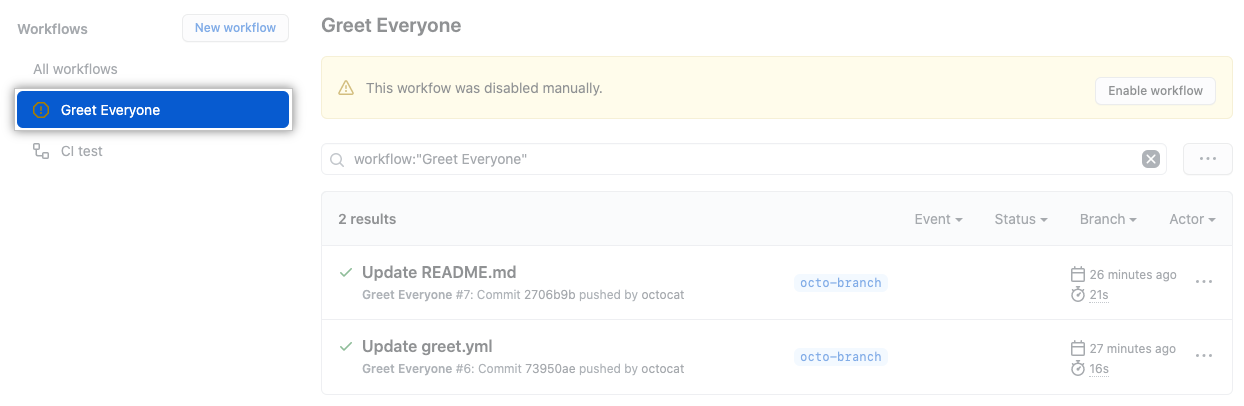
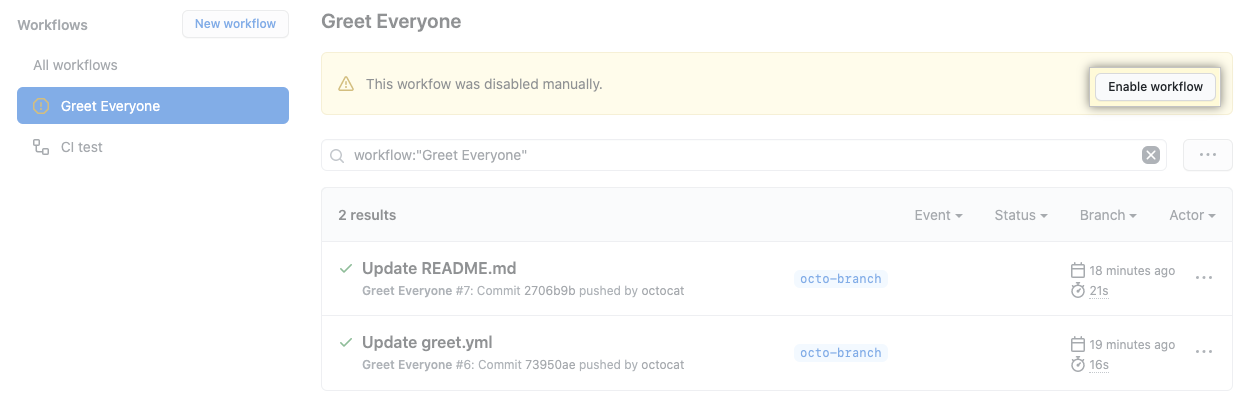
- Click Enable workflow.
For information on setting up GitHub CLI, see "Managing GitHub Actions with GitHub CLI."
To enable a workflow, use the workflow enable subcommand. Replace workflow with either the name, ID, or file name of the workflow you want to enable. For example, "Link Checker", 1234567, or "link-check-test.yml". If you don't specify a workflow, GitHub CLI returns an interactive menu for you to choose a workflow.
gh workflow enable workflow