Note: Codespaces is currently in limited public beta and subject to change. For more information about joining the beta, see "About Codespaces."
You can create more than one codespace per repository or even per branch. However, each user account has a two-codespace limit during limited public beta. If you've reached the limit and want to create a new codespace, you must delete a codespace first.
Note: Only the person who created a codespace can delete it. There is currently no way for organization owners to delete codespaces created within their organization.
-
Navigate to the repository where you created the codespace. Select Codespaces and then click . This will display all Codespaces that you have created in the repository.

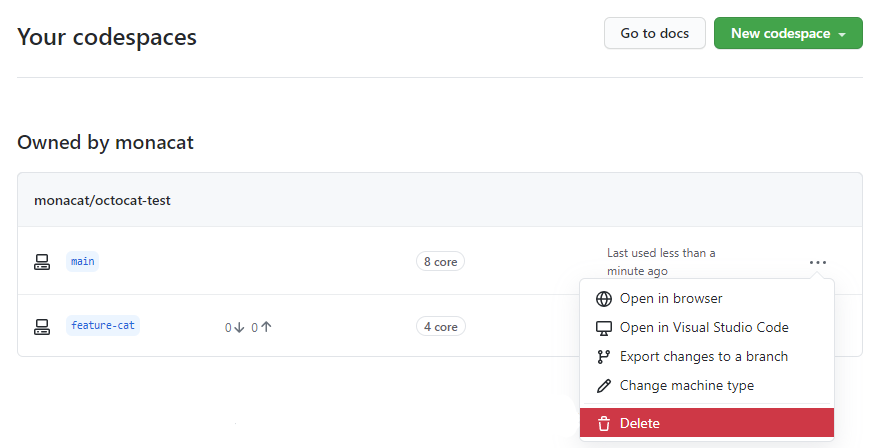
Alternatively, you can see every codespace owned by your user account at github.com/codespaces.
-
To the right of the codespace you want to delete, click , then click Delete
Deleting a codespace in Visual Studio Code
For information on deleting a codespace in Visual Studio Code, see "Using Codespaces in Visual Studio Code."