Requesting a new password
- To request a new password, visit https://github.com/password_reset.
- Enter the email address associated with your account on GitHub.com, then click Send password reset email. The email will be sent to the backup email address if you have one configured.
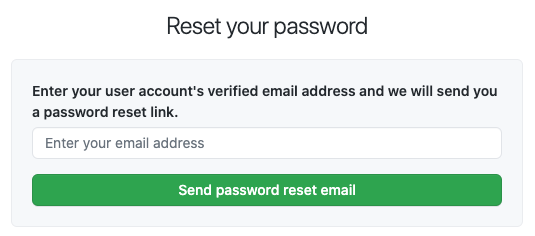
- We'll email you a link that will allow you to reset your password. You must click on this link within 3 hours of receiving the email. If you didn't receive an email from us, make sure to check your spam folder.
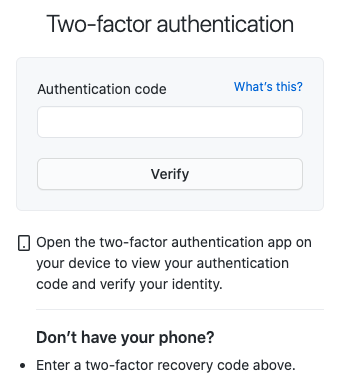
- If you have enabled two-factor authentication, you will be prompted for your 2FA credentials. Type your 2FA credentials or one of your 2FA recovery codes and click Verify.
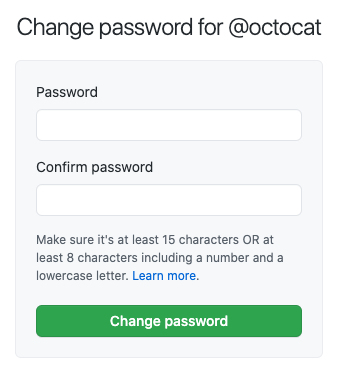
- Type a new password, confirm your new password, and click Change password. For help creating a strong password, see "Creating a strong password."
To avoid losing your password in the future, we suggest using a secure password manager, like LastPass or 1Password.
Changing an existing password
Cuando tecleas una contraseña para iniciar sesión, crear una cuenta, o cambiar tu contraseña, GitHub verificará si la contraseña que ingresaste se considera débil de acuerdo con los conjuntos de datos como en HaveIBeenPwned. La contraseña se puede considerar débil, incluso si no la usaste nunca antes.
GitHub solo inspecciona la contraseña cuando la escribes, pero nunca almacena la contraseña que ingresaste como texto simple. Para obtener más información, consulta HaveIBeenPwned.
- Sign in to GitHub.
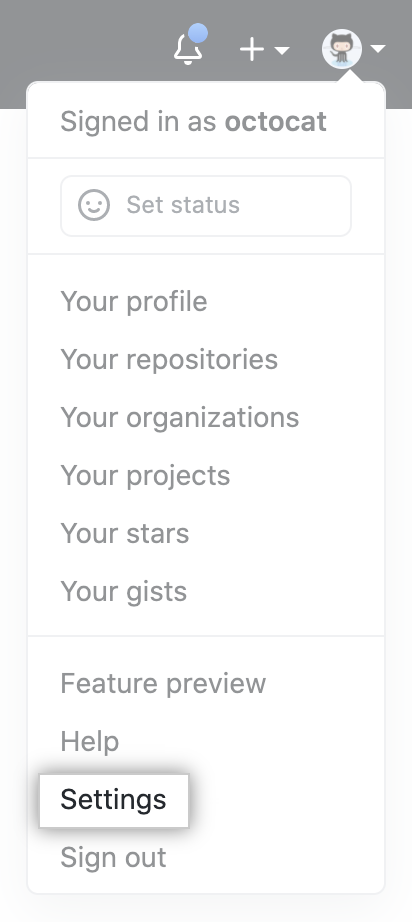
- En la esquina superior derecha de cualquier página, da clic en tu foto de perfil y después da clic en Configuración.
- En la barra lateral izquierda, da clic en Seguridad de cuenta.
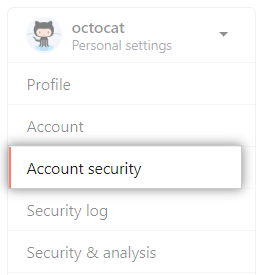
- Under "Change password", type your old password, a strong new password, and confirm your new password. For help creating a strong password, see "Creating a strong password"
- Click Update password.
For greater security, enable two-factor authentication in addition to changing your password. See About two-factor authentication for more details.
Updating your access tokens
See "Reviewing your authorized integrations" for instructions on reviewing and deleting access tokens. To generate new access tokens, see "Creating a personal access token."
Updating your SSH keys
See "Reviewing your SSH keys" for instructions on reviewing and deleting SSH keys. To generate and add new SSH keys, see "Generating an SSH key."
Resetting API tokens
If you have any applications registered with GitHub, you'll want to reset their OAuth tokens. For more information, see the "Reset an authorization" endpoint.
Preventing unauthorized access
For more tips on securing your account and preventing unauthorized access, see "Preventing unauthorized access."