View page resources
Resources are the files that a page needs in order to display correctly. Examples of resources include:
- CSS files.
- JavaScript files.
- HTML files.
- Image files.
You can view the resources that make up a web page from within several tools, or panels.
This guide assumes that you are familiar with the basics of web development and Microsoft Edge DevTools.
Open resources from the Command Menu
When you know the name of the resource that you want to inspect, the Command Menu provides a fast way of opening the resource.
Press
Ctrl+P(Windows, Linux) orCommand+P(macOS). The Open File dialog opens.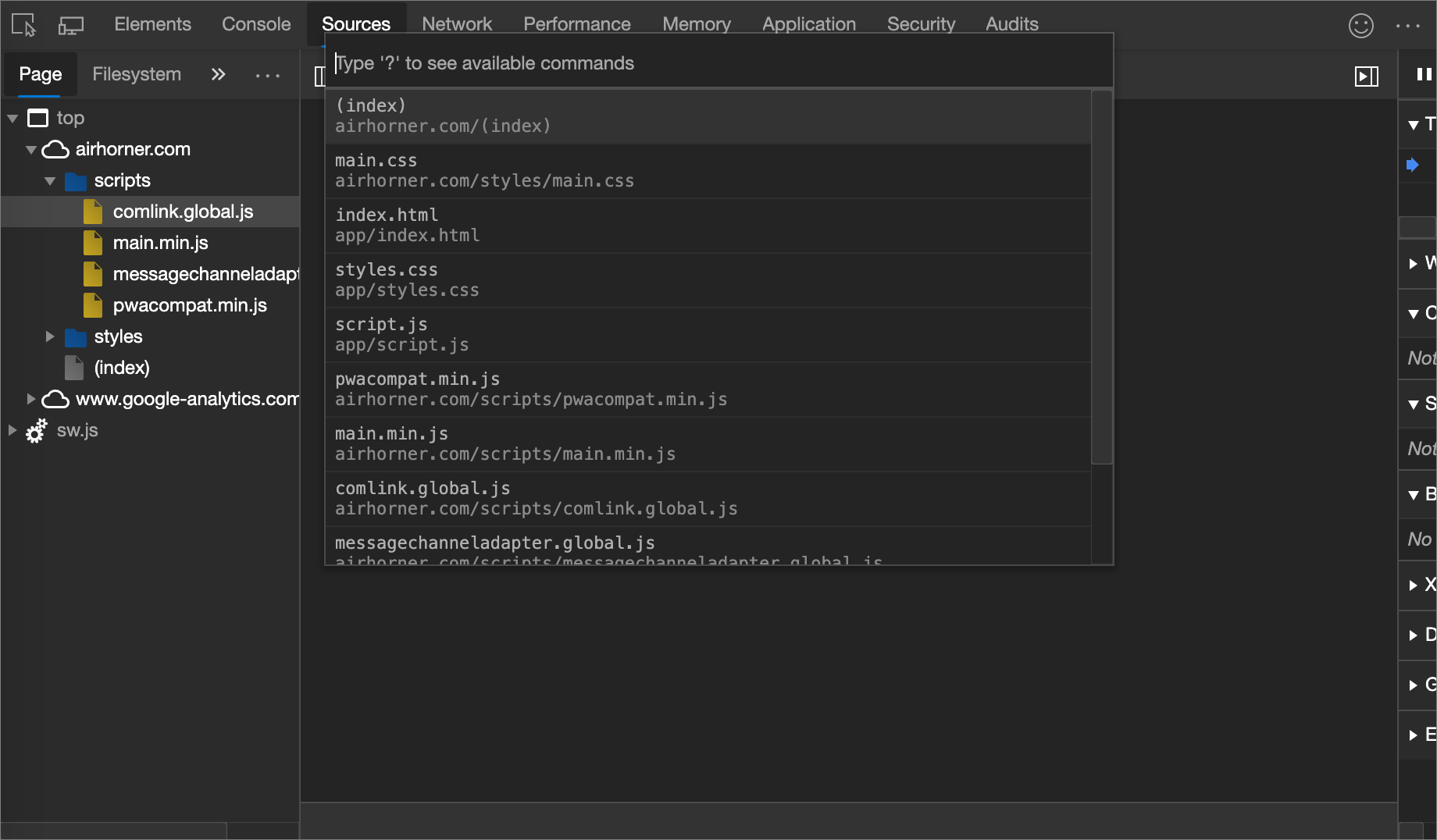
Select the file from the dropdown list, or start typing the filename and press
Enteronce the correct file is highlighted in the autocomplete box.
Open resources in the Network tool
See Inspect the details of a resource in Inspect network activity.

Reveal resources in the Network tool from other panels
The next section, Browse resources in the Network panel, shows how to view resources from various parts of the DevTools UI. To inspect a resource in the Network tool, right-click the resource and select Reveal in Network panel.

Browse resources in the Network panel
- Open Log network activity (in the article Inspect network activity) in a new tab or window.

Browse resources by directory in the Sources tool
To view the resources of a webpage organized by directory:
Open DevTools.
Select the Sources tool, and then in the Navigator pane in the upper left, select the Page tab.
Click the More options (...) button to the right of the Page tab, and then select Group by folder.

Here is a breakdown of the non-obvious items in the previous figure.
Page item Description topThe main document browsing context. airhorner.comThe domain. All resources nested under it come from that domain. For example, the full URL of the comlink.global.jsfile is probablyhttps://airhorner.com/scripts/comlink.global.js.scriptsA directory. (index)The main HTML document. sw.jsA service worker runtime context. Select a resource to view it in the Editor.

Browse resources by filename in the Sources tool
By default, the Page tab groups resources by directory. To display the resources for each domain as a flat list, instead of grouping them by directory:
Go to the Sources tool.
In the Navigator pane (on the left), select the Page tab.
Click More options
...and then clear the Group by folder checkbox.
Resources are organized by file type. Within each file type, the resources are organized alphabetically.

Browse resources by file type in the Application tool
To group resources together based on their file type:
Select the Application tab. The Application tool opens. By default, the Manifest pane usually opens first.

Scroll down to the Frames pane.

Expand the sections you're interested in.
Select a resource to view it.

Browse files by type in the Network panel

Note
Portions of this page are modifications based on work created and shared by Google and used according to terms described in the Creative Commons Attribution 4.0 International License. The original page is found here and is authored by Kayce Basques (Technical Writer, Chrome DevTools & Lighthouse).
 This work is licensed under a Creative Commons Attribution 4.0 International License.
Feedback
Submit and view feedback for