Archive credit card transaction data
Important
Some or all of the functionality noted in this article is available as part of a preview release. The content and the functionality are subject to change. For more information about preview releases, see One version service updates FAQ.
This article describes an archival job in Microsoft Dynamics 365 Commerce that can help free up space in the database by archiving credit card transactions. This job is available as of the Commerce version 10.0.17 release.
For every credit card authorization, the authentication binary large object (auth blob) is stored in the database. Auth blobs contain data that is related to the authorization. Over time, these auth blobs can grow and take up a significant amount of space in the database. The job that is described in this article lets you archive auth blob data by exporting it to Azure Blob storage and then deleting the data from the database.
The parameters for the archival job are based on the age of the transaction in days. In other words, if the Minimum transaction age in days field for the job is set to 365, for example, all XML data about credit card authorizations that is older than 365 days will be subject to archiving when the job is run.
Important
Data can't easily be restored after it has been archived. Therefore, transactions that are subject to linked refunds should not be archived. For example, if a merchant's returns policy allows transactions to be returned for refund to the same credit card within two years, the Minimum transaction age in days field for the job should be set to 730 days (two years). In this case, if a transaction is returned after 730 days, the XML that is required to do a linked refund won't be found. Therefore, the customer will have to be refunded via a standalone refund to either a credit card or some other payment method, such as a credit memo or gift card.
Key terms
| Term | Description |
|---|---|
| Auth blob | The response that a credit card processor returns for a payment request. This response is stored in as an XML blob and, over time, can take up a large amount of space in the database. |
| Linked refund | A refund request that references a previous transaction. Credit card processors consider linked refunds to carry lower risk, and they have lower associated fees. |
| Standalone refund | A refund request that doesn't reference a previous transaction. Standalone refunds carry higher risk and have higher processing fees. |
Document management dependency
When the archival job is run, document management is used to export XML data about aged credit card authorizations in a zip file. If document management isn't set up in an environment, the archival job can't successfully be run. For more information, see Configure document management.
The archival job processes all credit card payment data that meets the criterion that is defined by the Minimum transaction age in days value. If the job is active and, based on the defined criterion, a large number of records must be processed, job execution might take several days. However, after the backlog of payments has been archived, the job won't take as long to run.
Data that is in scope for archiving
The archival job archives data in the PaymentAuthorization, PaymentCaptureToken, and PaymentCardToken fields of the RetailTransactionPaymentTrans table. Although transactions that have been archived don't have associated data in these fields, they can still be returned without linked refunds.
Batch job setup
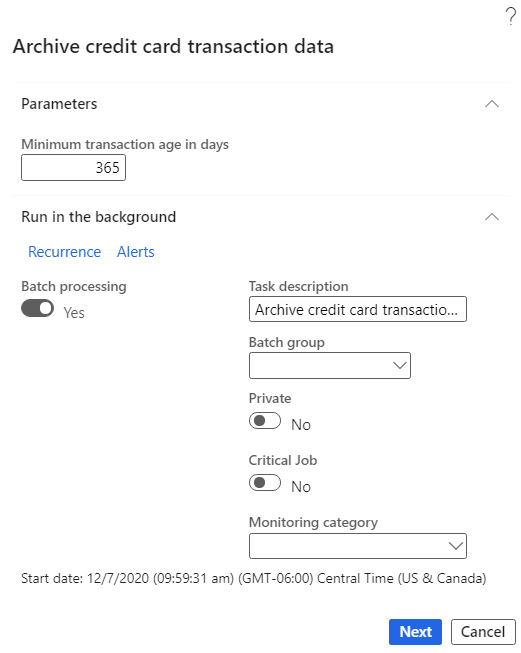
You can access the archival job in Commerce headquarters by going to Retail and commerce > Retail and Commerce IT > Clean up > Archive credit card transaction data. In the Archive credit card transaction data dialog box, the Minimum transaction age in days field is a required field. Enter the age, in days, of credit card authorizations that will be subject to archiving. The value that you enter should be the amount of time that customers can have refunds linked to their original credit card authorization. If you set the field to 365 days, for example, a return for a transaction that is 366 days old might still be eligible for refund, depending on the merchant's policies. However, because the data that is required to do a linked refund won't be available, any refund that is done will have to be a standalone refund.
In addition to the Minimum transaction age in days field, the Archive credit card transaction data dialog box includes options for job recurrence. Batch processing for the job is turned on by default and can't be turned off.
The following illustration shows an example of parameter settings in the Archive credit card transaction data dialog box.
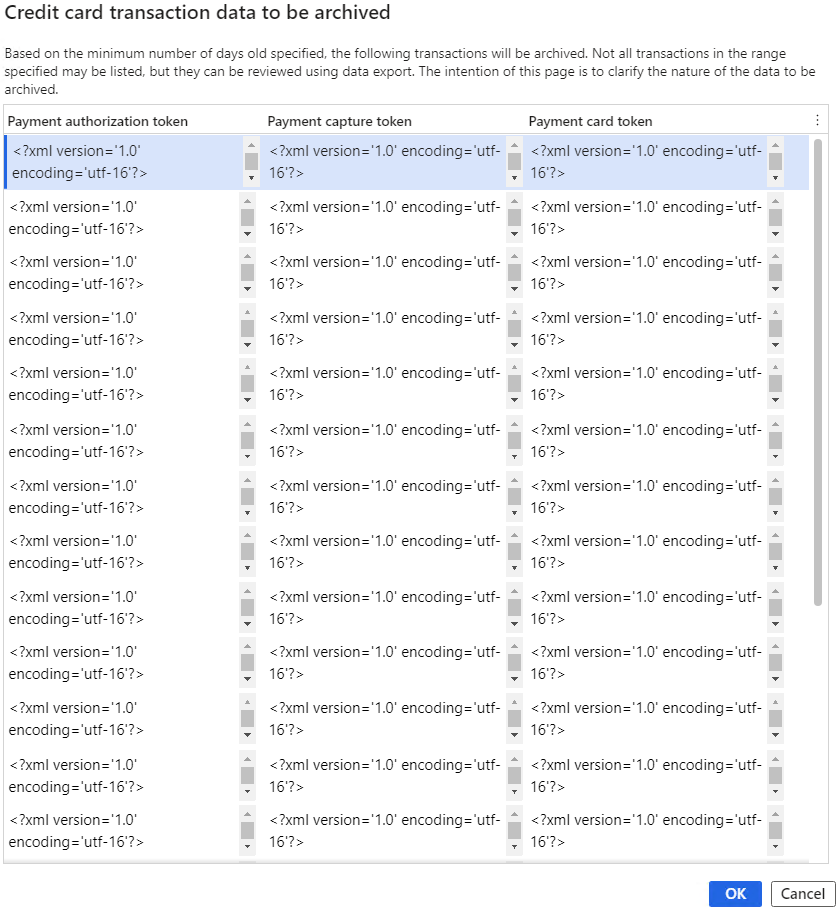
After the Minimum transaction age in days field and batch details have been set, select Next to view a sample of the data that will be exported. The following illustration shows an example. Although the data in this sample is limited, all data that is subject to archiving can be exported.
Important
The data that is subject to archiving includes personally identifiable customer information such as the name of the cardholder. This sensitive data should be handled according to your local regulatory requirements.
After you confirm the parameters for data that must be archived, you're prompted to confirm that you understand that the data that is being archived can't easily be restored, as shown in the following illustration.
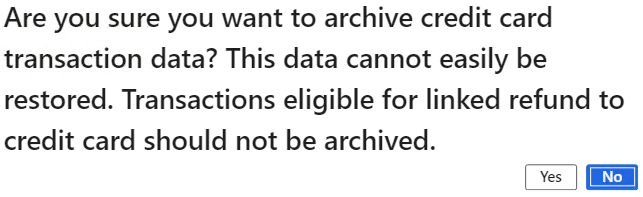
After you select Yes, the archival job becomes active, and all XML data about credit card authorizations that is older than the Minimum transaction age in days value will be subject to archiving.
Further storage management with token compression
To decrease the footprint of underlying storage tables, you can compress tokens by enabling the Compress payment tokens feature. Enabling this feature flag will allow the system to use compression on stored payment property tokens.
Important
To use the Compress payment tokens feature, your system must be running Commerce version 10.0.25 or later and point-of-sale (POS) version 9.35 or later.
To enable the Compress payment tokens feature in headquarters, follow these steps.
- Go to Workspaces > Feature management.
- Under All, search for the Compress payment tokens feature.
- Select the feature, and then select Enable now in the properties pane.
Additional resources
Feedback
Submit and view feedback for