Set up Microsoft Viva
Microsoft Viva consists of several apps including Viva Topics, Viva Insights, Viva Learning, Viva Connections, Viva Sales, Viva Goals, and Viva Engage. Admins can initiate setup and deployment and manage licenses for Viva apps from the Microsoft 365 Admin Center.
Start setting up
- Sign in to your account as a Microsoft 365 admin.
- In the search bar, enter Viva.
- Select Microsoft Viva.
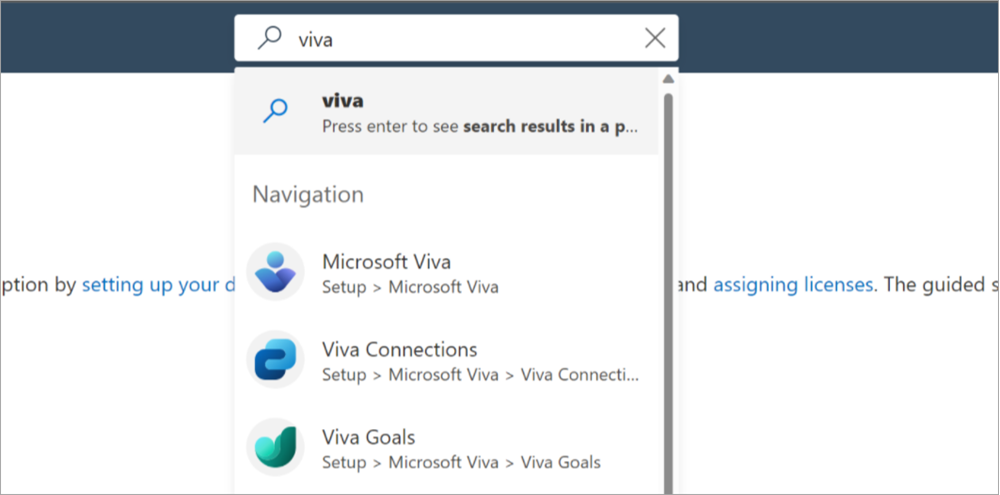
Alternatively, you can go to the Microsoft 365 admin center, select Setup on the left navigation, and then select the Microsoft Viva tile.
This brings you to the Microsoft Viva admin page.

Things you can do on this page:
- Licenses and roles: You can select Manage licenses or Manage roles to go directly to the Microsoft 365 Licenses page or to the Microsoft 365 Role assignments page. On the Role assignments page, you can search for Viva in the search box to narrow the roles to those specific to Viva.
- Plan types: You can see the type of Viva plan purchased or included with Microsoft 365 in the Plan type column.
- Assigned admins: You can see quickly whether admin roles have been assigned for each app, and who the roles are assigned to in the Admins column. Hover over the profile circles to get the names of people who are assigned roles
- App pages: You can select an app to go to that app's settings page.
- Briefing email: Select the Manage briefing email in Viva to select whether people in your organization should receive briefing emails.
App settings pages
Each app has its own settings page, and they may differ. Here's an example of the Learning admin page:
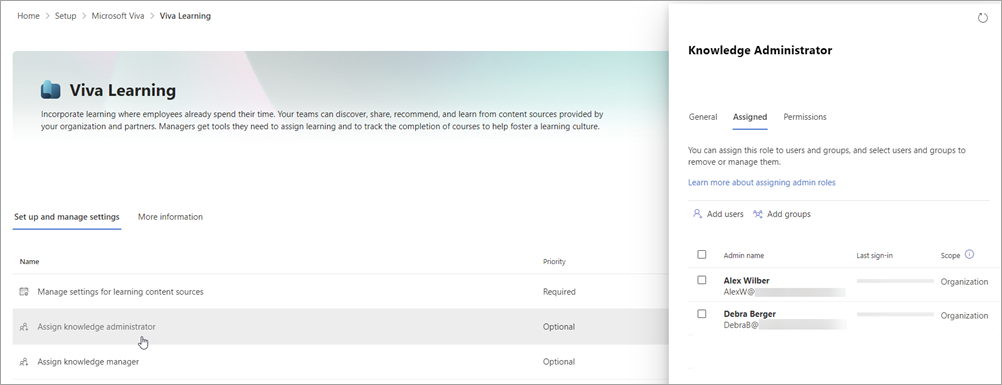
In this example you can:
- See at a glance which settings are required in the Priority column.
- Select a setting in the list, and get a panel where you can set the options without leaving the page. In this example, you see the panel to assign knowledge managers.
- Select the More information tab to get detailed guidance on setting up the app.
Set up each app
Viva Learning
Accelerate skilling and growth – Your employees can easily discover and share everything from training courses to micro-learning content.
More information about Viva Learning
Viva Insights
Balance productivity and well-being – Provides data-driven, privacy-protected insights and actionable recommendations that help everyone in the organization work smarter and achieve balance.
More information about Viva Insights
Viva Topics
Connect people to knowledge – People can easily discover topics of interest within Office apps, SharePoint, and search results.
More information about Viva Topics
Viva Connections
Inform, engage, and empower -- Microsoft Viva Connections is your gateway to a modern engagement experience designed to keep everyone engaged and informed.
More information about Viva Connections
Viva Goals
Connect employees to your organization’s goals, stay aligned at scale, and drive business results to empower people and teams to understand their impact.
More information about Viva Goals
Viva Sales
Setup for Viva Sales is a bit different from other Viva apps. It requires you to install the Viva Sales app, which you can do from the Microsoft 365 admin center, but not yet from the Viva admin page.
More information about Viva Sales
Viva Engage
If your organization uses Yammer, and a user is enabled for Yammer, they are also enabled to use Viva Engage. Viva Engage is included as a part of the existing Yammer license. This is unchanged from the Yammer Communities app for Microsoft Teams that Viva Engage replaces.
The Yammer administrator can manage the content in Yammer and Viva Engage. Privacy and security controls from Yammer are shared with Viva Engage.
The Viva Engage app is installed in Teams, but not yet available to set up from the Viva admin page.
Feedback
Submit and view feedback for