Sideload an extension
During development, you can use the Microsoft Edge browser to run and debug your extension safely. By sideloading your extension locally in your browser, you can run and test your extension. This article explains how to sideload extensions into Microsoft Edge.
To sideload an extension:
Open the
edge://extensionspage by choosing the three dots at the top of your browser, and then selecting Extensions.
On the extension management page at
edge://extensions, turn on Developer mode using the toggle at the bottom left of the page.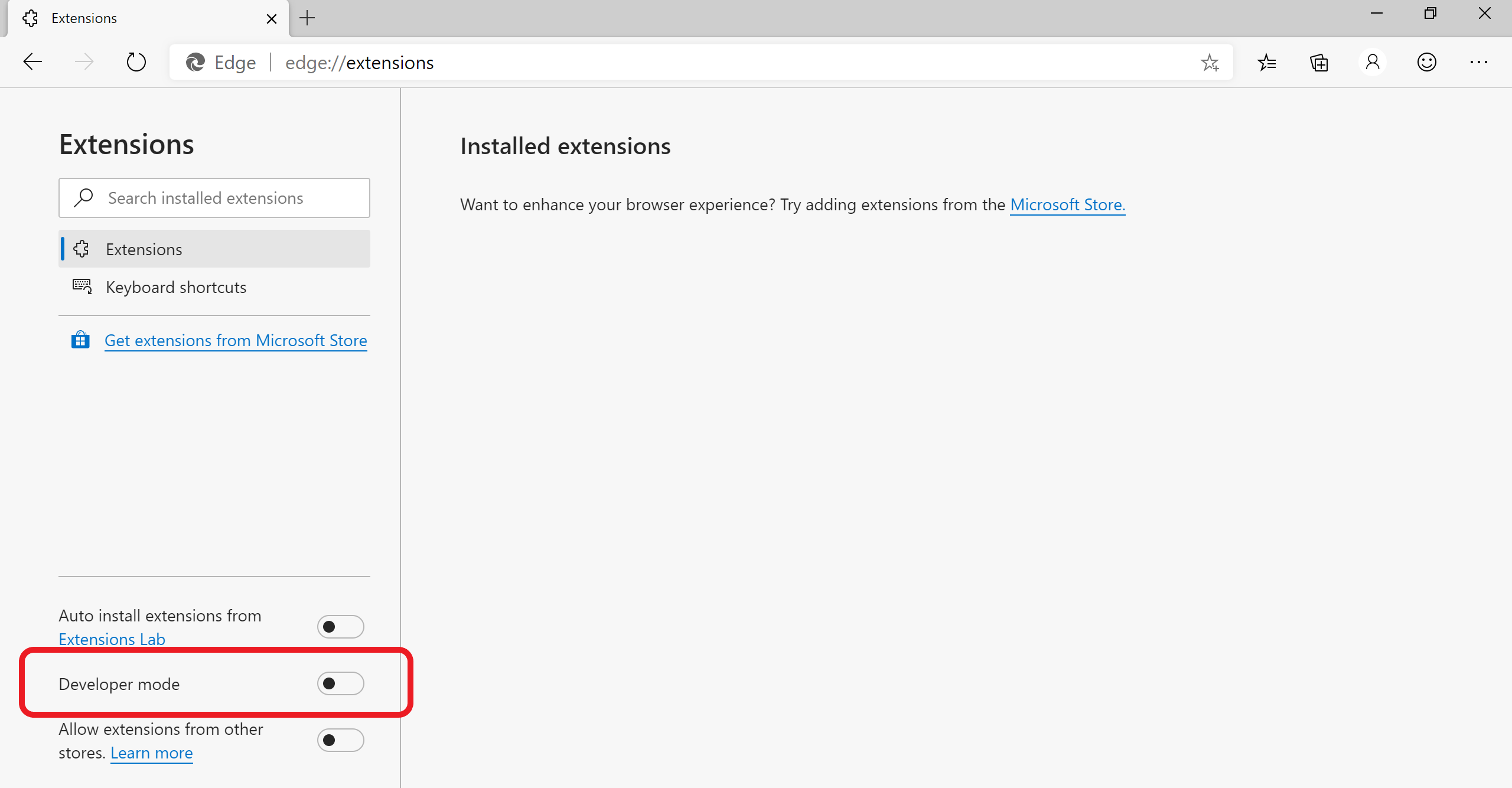
When installing your extension for the first time, choose Load Unpacked. You'll be prompted for the directory with your extension source files. Your extension is installed in your browser, similar to extensions installed from the store.

During development, you may also need to do the following:
Update the extension. Go to
edge://extensions, and then select Reload to update your extension.Remove the extension from your browser. Go to
edge://extensions, and then selectRemoveon your extension.
Feedback
Submit and view feedback for