Work with Graph Explorer
Graph Explorer is a developer tool that lets you conveniently make Microsoft Graph REST API requests and view corresponding responses. This article describes how to use some of the important features in Graph Explorer.
For an overview, see Use Graph Explorer to try Microsoft Graph APIs.
Consent to permissions
The user or administrator must grant Graph Explorer the correct permissions by using a consent process to access data in Microsoft Graph. You can consent to permissions in Graph Explorer by choosing either the Modify permissions tab or the Select permissions option in the settings gear next to your profile when you’re signed in. The Modify permissions tab lists all the permissions that you need to run the query in the address bar.
To consent to permissions:
- Select a sample query and run it.
- Select the Modify permissions tab.
- See the list of permissions required to run the query.
- Select the Consent button next to the permission that you want to consent to.
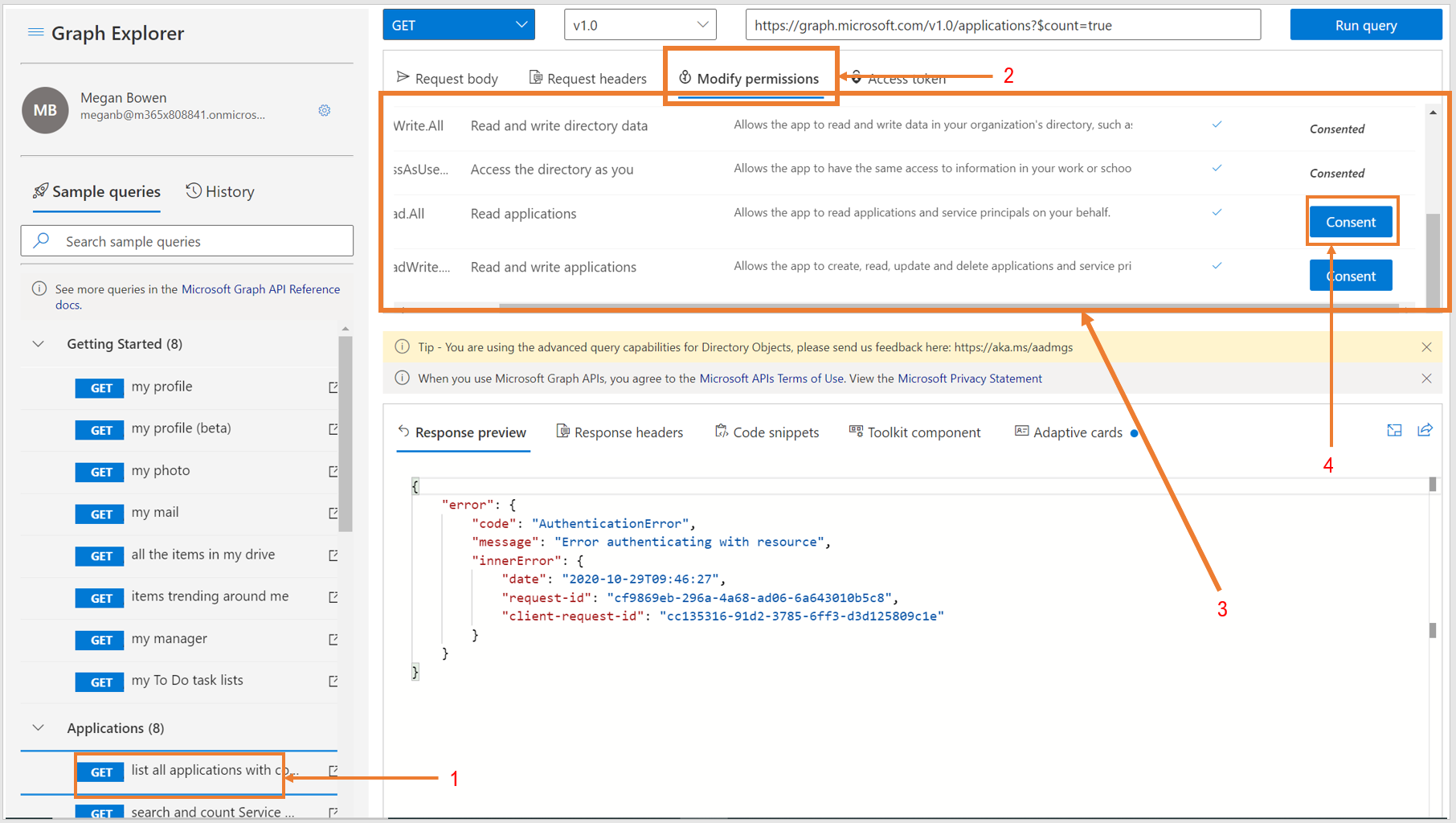
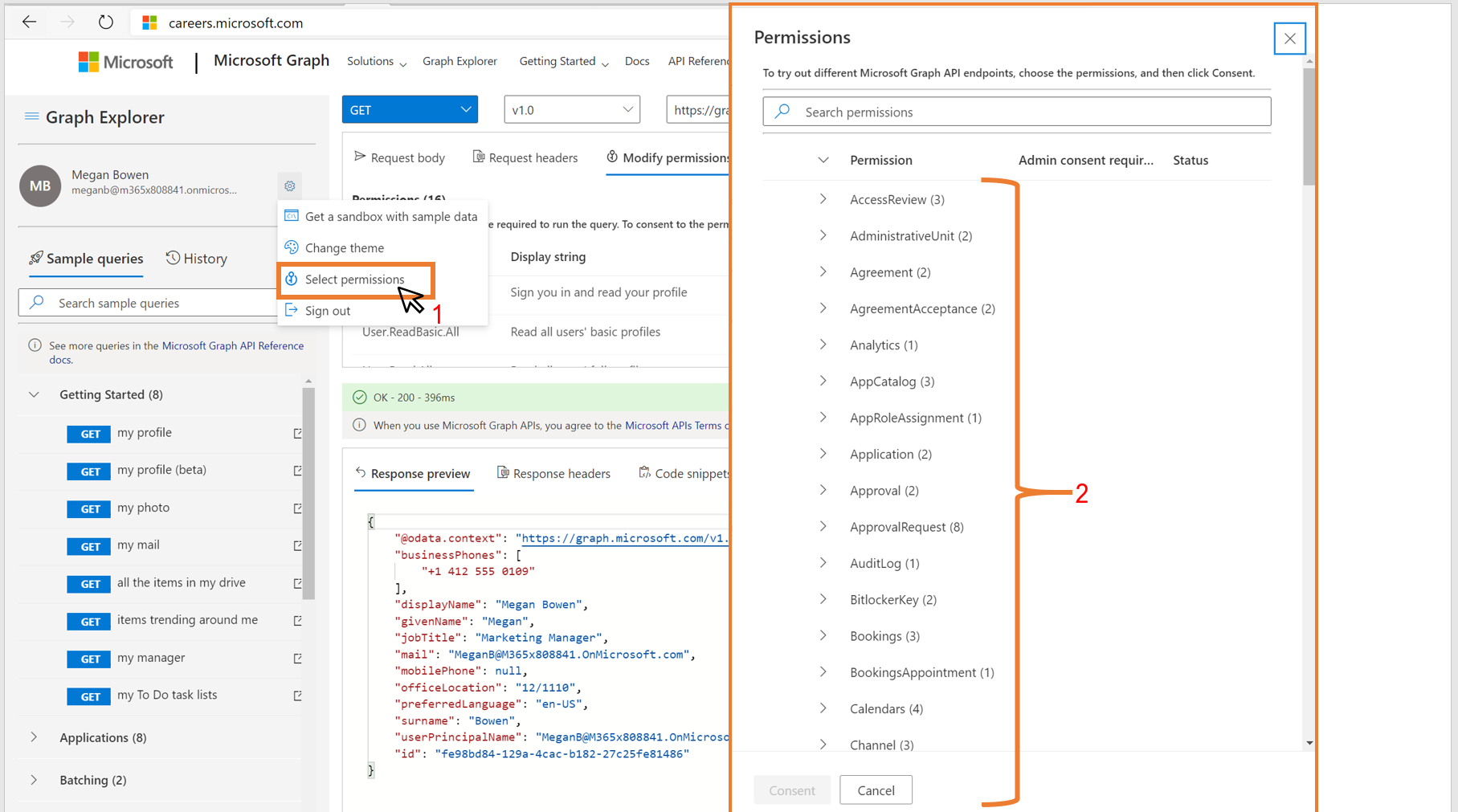
The Modify permissions feature is currently in preview, and some queries might be missing permissions. If permissions are missing for a query, the Select permissions option in the settings gear next to your profile contains the list of all available permissions:
- Go the settings gear and choose the Select permissions option. This option contains the list of all available permissions.
- From the list of all the permissions, consent to the ones you want.
Get an access or authentication token
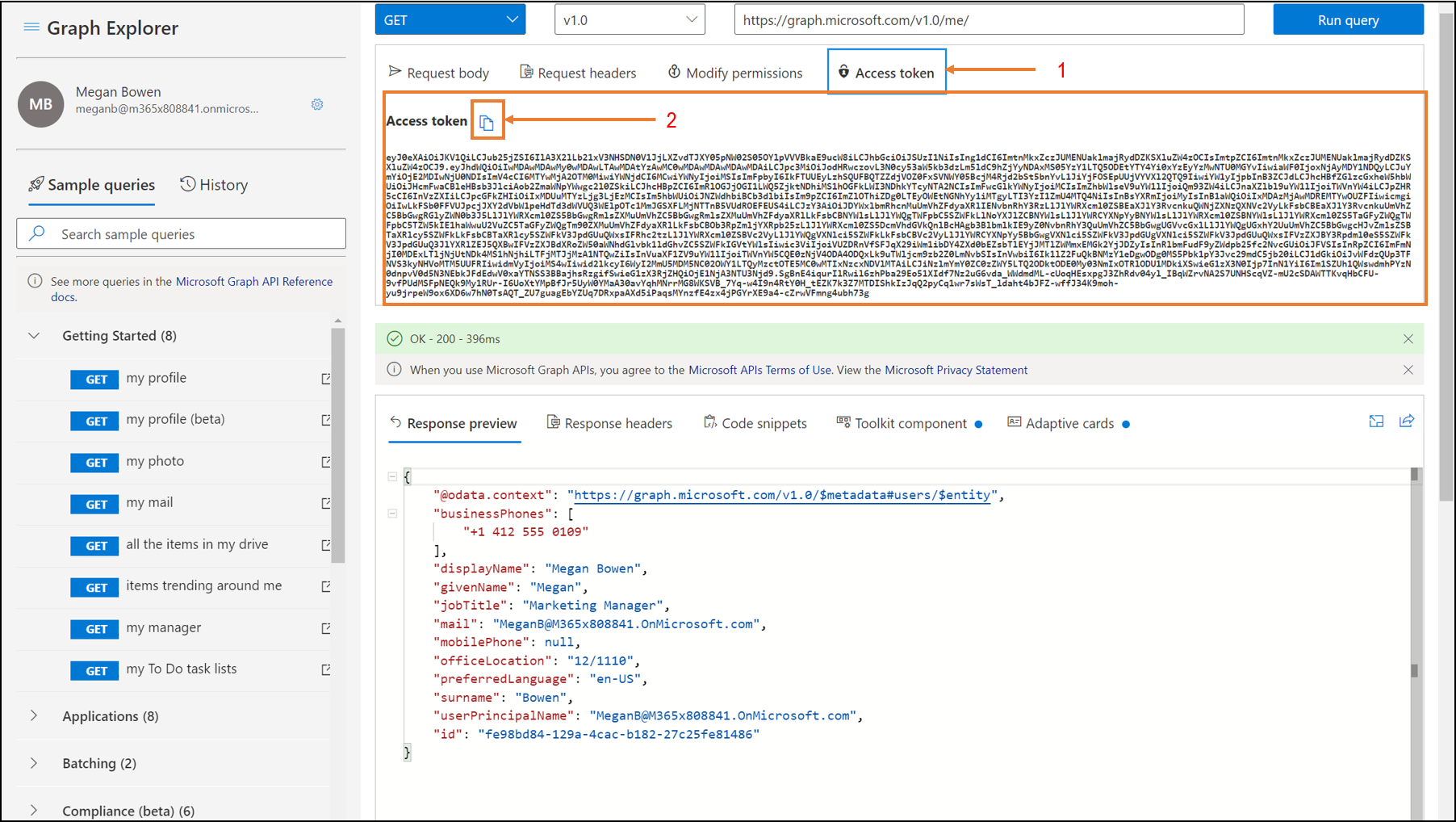
Graph Explorer includes an Access token tab that shows your access token when you're signed in. On the Access token tab, you can copy the token if you need to use it in your favorite REST client application.
Copy code snippets
For each REST API query that you select or enter in Graph Explorer, you can find how to call that API in each of the four languages showcased under the Code snippets tab: C#, Java, JavaScript, and Objective-C.

Integrate UI components
Graph Explorer includes several features to make implementing the UI easier. Reuse these components in your apps too.
Microsoft Graph Toolkit integration
The Microsoft Graph Toolkit is a collection of reusable, framework-agnostic web components and helpers for accessing and working with Microsoft Graph. The components are fully functional, with built-in providers that authenticate with and fetch data from Microsoft Graph.
Graph Explorer provides sample REST API queries that correspond to Microsoft Graph Toolkit components. A blue dot on the Toolkit component tab indicates that the Toolkit provides a component for the currently specified REST API query in Graph Explorer. You can conveniently copy the code for the component to your app.
The following table lists the sample queries that currently include a Toolkit component.
| Graph Explorer sample query | Toolkit sample iFrame URL |
|---|---|
| GET my profile | https://mgt.dev/iframe.html?id=components-mgt-person-card—person-card-hover |
| GET people I work with | https://mgt.dev/iframe.html?id=components-mgt-people—people |
| GET all my planner tasks | https://mgt.dev/iframe.html?id=components-mgt-tasks—tasks |
| GET my events for the next week | https://mgt.dev/iframe.html?id=components-mgt-agenda—get-events-for-next-week |
| GET my photo | https://mgt.dev/iframe.html?id=components-mgt-person—person-photo-only |

Adaptive cards integration
Adaptive cards are platform-agnostic snippets of UI, authored in JSON, that apps and services can openly exchange. When you run a query and an adaptive card is available, a blue dot appears on the Adaptive cards tab.

Customize the theme in Graph Explorer
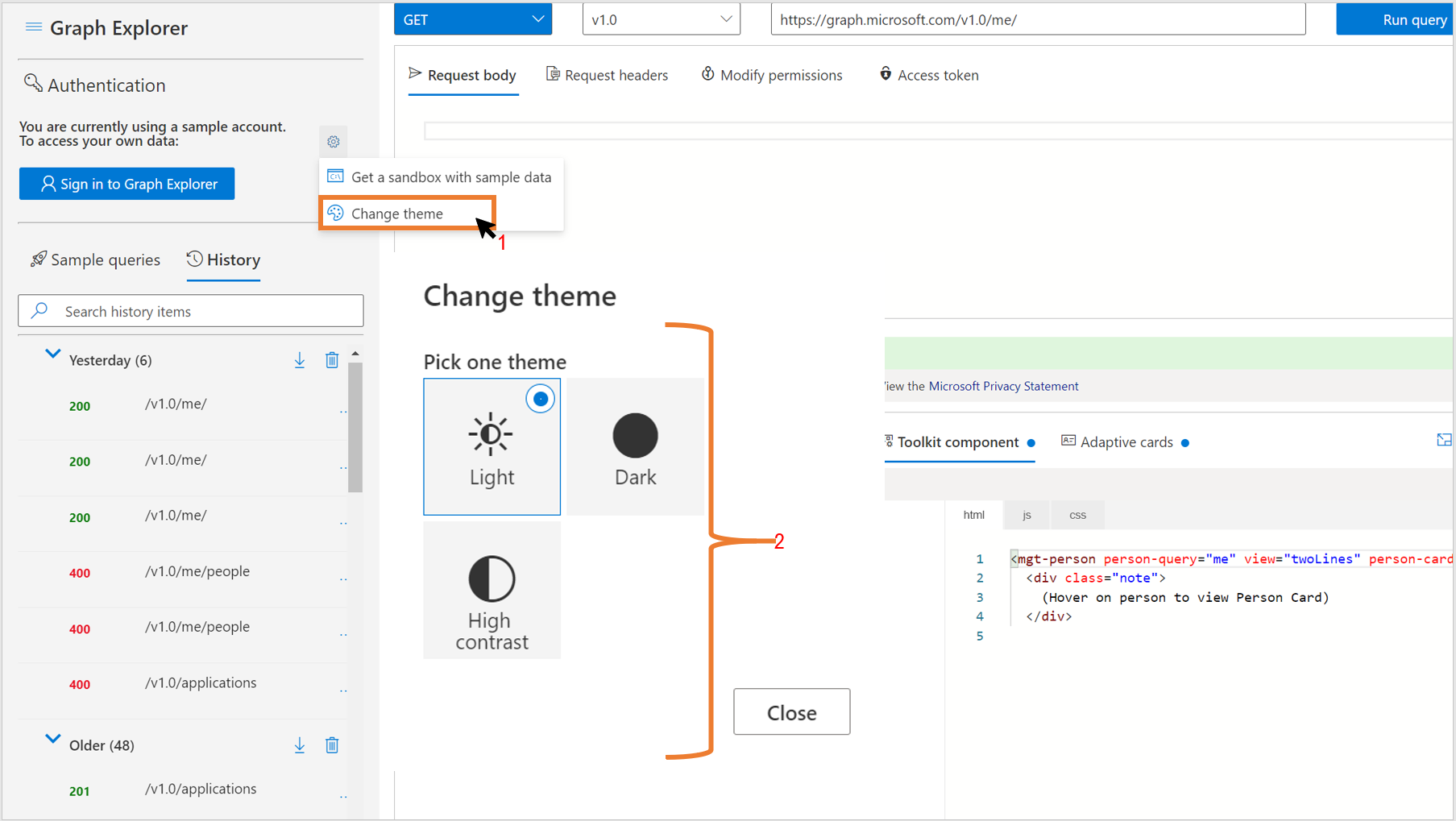
Choose the theme for Graph Explorer by selecting the Change theme option under the settings gear. Theme options are Light, Dark, and High contrast.
Store and share queries
Queries that are run in Graph Explorer are saved for 30 days on the History tab. On the History tab, you can:
- Export all history items in
.harformat. - Delete all history items.
- View a history item.
- Run a query.
- Export a history item in
.harformat. - Delete a history item.

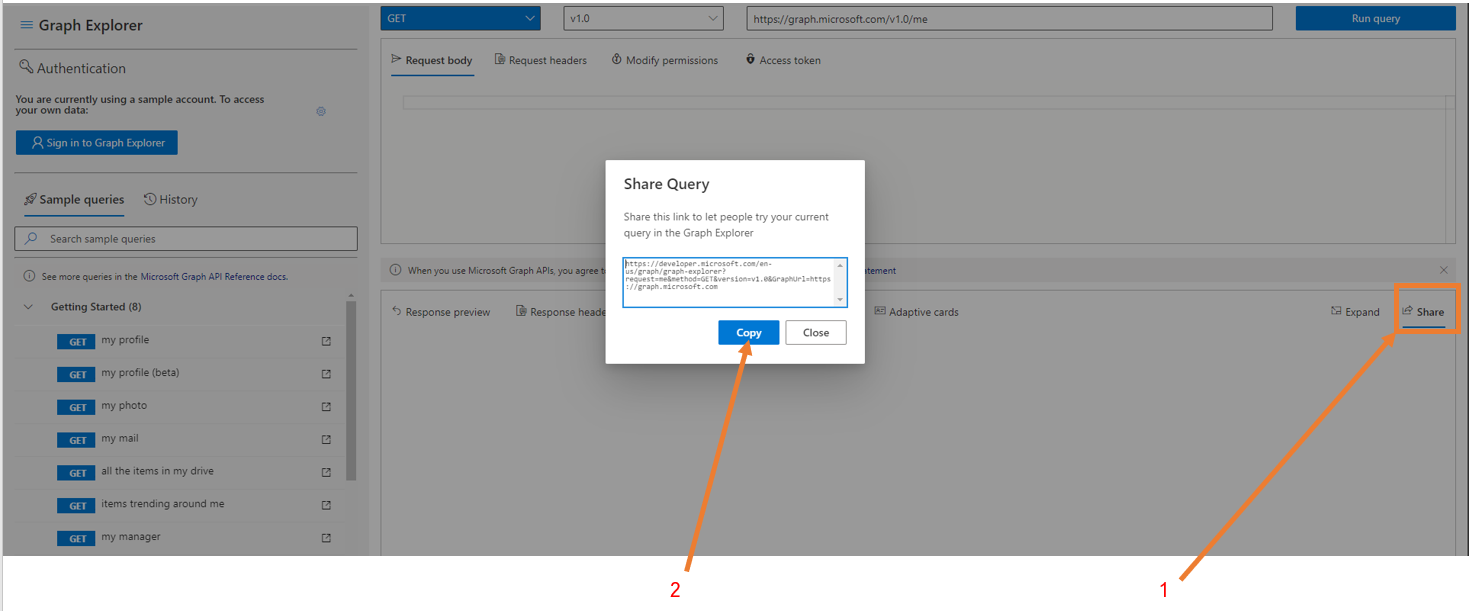
To share queries that you run, select the Share button in the response pane, and then select Copy. This copies a link to share that allows others to see your query and the results.
Use Graph Explorer UI features
To widen the request and response area, collapse and expand the sidebar component in Graph Explorer. To collapse the sidebar component, select the hamburger icon on the top left of the sidebar.

To expand and collapse the response preview, select the expand arrow in the response preview window.

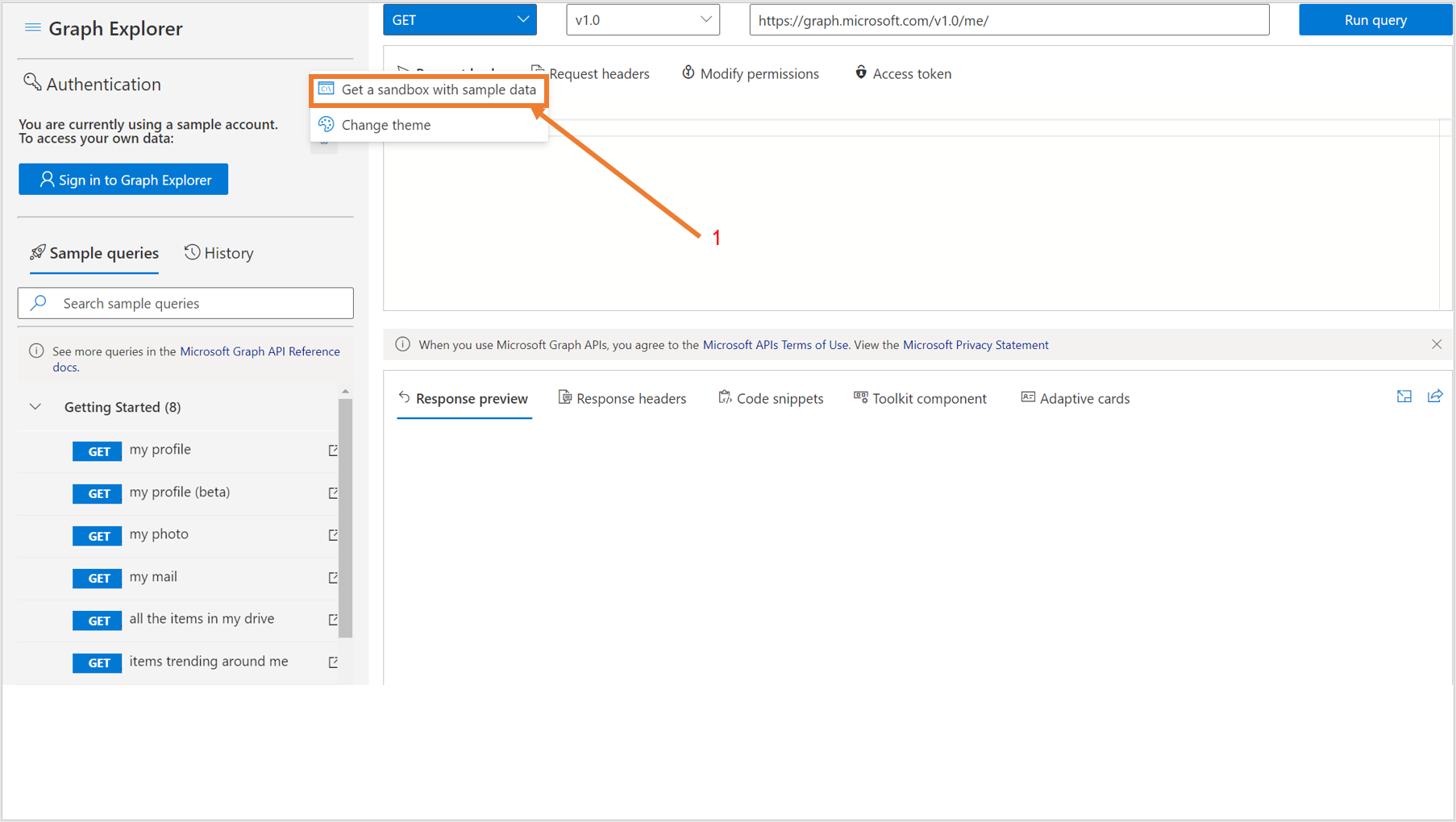
Conveniently access the Microsoft 365 Developer Program site from the Graph Explorer UI to get a free sandbox with sample data to experiment with. Under the settings gear, select Get a sandbox with sample data.
Next steps
- Visit Graph Explorer and explore sample queries.
- Explore the Microsoft Graph Toolkit documentation.
- Contribute or provide feedback in the Graph Explorer GitHub repo.
Feedback
Submit and view feedback for