Excel Online integration
Introduction to Excel Online integration
Viva Goals Excel Online integration lets you update your objective and key results (OKR) progress automatically based on the values of specific cells in Microsoft Excel worksheets.
Let's use this example: You use Excel Online to track the revenue generated by the sales team. You have an objective in Viva Goals to achieve $3M ARR for a quarter. When you link this objective to the corresponding sheet in Excel Online, the status of your OKR will be updated automatically as the value in the cell changes. You won't have to switch back and forth between your sheets and Viva Goals to update progress.
How to enable Excel Online integration
To enable the integration, admins can follow these steps:
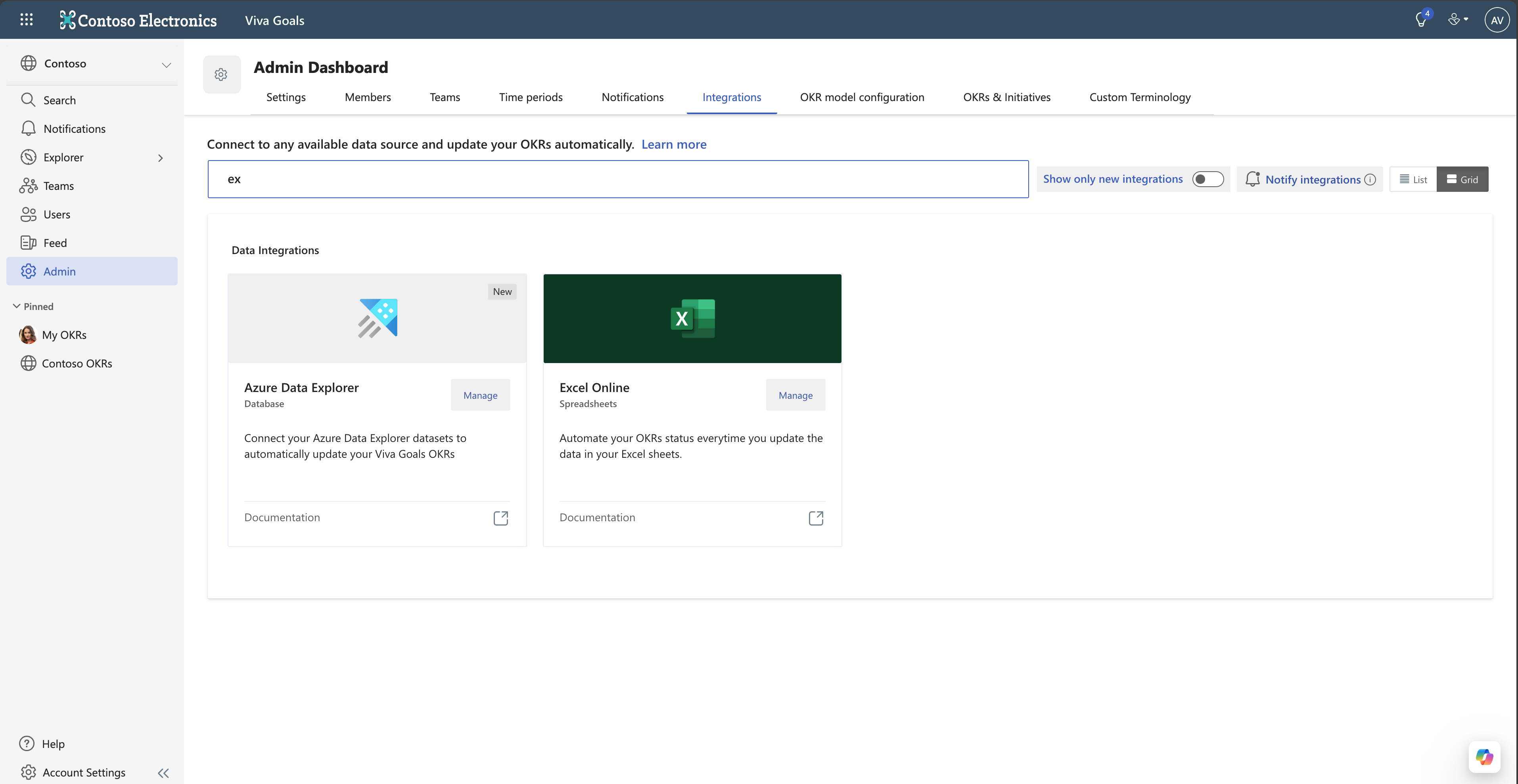
From the sidebar, go to Admin and select the Integrations tab.

For Excel Online, select to Enable the integration. If a connection was made previously or if the integration was already enabled, you'll have the option to Manage the enabled integration.

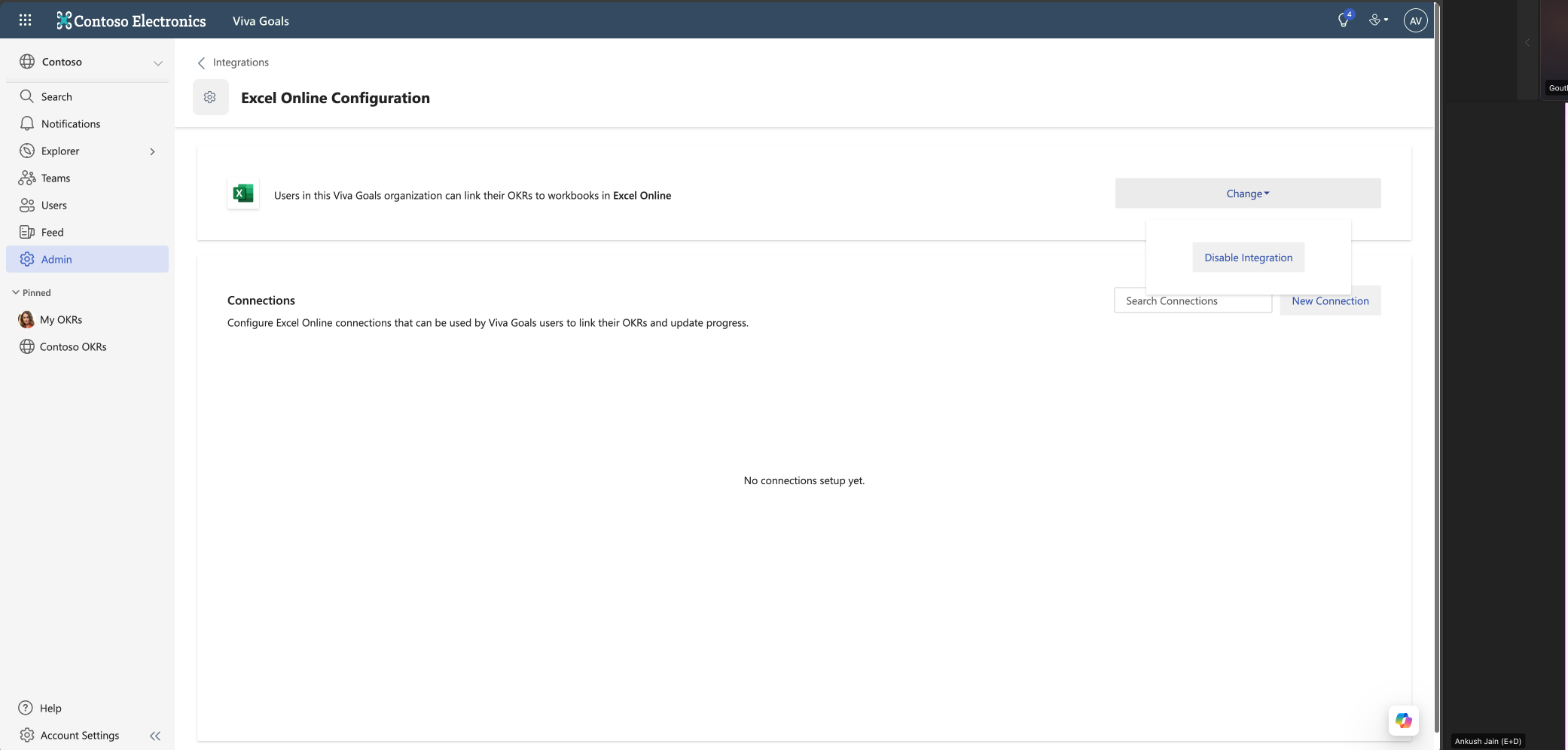
You can disable this integration from the same section: Go to Change and select Disable integration from the dropdown.


How to configure the Excel Online connection
After you enable the integration, the next step is to configure an Excel Online connection.
Select New Connection, and sign in to your Excel account.

Provide a name for the connection.

It's optional to share this connection with other users in the organization. Select Next to get running with this integration. You can edit the saved connection at any time.


Viva Goals lets you connect to multiple Excel sheets. Select New Connection to fetch data from another sheet. You differentiate these connections by name. The names will be displayed to other users when they link their OKRs with Excel Online data.
How to connect the Excel Online connection to an OKR
After you configure the connection, the next step is to link OKRs to Excel sheets:
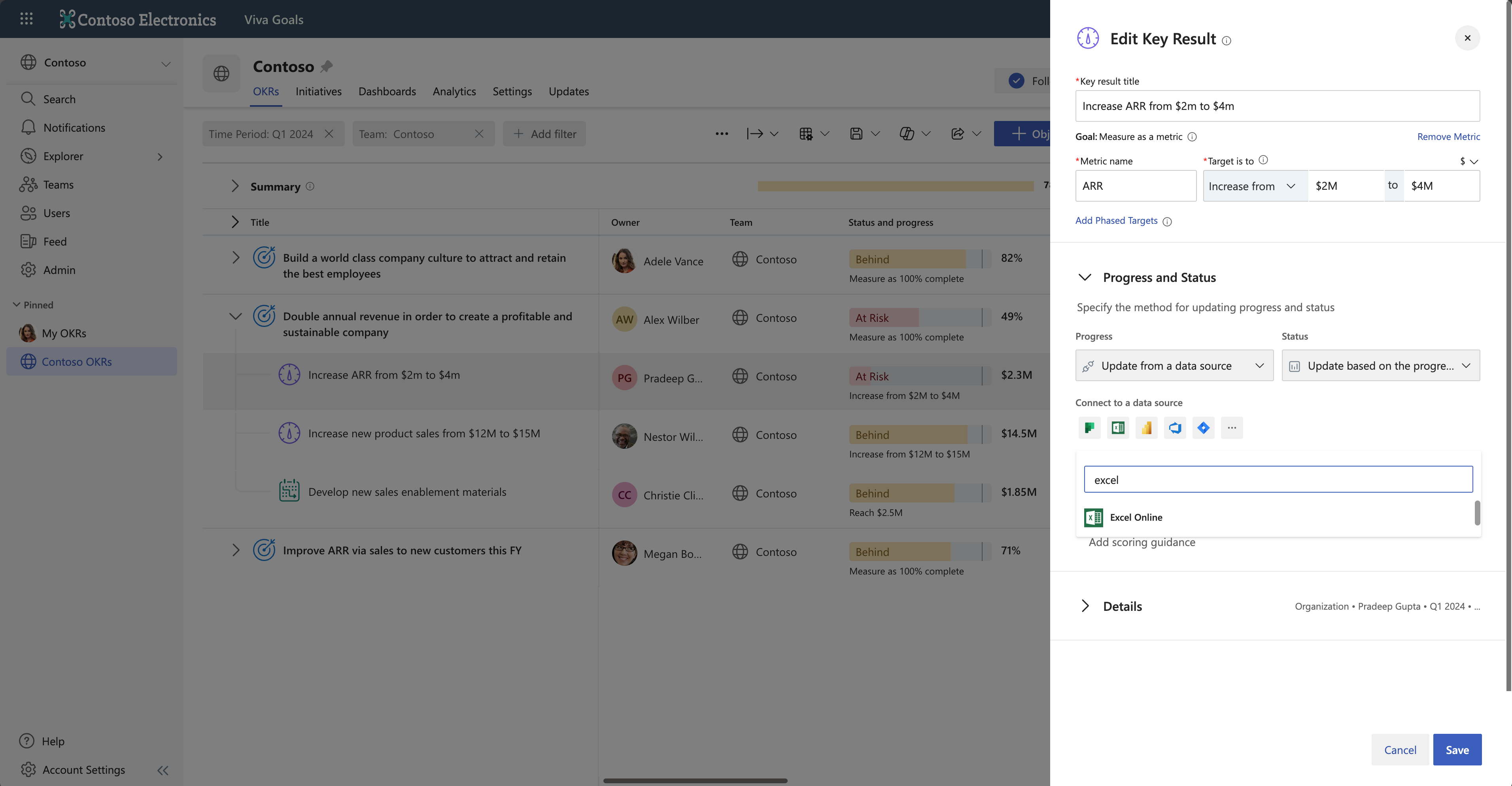
When you create or edit an OKR, select Connect data source to auto-update progress. From the drop-down menu, select Excel Online.

If you already created a connection or if your admin shared a connection with you, that connection will be selected automatically. Viva Goals will prompt you to create a new connection only if there are no connections created or shared.
Select the method you want to use to measure progress, percent complete or key performance indicator (KPI). If you choose KPI, provide a metric, starting value, and target value.
Select a connection and a Workbook. As soon as you select the workbook, the associated sheets will be displayed in the Sheet dropdown menu. Select a worksheet.

To locate the cell accurately, enter the Column and the Row Number.
Progress will be calculated based on the number present in the chosen cell, if you chose KPI metric to track progress. It will be calculated based on the percentage accomplished if you chose percent complete to track progress.
Select Next and then Save.

Note
The sync will happen once every hour. To trigger the sync manually, select the Excel Online icon next to the progress bar of the objective, and then select the sync icon.
You've now linked your objective to a worksheet in Excel Online to track the cell value and update the status of the corresponding OKR automatically.
The colors of the progress bar in Viva Goals indicate the status of the objective:
If the progress is 0 to 25 percent less than the expected progress at any point in time, the OKR status is behind, and the progress bar will be orange.
If the progress is more than 25-percent less than expected at any point, the OKR status is at risk, and the progress bar will be red.
Feedback
Coming soon: Throughout 2024 we will be phasing out GitHub Issues as the feedback mechanism for content and replacing it with a new feedback system. For more information see: https://aka.ms/ContentUserFeedback.
Submit and view feedback for