About management of discussions
O GitHub Discussions é um fórum aberto para conversa entre mantenedores e a comunidade de um projeto no GitHub. For more information about discussions, see "About discussions."
Organization owners can choose the permissions required to create a discussion in repositories owned by the organization. Similarly, to choose the permissions required to create an organization discussion, organization owners can change the permissions required in the source repository. For more information, see "Managing discussion creation for repositories in your organization."
As a discussions maintainer, you can create community resources to encourage discussions that are aligned with the overall project goal and maintain a friendly open forum for collaborators. Creating a code of conduct or contribution guidelines for collaborators to follow will help facilitate a collaborative and productive forum. For more information on creating community resources, see "Adding a code of conduct to your project," and "Setting guidelines for repository contributors."
When a discussion yields an idea or bug that is ready to be worked on, you can create a new issue from a discussion. For more information, see "Creating an issue."
You can pin a discussion to the top of the list of discussions for the repository or organization. You can also pin a discussion to a specific category. For more information, see "Pinning a discussion."
For more information on facilitating a healthy discussion, see "Moderating comments and conversations."
Para organizar as discussões de forma mais granular, você pode aplicar etiquetas. Por exemplo, você pode usar etiquetas para indicar o status de uma discussão para tornar a triagem mais eficiente. Cada repositório tem um conjunto compartilhado de etiquetas para problemas, pull requests e discussões. Para obter mais informações, confira "Como gerenciar rótulos".
Prerequisites
To manage discussions in a repository, GitHub Discussions must be enabled for the repository. For more information, see "Enabling or disabling GitHub Discussions for a repository."
To manage discussions in an organization, GitHub Discussions must be enabled for the organization. For more information, see "Enabling or disabling GitHub Discussions for an organization."
Changing the category for a discussion
You can categorize discussions to help community members find related discussions. For more information, see "Managing categories for discussions."
You can also move a discussion to a different category. It's not possible to move a discussion to or from the polls category.
-
On GitHub.com, navigate to the main page of the repository.
-
No nome de seu repositório ou organização, clique em Discussões.

-
Na lista de discussões, clique na discussão que você deseja visualizar.
-
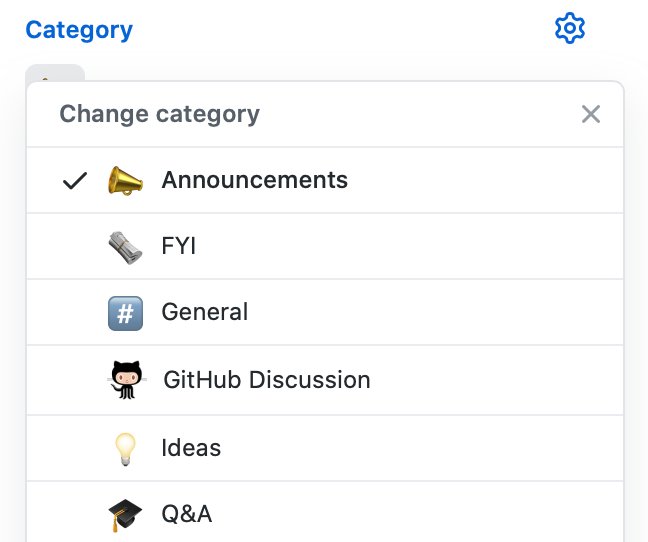
In the right sidebar, to the right of "Category", click .

-
Click a category.
Pinning a discussion
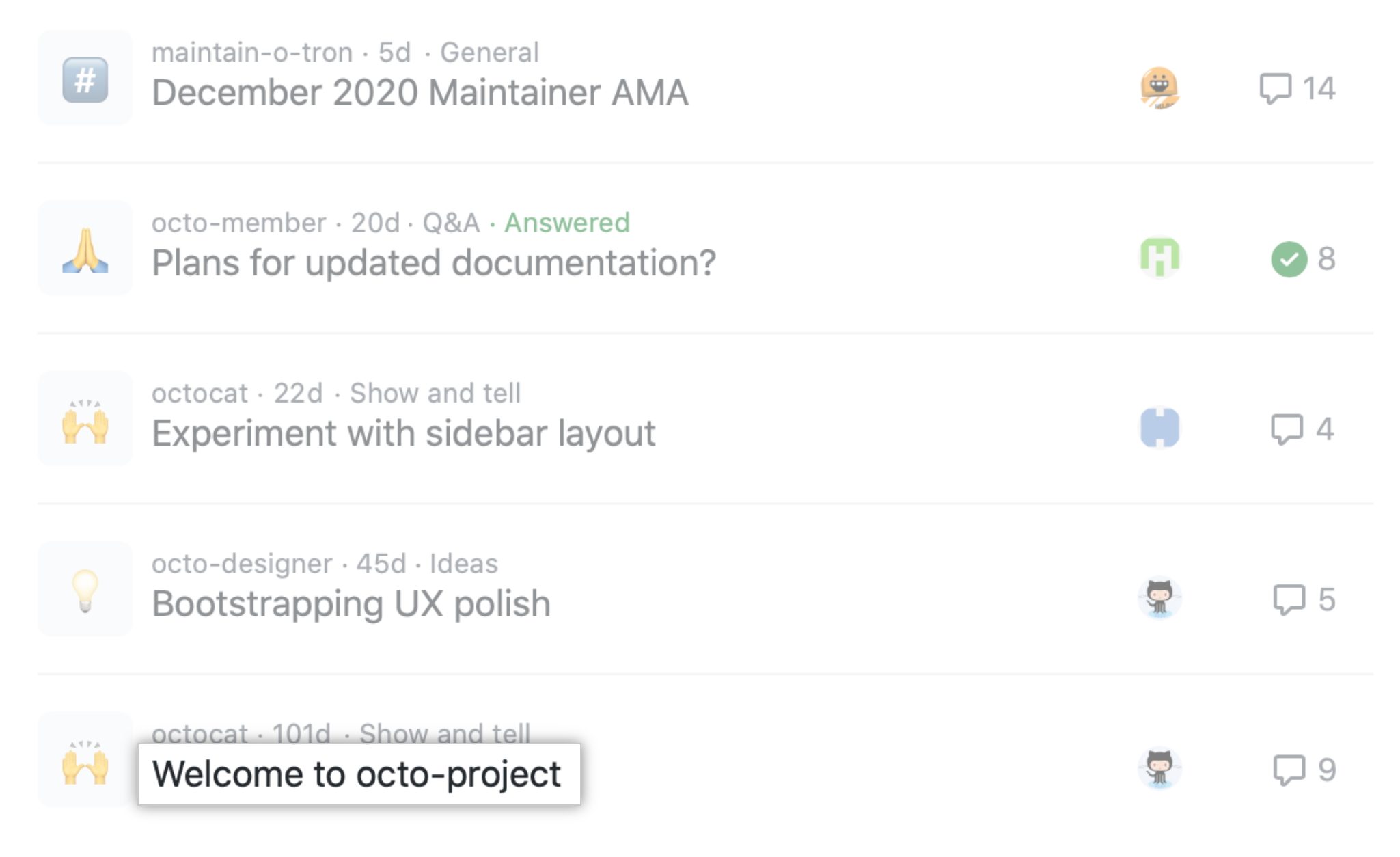
You can pin a discussion above the list of discussions for the repository or organization. You can also pin a discussion to a specific category. The globally pinned discussions will be shown in addition to the discussions pinned to a specific category.
This is what it looks like when you have a globally pinned discussion and a discussion pinned to the Ideas category.

Pinning a discussion globally
You can pin up to four important discussions above the list of discussions for the repository or organization.
-
On GitHub.com, navigate to the main page of the repository or organization.
-
No nome de seu repositório ou organização, clique em Discussões.
-
Na lista de discussões, clique na discussão que você deseja visualizar.
-
In the right sidebar, click Pin discussion.

-
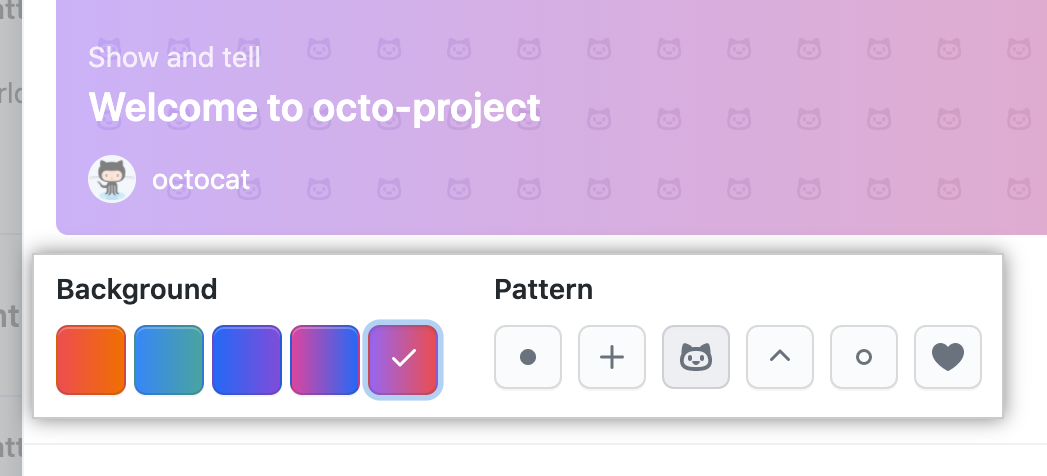
Optionally, customize the look of the pinned discussion.
-
Click Pin discussion.

Pinning a discussion to a category
You can pin up to four important discussions above the list of discussions in a specific category.
-
On GitHub.com, navigate to the main page of the repository or organization.
-
No nome de seu repositório ou organização, clique em Discussões.
-
Na lista de discussões, clique na discussão que você deseja visualizar.
-
In the right sidebar, click Pin discussion to CATEGORY.

-
To confirm, click Pin to CATEGORY.

Editing a pinned discussion
Editing a pinned discussion will not change the discussion's category. For more information, see "Managing categories for discussions."
- On GitHub.com, navigate to the main page of the repository or organization.
- No nome de seu repositório ou organização, clique em Discussões.
- Na lista de discussões, clique na discussão que você deseja visualizar.
- In the right sidebar, click Edit pinned discussion.

-
Customize the look of the pinned discussion.
-
Click Pin discussion.
Unpinning a discussion
You can unpin a discussion from the list of discussions for the repository or organization, or from the list of discussions in a specific category.
Unpinning a globally pinned discussion
You can unpin a globally pinned discussion. This will not delete the discussion, but the discussion will no longer be displayed above the list of discussions.
-
On GitHub.com, navigate to the main page of the repository or organization.
-
No nome de seu repositório ou organização, clique em Discussões.
-
Na lista de discussões, clique na discussão que você deseja visualizar.
-
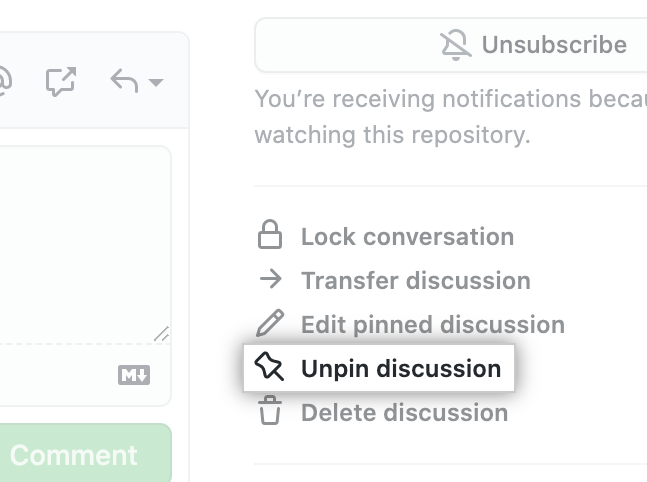
In the right sidebar, click Unpin discussion.
-
Read the warning, then click Unpin discussion.

Unpinning a discussion from a category
You can unpin a discussion pinned to a specific category. This will not delete the discussion, but the discussion will no longer be displayed at the top of the category.
-
On GitHub.com, navigate to the main page of the repository or organization.
-
No nome de seu repositório ou organização, clique em Discussões.
-
Na lista de discussões, clique na discussão que você deseja visualizar.
-
In the right sidebar, click Unpin discussion from this category.

-
Read the warning, then click Unpin from this category.

Transferring a discussion
To transfer a discussion, you must have permissions to create discussions in the repository where you want to transfer the discussion. If you want to transfer a discussion to an organization, you must have permissions to create discussions in the source repository for the organization's discussions. You can only transfer discussions between repositories owned by the same user or organization account. You can't transfer a discussion from a private repository to a public repository.
-
On GitHub.com, navigate to the main page of the repository or organization.
-
No nome de seu repositório ou organização, clique em Discussões.
-
Na lista de discussões, clique na discussão que você deseja visualizar.
-
In the right sidebar, click Transfer this discussion.

-
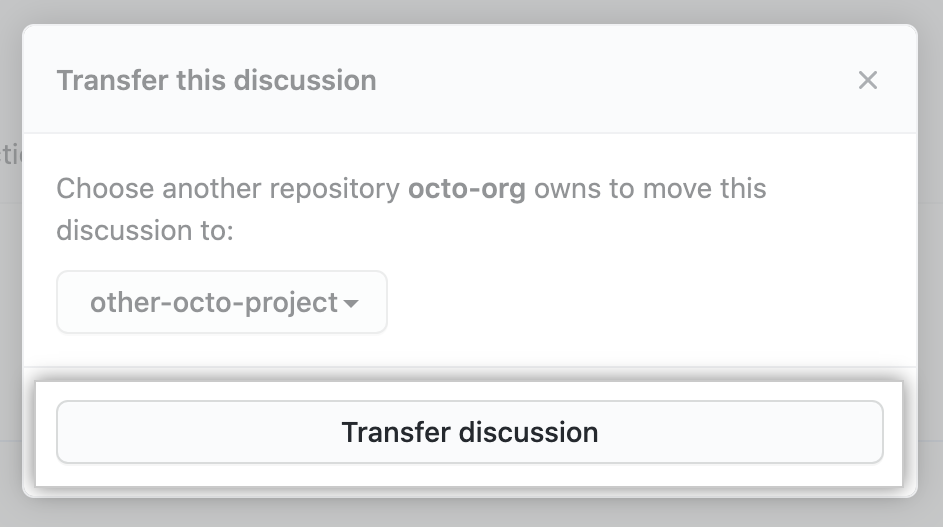
Select the Choose a repository drop-down, and click the repository you want to transfer the discussion to. If you want to transfer a discussion to an organization, choose the source repository for the organization's discussions.

-
Click Transfer discussion.
Deleting a discussion
-
On GitHub.com, navigate to the main page of the repository or organization.
-
No nome de seu repositório ou organização, clique em Discussões.
-
Na lista de discussões, clique na discussão que você deseja visualizar.
-
In the right sidebar, click Delete discussion.

-
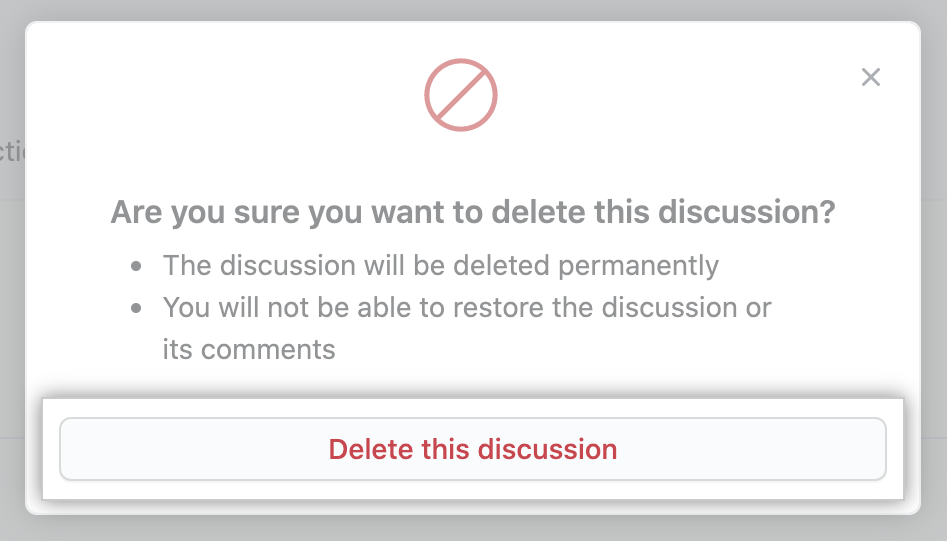
Read the warning, then click Delete this discussion.
Converting issues based on labels
You can convert all issues with the same label to discussions in bulk. Future issues with this label will also automatically convert to the discussion and category you configure.
-
On GitHub.com, navigate to the main page of the repository or, for organization discussions, the source repository.
-
No nome do seu repositório, clique em Problemas.

-
Acima da lista de problemas ou solicitações de pull, clique em Rótulos.

-
Next to the label you want to convert to issues, click Convert issues.
-
Select the Choose a category drop-down menu, and click a category for your discussion.
-
Click I understand, convert this issue to a discussion.