You can filter for date values using the YYYY-MM-DD format, for example: date:2022-07-01. You can also use operators, such as >, >=, <, <=, and ... For example, date:>2022-07-01 and date:2022-07-01..2022-07-31. You can also provide @today to represent the current day in your filter. For more information, see "Filtering projects."
Adding a date field
- In table view, in the rightmost field header, click .
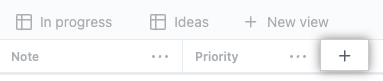
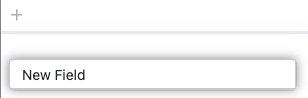
- Click New field.

- Type the name of your new field.
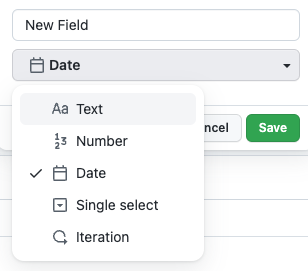
- Select Date
- Click Save.
Alternatively, open the project command palette by pressing Command+K (Mac) or Ctrl+K (Windows/Linux) and start typing "Create new field."