Nota: Escaneo de código se encuentra acutalmente en beta y está sujeto a cambios. To request access to the beta, join the waitlist.
Options for setting up escaneo de código
You decide how to generate escaneo de código alerts, and which tools to use, at a repository level. GitHub provides fully integrated support for CodeQL analysis, and also supports analysis using third-party tools. For more information, see "About escaneo de código."
|
|
Options for generating alerts |
|---|---|
| CodeQL | Using GitHub Actions (see "Enabling escaneo de código using actions") or using the CodeQL runner in a third-party continuous integration (CI) system (see "Running code scanning in your CI system"). |
| Third‑party | Using GitHub Actions (see "Enabling escaneo de código using actions") or generated externally and uploaded to GitHub (see "Uploading a SARIF file to GitHub"). |
Setting up escaneo de código using actions
Using actions to run escaneo de código will use minutes. For more information, see "About billing for GitHub Actions."
-
En GitHub, visita la página principal del repositorio.
-
Debajo de tu nombre de repositorio, da clic en Seguridad.

-
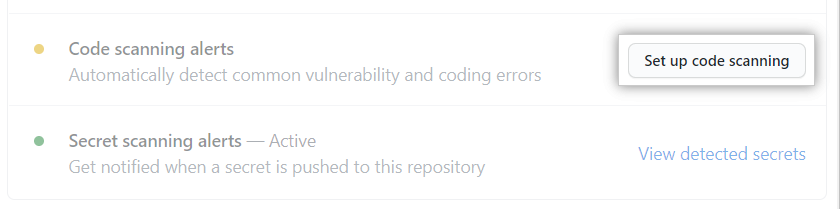
To the right of "Escaneo de código alerts", click Set up escaneo de código. If escaneo de código is missing, you need to ask an organization owner or repository administrator to enable GitHub Advanced Security. For more information, see "Managing security and analysis settings for your organization" or "Managing security and analysis settings for your repository."
-
Under "Get started with escaneo de código", click Set up this workflow on the CodeQL Analysis workflow or on a third-party workflow.
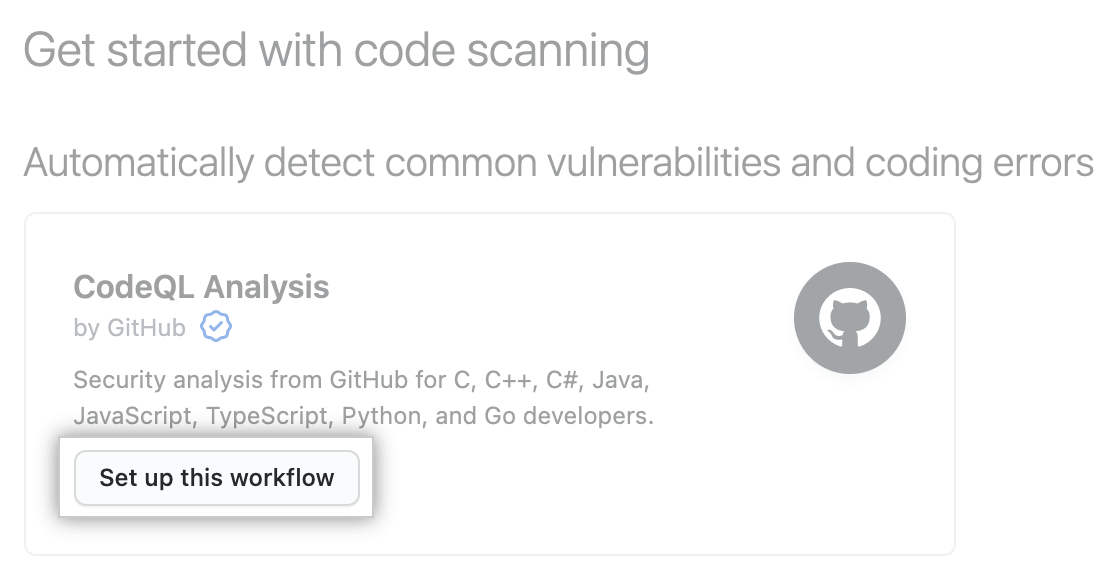 Workflows are only displayed if they are relevant for the programming languages detected in the repository. The CodeQL Analysis workflow is always displayed, but the "Set up this workflow" button is only enabled if CodeQL analysis supports the languages present in the repository.
 -
To customize how escaneo de código scans your code, edit the workflow.
Generally you can commit the CodeQL Analysis workflow without making any changes to it. However, many of the third-party workflows require additional configuration, so read the comments in the workflow before committing.
For more information, see "Configuring escaneo de código."
-
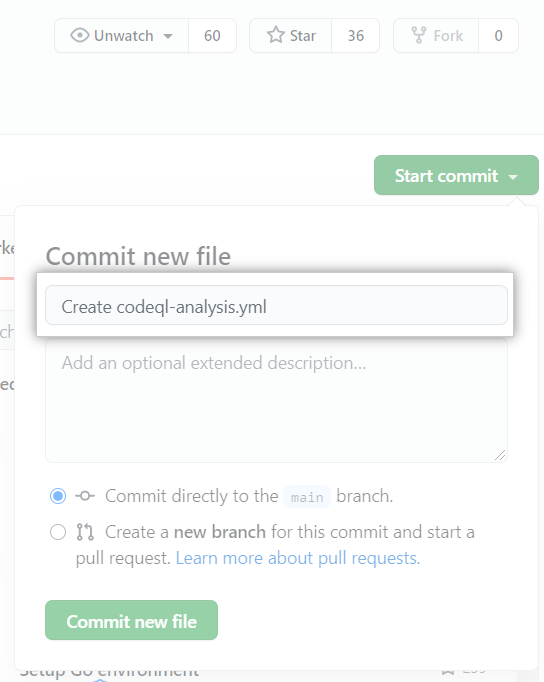
Use the Start commit drop-down, and type a commit message.
-
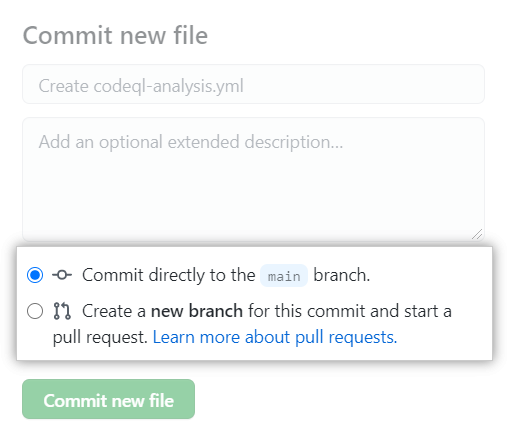
Choose whether you'd like to commit directly to the default branch, or create a new branch and start a pull request.
-
Click Commit new file or Propose new file.
In the default CodeQL Analysis workflow, escaneo de código is configured to analyze your code each time you either push a change to the default branch or any protected branches, or raise a pull request against the default branch. As a result, escaneo de código will now commence.
Bulk set up of escaneo de código
You can set up escaneo de código in many repositories at once using a script. For an example of a script that raises pull requests to add a GitHub Actions workflow to multiple repositories, see the jhutchings1/Create-ActionsPRs repository.
Understanding the pull request checks
Each escaneo de código workflow you set to run on pull requests always has at least two entries listed in the checks section of a pull request. There is one entry for each of the analysis jobs in the workflow, and a final one for the results of the analysis.
The names of the escaneo de código analysis checks take the form: "TOOL NAME / JOB NAME (TRIGGER)." For example, for CodeQL, analysis of C++ code has the entry "CodeQL / Analyze (cpp) (pull_request)." You can click Details on a escaneo de código analysis entry to see logging data. This allows you to debug a problem if the analysis job failed. For example, for escaneo de código analysis of compiled languages, this can happen if the action can't build the code.
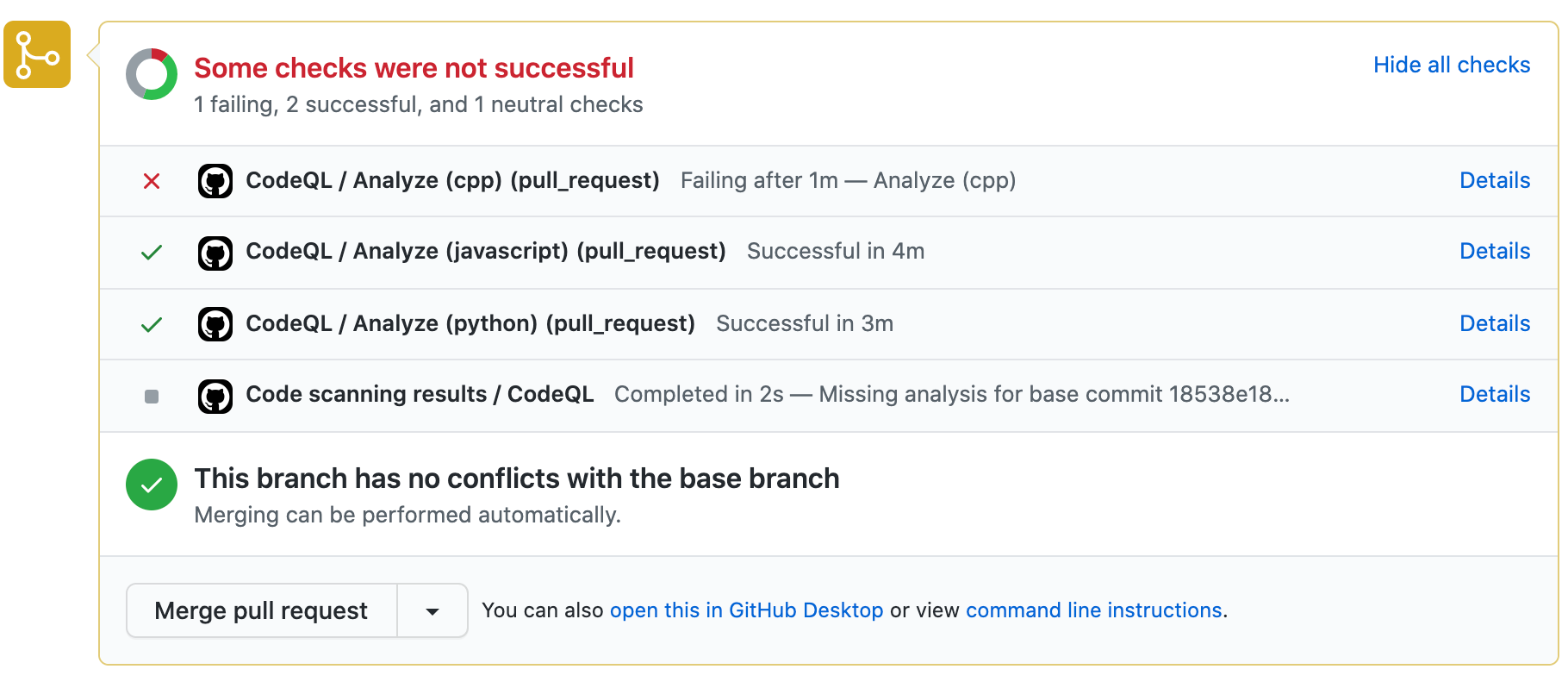
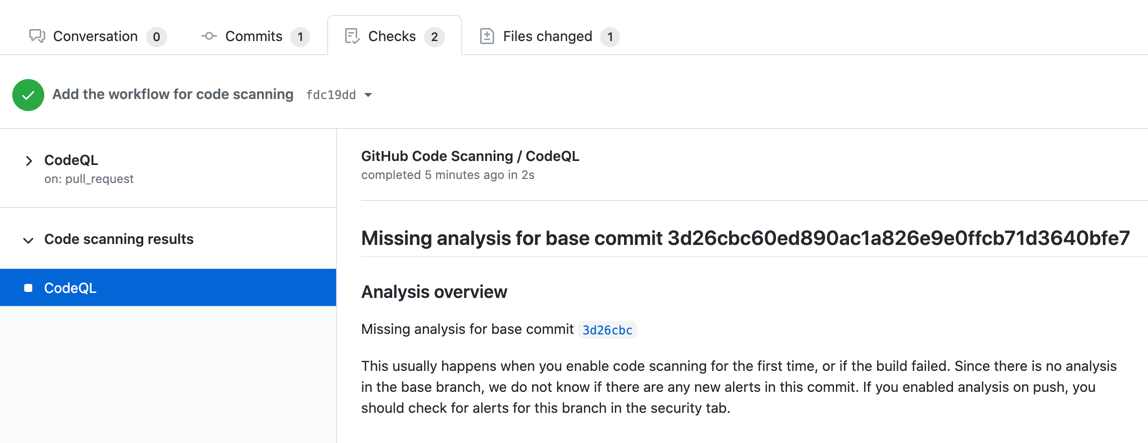
When the escaneo de código jobs complete, GitHub works out whether any alerts were added by the pull request and adds the "Escaneo de código results / TOOL NAME" entry to the list of checks. After escaneo de código has been performed at least once, you can click Details to view the results of the analysis. If you used a pull request to add escaneo de código to the repository, you will initially see a "Missing analysis" message when you click Details on the "Escaneo de código results / TOOL NAME" check.
Reasons for the "missing analysis" message
After escaneo de código has analyzed the code in a pull request, it needs to compare the analysis of the topic branch (the branch you used to create the pull request) with the analysis of the base branch (the branch into which you want to merge the pull request). This allows escaneo de código to compute which alerts are newly introduced by the pull request, which alerts were already present in the base branch, and whether any existing alerts are fixed by the changes in the pull request. Initially, if you use a pull request to add escaneo de código to a repository, the base branch has not yet been analyzed, so it's not possible to compute these details. In this case, when you click through from the results check on the pull request you will see the "Missing analysis for base commit SHA-HASH" message.
There are other situations where there may be no analysis for the latest commit to the base branch for a pull request. These include:
-
The pull request has been raised against a branch other than the default branch, and this branch hasn't been analyzed.
To check whether a branch has been scanned, go to the Escaneo de código page, click the Branch drop-down and select the relevant branch.
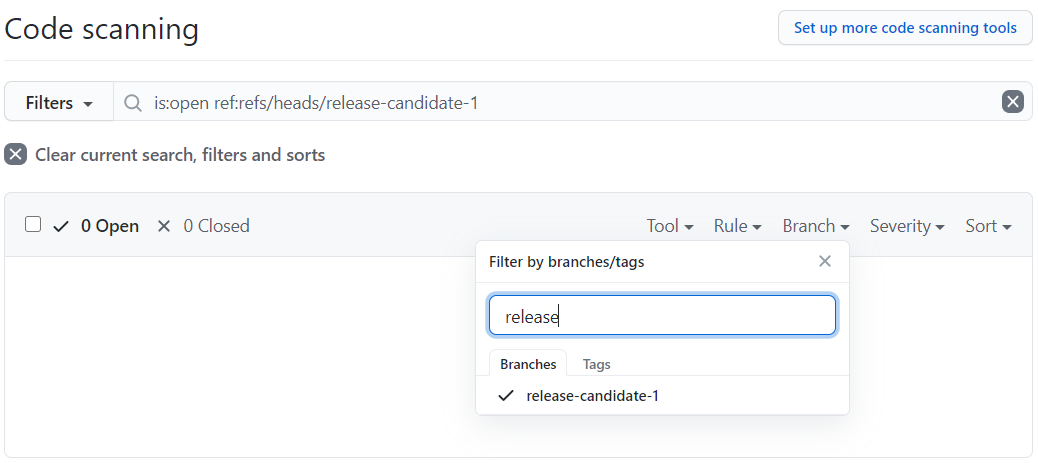
The solution in this situation is to add the name of the base branch to the
on:pushandon:pull_requestspecification in the escaneo de código workflow on that branch and then make a change that updates the open pull request that you want to scan. -
The latest commit on the base branch for the pull request is currently being analyzed and analysis is not yet available.
Wait a few minutes and then push a change to the pull request to retrigger escaneo de código.
-
An error occurred while analyzing the latest commit on the base branch and analysis for that commit isn't available.
Merge a trivial change into the base branch to trigger escaneo de código on this latest commit, then push a change to the pull request to retrigger escaneo de código.
Next steps
After setting up escaneo de código, and allowing its actions to complete, you can:
- View all of the escaneo de código alerts generated for this repository. For more information, see "Managing escaneo de código alerts for your repository."
- View any alerts generated for a pull request submitted after you set up escaneo de código. For more information, see "Triaging escaneo de código alerts in pull requests."
- Set up notifications for completed runs. For more information, see "Configuring notifications."
- View the logs generated by the escaneo de código analysis. For more information, see "Viewing escaneo de código logs."
- Investigate any problems that occur with the initial setup of CodeQL escaneo de código. For more information, see "Troubleshooting the CodeQL workflow."
- Customize how escaneo de código scans the code in your repository. For more information, see "Configuring escaneo de código."