You can filter by your single select fields by specifying the option, for example: fieldname:option. You can filter for multiple values by providing a comma-separated list of options, for example: fieldname:option,option. For more information, see "Filtering projects."
Single select fields can contain up to 50 options.
Adding a single select field
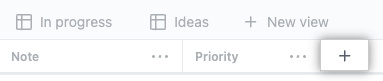
- In table view, in the rightmost field header, click .
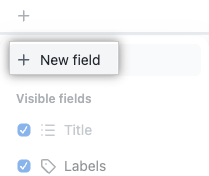
- Click New field.
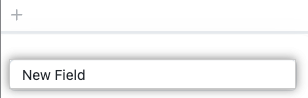
- Type the name of your new field.
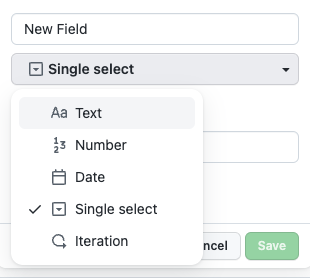
- Select Single select
- Below "Options", type the first option.
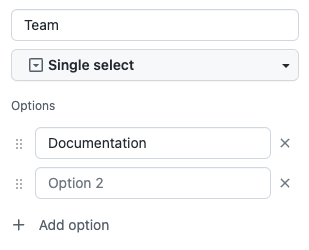
- To add additional options, click Add option.
- Click Save.



Alternatively, open the project command palette by pressing Command+K (Mac) or Ctrl+K (Windows/Linux) and start typing "Create new field."
Editing a single select field
You can set descriptions and colors for each of your single select options.
-
Access your project's settings.
-
To the right of the single select field you want to edit, click .

-
In the modal that opens, under Label text, type the name of this option.
-
Optionally, under Color, select the color you want to use to represent this option.

-
Optionally, under Description, type a description for this option.
-
Click Save to save your changes.

