Note: Team Discussions will be deprecated on May 8, 2023 in favor of GitHub Discussions. You can transfer your existing team discussions to a repository's discussions by using a migration tool that allows team admins to migrate both public and private team discussions. Click the "Transfer" button in the banner at the top of your team discussions page, then choose the repository in your organization that you want to migrate the discussions to.
For more information on GitHub Discussions, see "About discussions."
Private posts are only visible to team members and organization owners, and public posts are visible to all members of the organization. For more information, see "About team discussions."
-
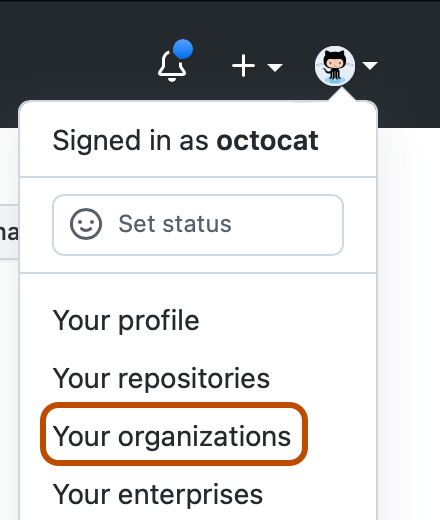
In the top right corner of GitHub.com, click your profile photo, then click Your organizations.
-
Click the name of your organization.

-
Under your organization name, click Teams.

-
Click the name of the team.
-
At the top of the team's page, click Discussions.

-
Type a team discussion title and a comment to start a conversation.

-
Optionally, select whether you want your post to be private or public using the drop-down menu.

-
Click Comment.


