Supported editors
GitHub Desktop supports the following editors.
- MacVim
- Visual Studio Code
- Visual Studio Codium
- Sublime Text
- BBEdit
- JetBrains WebStorm
- JetBrains PhpStorm
- JetBrains Rider
- JetBrains PyCharm
- JetBrains RubyMine
- JetBrains IntelliJ IDEA
- JetBrains GoLand
- TextMate
- Brackets
- To use Brackets with GitHub Desktop, you must install the Command Line shortcut. To install the shortcut, open Brackets, click File in the menu bar, then click Install Command Line Shortcut.
- Typora
- CodeRunner
- SlickEdit
- Xcode
- RStudio
- Nova
- Android Studio
- Aptana Studio
Configuring a default editor
- In the menu bar, select GitHub Desktop, then click Preferences.

- In the Preferences window, select Integrations.

- Under "External Editor", use the dropdown menu to select the editor you want to set as your default.
- Click Save.


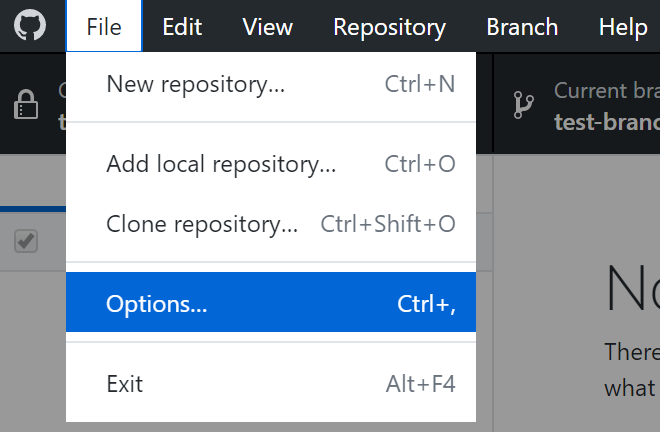
- Use the File menu, then click Options.
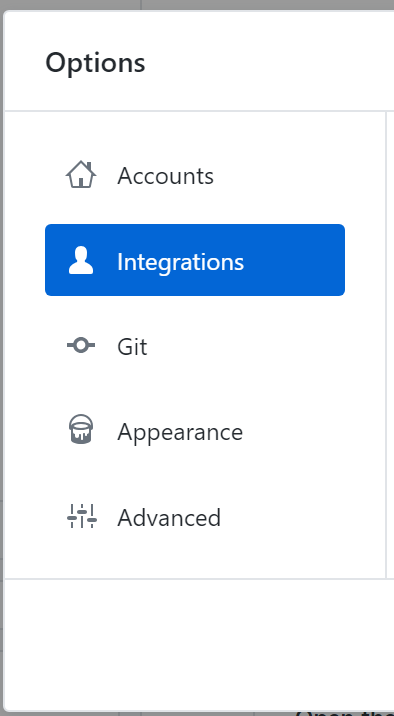
- In the Options window, select Integrations.
- Use the "External Editor" drop-down menu, and choose the editor you want to set as your default.
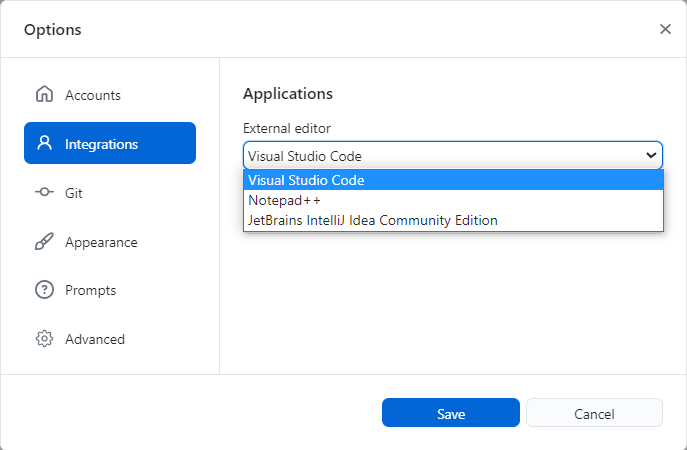
- Click Save.


