Enabling secret scanning alerts for users
You can enable secret scanning alerts for users for any free public repository that you own. Once enabled, secret scanning scans for any secrets in your entire Git history on all branches present in your GitHub repository.
-
On GitHub.com, navigate to the main page of the repository.
-
Under your repository name, click Settings. If you cannot see the "Settings" tab, select the dropdown menu, then click Settings.

-
In the "Security" section of the sidebar, click Code security and analysis.
-
Scroll down to the bottom of the page, and click Enable for secret scanning. If you see a Disable button, it means that secret scanning is already enabled for the repository.


Enabling secret scanning alerts for users for all your public repositories
You can enable secret scanning alerts for users for all of your public repositories through your personal account settings.
-
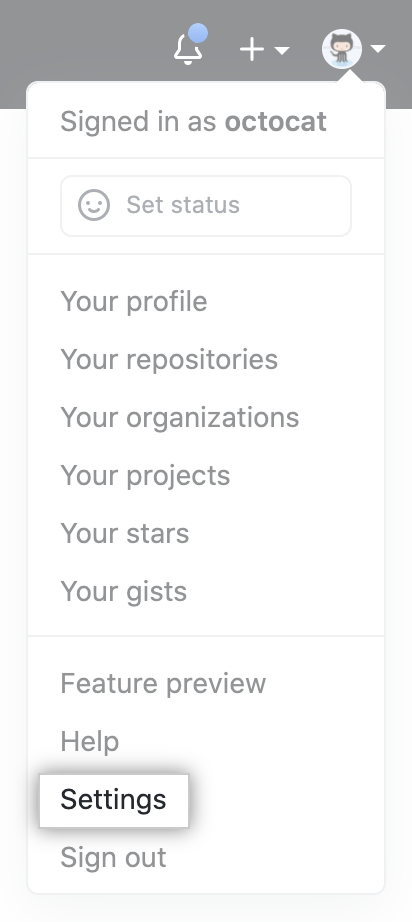
In the upper-right corner of any page, click your profile photo, then click Settings.
-
In the "Security" section of the sidebar, click Code security and analysis.
-
Under "Code security and analysis", to the right of "Secret scanning", click Disable all or Enable all.

-
Optionally, to automatically enable secret scanning for any new public repositories that you create, below "Secret scanning", select the checkbox for "Automatically enable for new public repositories."


Excluding directories from secret scanning alerts for users
You can configure a secret_scanning.yml file to exclude directories from secret scanning. For example, you can exclude directories that contain tests or randomly generated content.
-
On GitHub.com, navigate to the main page of the repository.
-
Above the list of files, using the Add file drop-down, click Create new file.

-
In the file name field, type .github/secret_scanning.yml.
-
Under Edit new file, type
paths-ignore:followed by the paths you want to exclude from secret scanning.paths-ignore: - "foo/bar/*.js"You can use special characters, such as
*to filter paths. For more information about filter patterns, see "Workflow syntax for GitHub Actions."Notes:
- If there are more than 1,000 entries in
paths-ignore, secret scanning will only exclude the first 1,000 directories from scans. - If secret_scanning.yml is larger than 1 MB, secret scanning will ignore the entire file.
- If there are more than 1,000 entries in

You can also ignore individual alerts from secret scanning. For more information, see "Managing alerts from secret scanning."