About Dependabot alerts for vulnerable dependencies and malware
A vulnerability is a problem in a project's code that could be exploited to damage the confidentiality, integrity, or availability of the project or other projects that use its code. Vulnerabilities vary in type, severity, and method of attack.
Dependabot scans code when a new advisory is added to the GitHub Advisory Database or the dependency graph for a repository changes. When vulnerable dependencies or malware are detected, Dependabot alerts are generated. For more information, see "About Dependabot alerts."
You can enable or disable Dependabot alerts for:
- Your personal account
- Your repository
- Your organization
Managing Dependabot alerts for your personal account
You can enable or disable Dependabot alerts for all repositories owned by your personal account.
Enabling or disabling Dependabot alerts for existing repositories
-
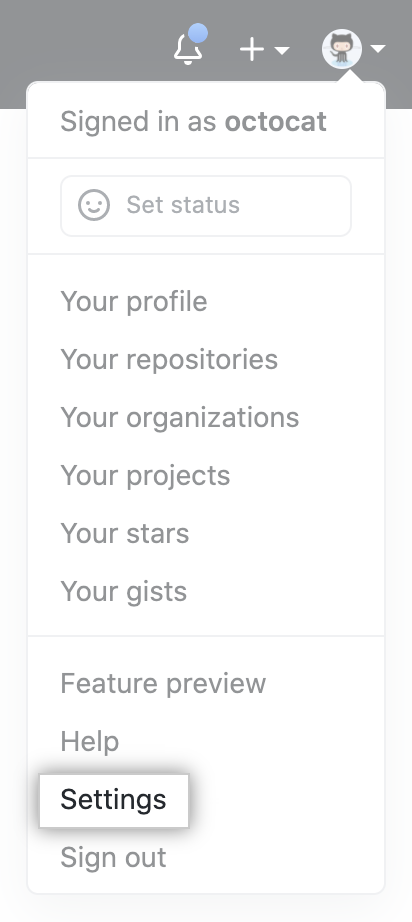
In the upper-right corner of any page, click your profile photo, then click Settings.
-
In the "Security" section of the sidebar, click Code security and analysis.
-
Under "Code security and analysis", to the right of Dependabot alerts, click Disable all or Enable all.

-
Optionally, enable Dependabot alerts by default for new repositories that you create.

-
Click Disable Dependabot alerts or Enable Dependabot alerts to disable or enable Dependabot alerts for all the repositories you own.


When you enable Dependabot alerts for existing repositories, you will see any results displayed on GitHub within minutes.
Enabling or disabling Dependabot alerts for new repositories
-
In the upper-right corner of any page, click your profile photo, then click Settings.
-
In the "Security" section of the sidebar, click Code security and analysis.
-
Under "Code security and analysis", to the right of Dependabot alerts, enable or disable Dependabot alerts by default for new repositories that you create.


Managing Dependabot alerts for your repository
You can manage Dependabot alerts for your public, private or internal repository.
By default, we notify people with admin permissions in the affected repositories about new Dependabot alerts. GitHub never publicly discloses insecure dependencies for any repository. You can also make Dependabot alerts visible to additional people or teams working on repositories that you own or have admin permissions for.
If you enable security and analysis features, GitHub performs read-only analysis on your repository. For more information, see "About GitHub's use of your data."
Enabling or disabling Dependabot alerts for a repository
-
On GitHub.com, navigate to the main page of the repository.
-
Under your repository name, click Settings. If you cannot see the "Settings" tab, select the dropdown menu, then click Settings.

-
In the "Security" section of the sidebar, click Code security and analysis.
-
Under "Code security and analysis", to the right of Dependabot alerts, click Enable to enable alerts or Disable to disable alerts.


Managing Dependabot alerts for your organization
You can enable or disable Dependabot alerts for all repositories owned by your organization. Your changes affect all repositories.
Enabling or disabling Dependabot alerts for all existing repositories
-
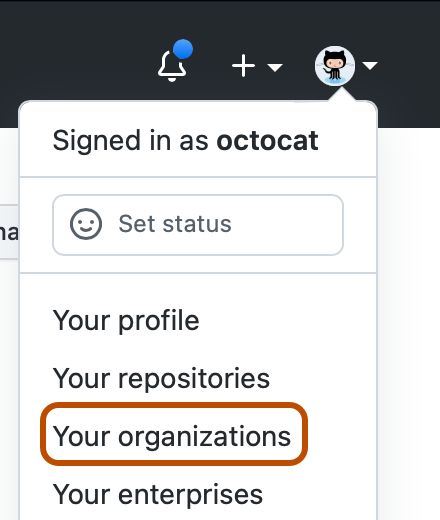
In the top right corner of GitHub.com, click your profile photo, then click Your organizations.
-
Next to the organization, click Settings.

-
In the "Security" section of the sidebar, click Code security and analysis.
-
Under "Code security and analysis", to the right of Dependabot alerts, click Disable all or Enable all.

-
Optionally, enable Dependabot alerts by default for new repositories in your organization.

-
Click Disable Dependabot alerts or Enable Dependabot alerts to disable or enable Dependabot alerts for all the repositories in your organization.


