About private keys for GitHub Apps
After you create a GitHub App, you'll need to generate a private key in order to make requests to the GitHub API as the application itself. For example, you need a private key to sign a JSON Web Token (JWT) in order to request an installation access token. For more information, see "关于 JSON Web 令牌 (JWT)"
You can create multiple private keys and rotate them to prevent downtime if a key is compromised or lost. To verify that a private key matches a public key, see "Verifying private keys".
You must keep private keys for GitHub Apps secure. For more information, see "Storing private keys".
Generating private keys
To generate a private key:
-
导航到您的帐户设置。
- 对于个人帐户拥有的 GitHub App,在任何页面的右上角,单击你的个人资料照片,然后单击“设置”。
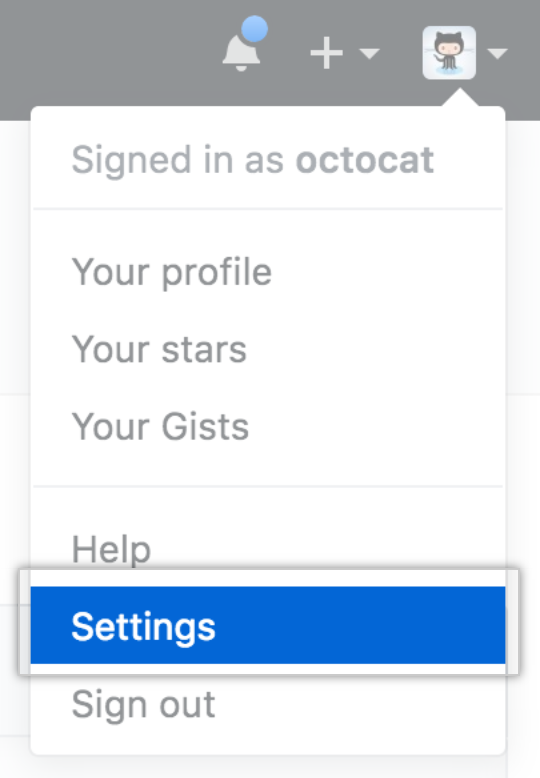
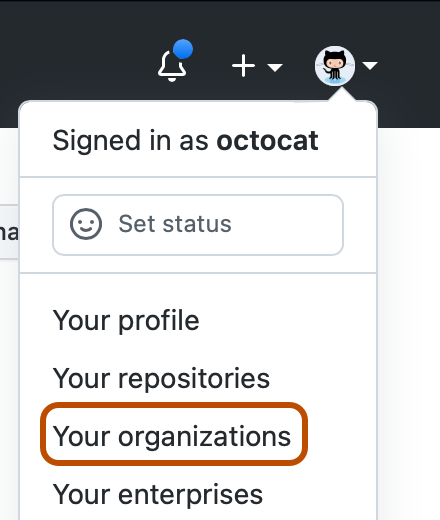
- 对于组织拥有的 GitHub App,在任何页面的右上角,单击你的个人资料照片,然后单击你的组织。 然后,在组织右侧,单击“设置”。

- 对于个人帐户拥有的 GitHub App,在任何页面的右上角,单击你的个人资料照片,然后单击“设置”。
-
在左侧边栏中,单击“ 开发人员设置”。
-
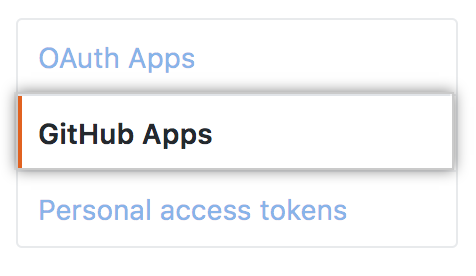
在左侧边栏中,单击“GitHub 应用”。
-
Next to the GitHub App that you want to generate a private key for, click Edit.
-
Under "Private keys", click Generate a private key.
-
You will see a private key in PEM format downloaded to your computer. Make sure to store this file because GitHub only stores the public portion of the key. For more information about securely storing your key, see "Storing private keys."


Note: If you're using a library that requires a specific file format, the PEM file you download will be in PKCS#1 RSAPrivateKey format.
Verifying private keys
GitHub generates a fingerprint for each private and public key pair using the SHA-256 hash function. You can verify that your private key matches the public key stored on GitHub by generating the fingerprint of your private key and comparing it to the fingerprint shown on GitHub.
To verify a private key:
- Find the fingerprint for the private and public key pair you want to verify in the "Private keys" section of your GitHub App's developer settings page. For more information, see "Generating private keys".

- Generate the fingerprint of your private key (PEM) locally by using the following command:
$ openssl rsa -in PATH_TO_PEM_FILE -pubout -outform DER | openssl sha256 -binary | openssl base64 - Compare the results of the locally generated fingerprint to the fingerprint you see in GitHub.

Deleting private keys
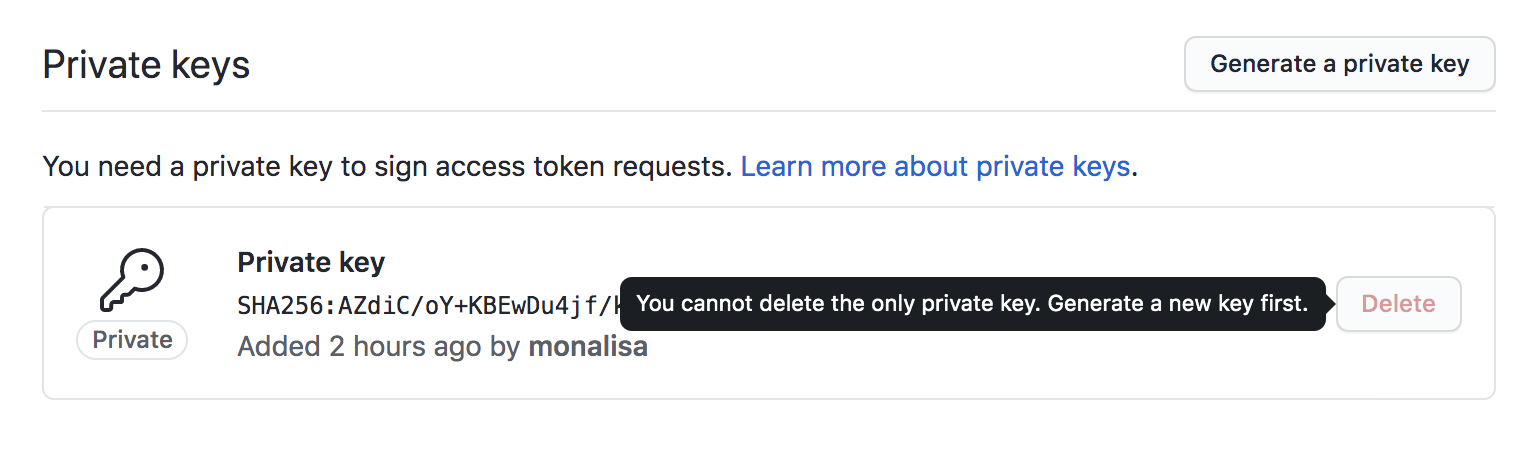
You can remove a lost or compromised private key by deleting it, but you must regenerate a new key before you can delete the existing key.
-
导航到您的帐户设置。
- 对于个人帐户拥有的 GitHub App,在任何页面的右上角,单击你的个人资料照片,然后单击“设置”。
- 对于组织拥有的 GitHub App,在任何页面的右上角,单击你的个人资料照片,然后单击你的组织。 然后,在组织右侧,单击“设置”。
- 对于个人帐户拥有的 GitHub App,在任何页面的右上角,单击你的个人资料照片,然后单击“设置”。
-
在左侧边栏中,单击“ 开发人员设置”。
-
在左侧边栏中,单击“GitHub 应用”。
-
Next to the GitHub App that you want to delete a private key for, click Edit.
-
Under "Private keys", to the right of the private key you want to delete, click Delete.
-
When prompted, confirm you want to delete the private key by clicking Delete. If your GitHub App has only one key, you will need to generate a new key before deleting the old key. For more information, see "Generating private keys."

Storing private keys
The private key is the single most valuable secret for a GitHub App. We recommend storing the key in a key vault, such as Azure Key Vault, and making it sign-only. This ensures that you can't lose the private key. Once the private key is uploaded to the key vault, it can never be read from there. It can only be used to sign things, and access to the private key is determined by your infrastructure rules.
Alternatively, you can store the key as an environment variable. This is not as strong as storing the key in a key vault. If an attacker gains access to the environment, they can read the private key and gain persistent authentication as the GitHub App.
You should not hard-code your private key in your app, even if your code is stored in a private repository.