Plan for Deploying Devices using Discrete Device Assignment
Applies to: Windows Server 2022, Microsoft Hyper-V Server 2016, Windows Server 2016, Microsoft Hyper-V Server 2019, Windows Server 2019
Discrete Device Assignment allows physical PCIe hardware to be directly accessible from within a virtual machine. This article discusses the type of devices that can be used, host system requirements, limitations imposed on the virtual machines and security implications.
For Discrete Device Assignment, Microsoft supports two device classes: Graphics Adapters and NVMe Storage devices. Other devices are likely to work and hardware vendors are able to offer statements of support for those devices. For these other devices, reach out to those hardware vendors for support.
To learn about other methods of GPU virtualization, see Plan for GPU acceleration in Windows Server. If you're ready to try out Discrete Device Assignment, you can jump over to Deploying Graphics Devices Using Discrete Device Assignment or Deploying Storage Devices using Discrete Device Assignment to get started.
Supported Virtual Machines and Guest Operating Systems
Discrete Device Assignment is supported for Generation 1 or 2 VMs. The guests supported include Windows 10 or later, Windows Server 2016 or later, and Windows Server 2012 R2 with KB 3133690 applied. Various distributions of the Linux OS. are also supported.
System Requirements
Your system must meet the System Requirements for Windows Server and System Requirements for Hyper-V. Discrete Device Assignment also requires server class hardware that is capable of granting the operating system control over configuring the PCIe fabric (Native PCI Express Control). In addition, the PCIe Root Complex has to support "Access Control Services" (ACS), which enables Hyper-V to force all PCIe traffic through the I/O MMU.
These capabilities usually aren't exposed directly in the BIOS of the server and are often hidden behind other settings. For example, the same capabilities are required for SR-IOV support and in the BIOS you may need to set "Enable SR-IOV." Reach out to your system vendor if you're unable to identify the correct setting in your BIOS.
To help ensure hardware the hardware is capable of Discrete Device Assignment, you can run the Machine Profile Script on a Hyper-V enabled host. The script tests if your server is correctly set up and what devices are capable of Discrete Device Assignment.
Device Requirements
Not every PCIe device can be used with Discrete Device Assignment. For example, older devices that use legacy (INTx) PCI Interrupts aren't supported. To learn more about the machines and devices required, see our blog post Discrete Device Assignment - Machines and devices. You can also run the Machine Profile Script to display which devices are capable of being used for Discrete Device Assignment.
Device manufacturers can reach out to their Microsoft representative for more details.
Device Driver
As Discrete Device Assignment passes the entire PCIe device into the Guest VM, a host driver isn't required to be installed prior to the device being mounted within the VM. The only requirement on the host is that the device's PCIe Location Path can be determined. The device's driver can optionally be installed if this helps in identifying the device. For example, a GPU without its device driver installed on the host may appear as a Microsoft Basic Render Device. If the device driver is installed, its manufacturer and model is likely to be displayed.
Once the device is mounted inside the guest, the Manufacturer's device driver can now be installed like normal inside the guest virtual machine.
Virtual Machine Limitations
Due to the nature of how Discrete Device Assignment is implemented, some features of a virtual machine are restricted while a device is attached. The following features aren't available:
- VM Save/Restore
- Live migration of a VM
- The use of dynamic memory
- Adding the VM to a high availability (HA) cluster
Security
Discrete Device Assignment passes the entire device into the VM. This means all capabilities of that device are accessible from the guest operating system. Some capabilities, like firmware updating, may adversely impact the stability of the system. As such, numerous warnings are presented to the admin when dismounting the device from the host. We highly recommend that Discrete Device Assignment is only used where the tenants of the VMs are trusted.
If the admin desires to use a device with an untrusted tenant, we have provided device manufactures with the ability to create a Device Mitigation driver that can be installed on the host. Contact the device manufacturer for details on whether they provide a Device Mitigation Driver.
If you would like to bypass the security checks for a device that doesn't have a Device Mitigation Driver, you have to pass the -Force parameter to the Dismount-VMHostAssignableDevice cmdlet. Understand that by doing so, you have changed the security profile of that system and this is only recommended during prototyping or trusted environments.
PCIe Location Path
The PCIe Location path is required to dismount and mount the device from the Host. Here's an example of what the location path looks like: "PCIROOT(20)#PCI(0300)#PCI(0000)#PCI(0800)#PCI(0000)". The Machine Profile Script also returns the Location Path of the PCIe device.
Getting the Location Path by Using Device Manager
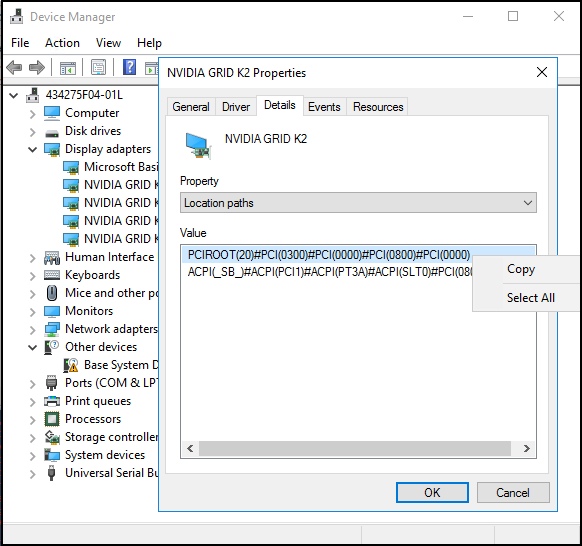
- Open Device Manager and locate the device.
- Right-click the device and select “Properties.”
- Navigate to the Details tab and select “Location Paths” in the Property drop down.
- Right-click the entry that begins with “PCIROOT” and select "Copy." You now have the location path for that device.
MMIO Space
Some devices, especially GPUs, require more MMIO space to be allocated to the VM for the memory of that device to be accessible. By default, each VM starts off with 128 MB of low MMIO space and 512 MB of high MMIO space allocated to it. However, a device might require more MMIO space, or multiple devices may be passed through such that the combined requirements exceed these values. Changing MMIO Space is straight forward and can be performed in PowerShell using the following commands:
Set-VM -LowMemoryMappedIoSpace 3Gb -VMName $vm
Set-VM -HighMemoryMappedIoSpace 33280Mb -VMName $vm
The easiest way to determine how much MMIO space to allocate is to use the Machine Profile Script. To download and run the machine profile script, run the following commands in a PowerShell console:
curl -o SurveyDDA.ps1 https://raw.githubusercontent.com/MicrosoftDocs/Virtualization-Documentation/live/hyperv-tools/DiscreteDeviceAssignment/SurveyDDA.ps1
.\SurveyDDA.ps1
For devices that are able to be assigned, the script displays the MMIO requirements of a given device. Here's an example of the script output.
NVIDIA GRID K520
Express Endpoint -- more secure.
    ...
    And it requires at least: 176 MB of MMIO gap space
...
The low MMIO space is used only by 32-bit operating systems and devices that use 32-bit addresses. In most circumstances, setting the high MMIO space of a VM is enough since 32-bit configurations aren't common.
Important
When assigning MMIO space to a VM, the user needs to be sure set the MMIO space to the sum of the requested MMIO space for all desired assigned devices plus an additional buffer if there are other virtual devices that require a few MB of MMIO space. Use the default MMIO values previously described as the buffer for low and high MMIO (128 MB and 512 MB, respectively).
If a user were to assign a single K520 GPU as in the previous example, they must set the MMIO space of the VM to the value outputted by the machine profile script plus a buffer--176 MB + 512 MB. If a user assigns three K520 GPUs, they must set the MMIO space to three times 176 MB plus a buffer, or 528 MB + 512 MB.
For a more in-depth look at MMIO space, see Discrete Device Assignment - GPUs on the TechCommunity blog.
Machine Profile Script
To identify if the server is configured correctly, and what devices can be passed through using Discrete Device Assignment run the SurveyDDA.ps1. PowerShell script.
Before using the script, ensure you have the Hyper-V role installed and you run the script from a PowerShell command window that has Administrator privileges.
If the system is incorrectly configured to support Discrete Device Assignment, the tool displays an error message as to what is wrong. If the tool finds the system configured correctly, it enumerates all the devices it can find on the PCIe Bus.
For each device it finds, the tool displays whether it's able to be used with Discrete Device Assignment. If a device is identified as being compatible with Discrete Device Assignment, the script provides a reason. When a device is successfully identified as being compatible, the device's Location Path is displayed. Additionally, if that device requires MMIO space, it's displayed as well.

Feedback
Submit and view feedback for