Validate an Office Add-in's manifest
You may want to validate your add-in's manifest file to ensure that it's correct and complete. Validation can also identify issues that are causing the error "Your add-in manifest is not valid" when you attempt to sideload your add-in. This article describes multiple ways to validate the manifest file.
Note
For details about using runtime logging to troubleshoot issues with your add-in's manifest, see Debug your add-in with runtime logging.
Validate your manifest with the Yeoman generator for Office Add-ins
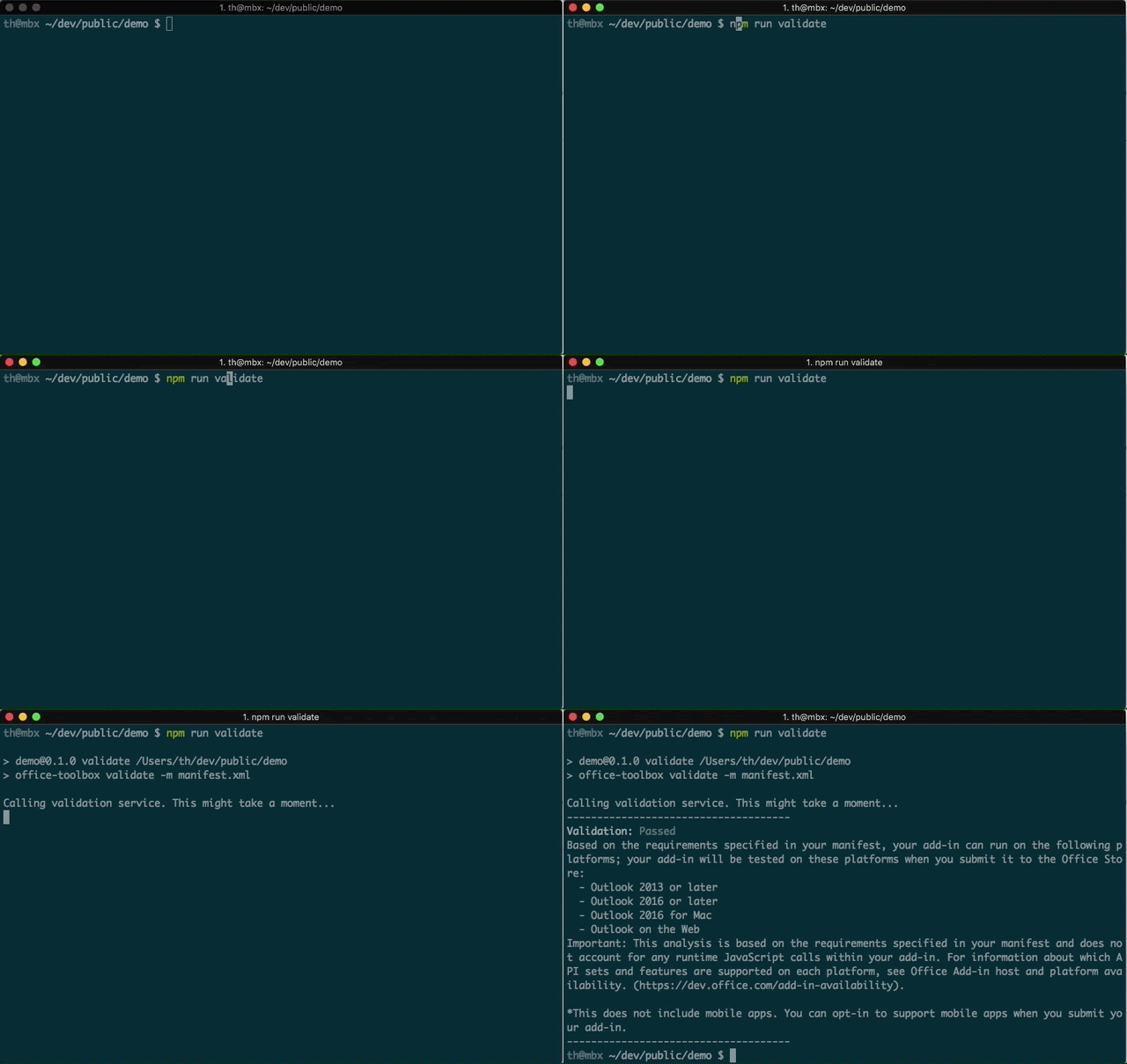
If you used the Yeoman generator for Office Add-ins to create your add-in, you can also use it to validate your project's manifest file. Run the following command in the root directory of your project.
npm run validate
Note
To access this functionality, your add-in project must be created using the Yeoman generator for Office Add-ins version 1.1.17 or later.
Validate your manifest with office-addin-manifest
If you didn't use the Yeoman generator for Office Add-ins to create your add-in, you can validate the manifest by using office-addin-manifest.
Install Node.js.
Open a command prompt and install the validator with the following command.
npm install -g office-addin-manifestRun the following command in the root directory of your project.
npm run validateNote
If this command is not available or not working, run the following command instead to force the use of the latest version of the office-addin-manifest tool (replacing
MANIFEST_FILEwith the name of the manifest file).npx office-addin-manifest validate MANIFEST_FILE
Office Store validation
The validate command also does Office Store validation but allows developer information like localhost URLs. If you'd like to run production-level Office Store validation, then run the following command.
npm run validate -- -p
If you're having trouble with that command, try the following (replacing MANIFEST_FILE with the name of the manifest file).
npx office-addin-manifest validate -p MANIFEST_FILE
Validate your manifest against the XML schema
You can validate the manifest file against the XML Schema Definition (XSD) files. This will ensure that the manifest file follows the correct schema, including any namespaces for the elements you are using. If you copied elements from other sample manifests double check that you also include the appropriate namespaces. You can use an XML schema validation tool to perform this validation.
To use a command-line XML schema validation tool to validate your manifest
Run the following command. Replace
XSD_FILEwith the path to the manifest XSD file, and replaceXML_FILEwith the path to the manifest XML file.xmllint --noout --schema XSD_FILE XML_FILE
See also
- Office Add-ins manifest
- Clear the Office cache
- Debug your add-in with runtime logging
- Sideload Office Add-ins for testing
- Debug add-ins using developer tools for Internet Explorer
- Debug add-ins using developer tools for Edge Legacy
- Debug add-ins using developer tools in Microsoft Edge (Chromium-based)
Feedback
Submit and view feedback for