View and manage analytics in Viva Engage
Advanced analytic capabilities in Viva Engage enables:
- Users to monitor their own engagement metrics through personal analytics.
- Leaders to monitor their audience’s engagement through audience analytics.
- Leaders to manage social campaign engagement through campaign analytics.
- Leaders to monitor engagement in Answers through answers analytics.
To view analytics, select the analytics icon on the top navigation bar.
Manage analytics
Any user with access to premium Viva Engage can access Engage Analytics. But only the Microsoft 365 Global admin and Engage admin roles can manage settings through the Viva Engage admin center.
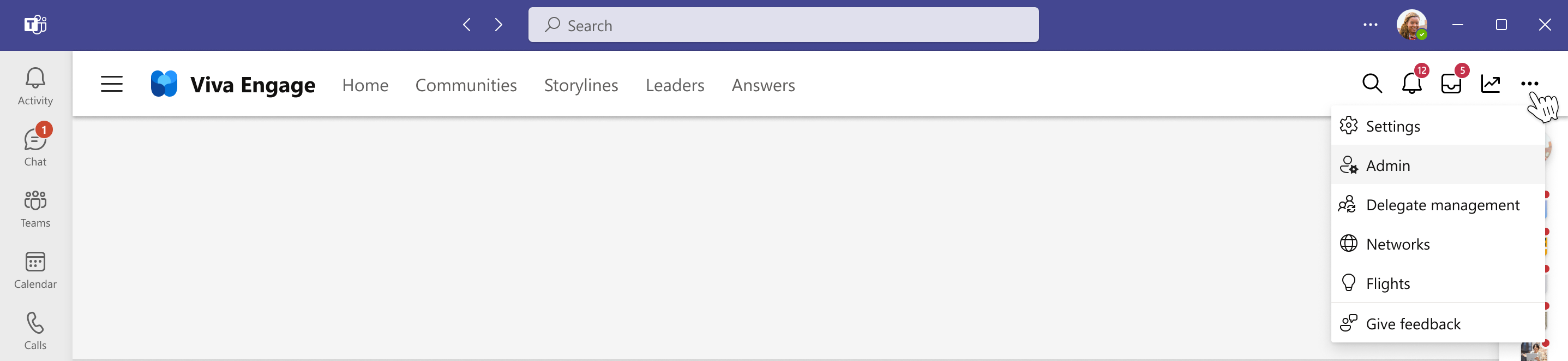
In the Viva Engage Teams application, select the ellipses button from the top navigation menu, and then select Admin to enter the Viva Engage admin center.
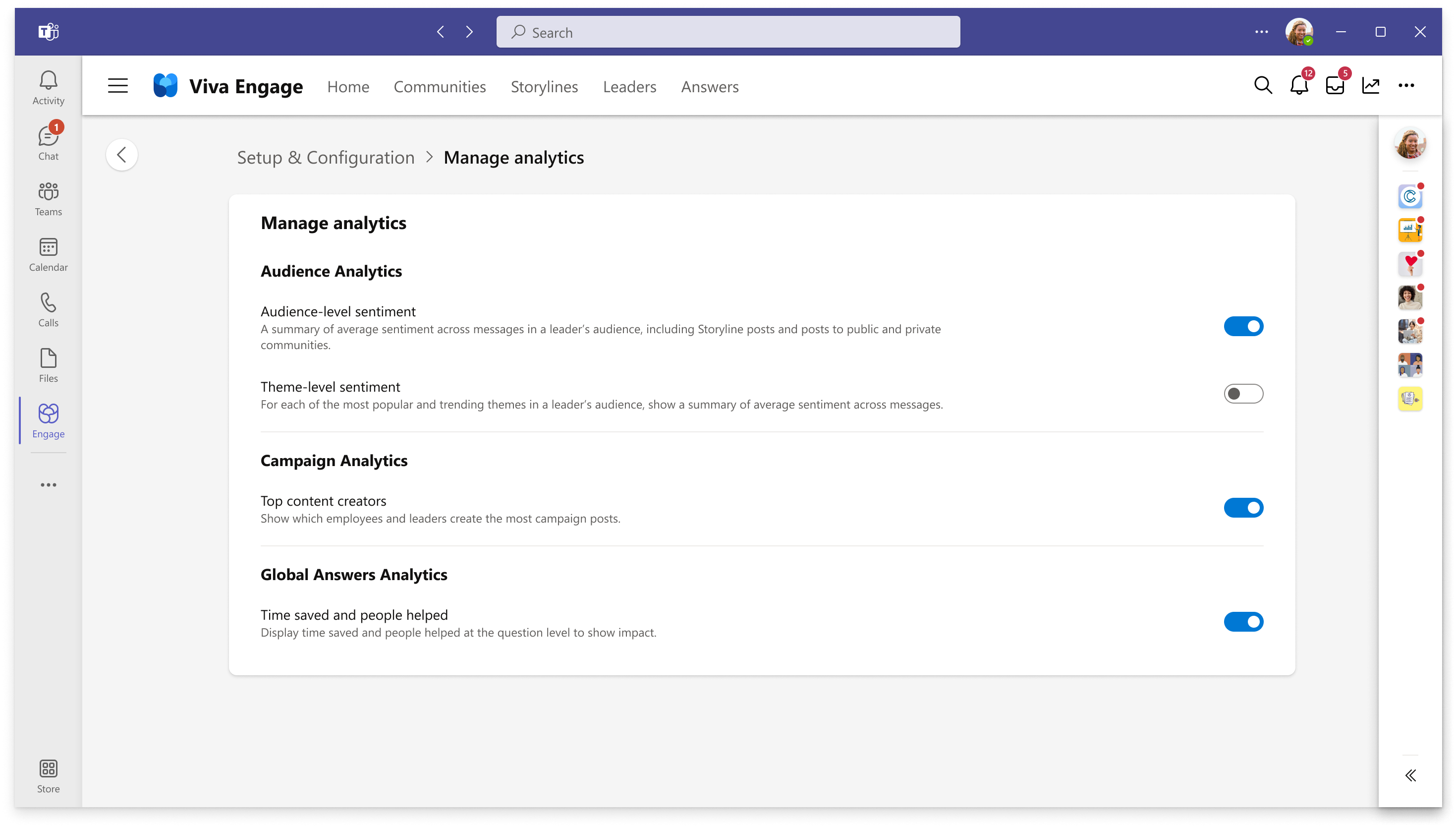
The Global admin and Viva Engage admin can configure, enable, and disable analytics features through the admin portal to tailor the experience for their organization: Go to the Setup and configuration tab in the Viva Engage admin center and select Manage analytics.

Note
Any leader’s delegates or delegate managers have visibility into the leader’s audience and personal analytics. A leader's audience must have at least 75 percent of users licensed for audience analytics to be visible.
Audience analytics
In the Manage analytics interface shown earlier, the Viva Engage admin can adjust the level of sentiment analysis that's available to leaders and their delegates through the Audience analytics dashboard. This functionality enables unique levels of sentiment collection at the audience, theme, or conversation level.
Audience analytics help leaders and delegates monitor engagement of their audience on Viva Engage. Access is via the analytics icon on the top navigation bar or through the leader's storyline page.

Global Answers analytics
Engage admins who have the knowledge license can manage metrics for Answers in their organization.

In the Manage analytics interface of the Viva Engage admin center, admin can choose to enable or disable of advanced metrics such as time saved and people helped.
To learn more about the metrics available for Global Answers analytics and Answers-specific actions for admin, see Answers admin scenarios in Viva.
Personal analytics
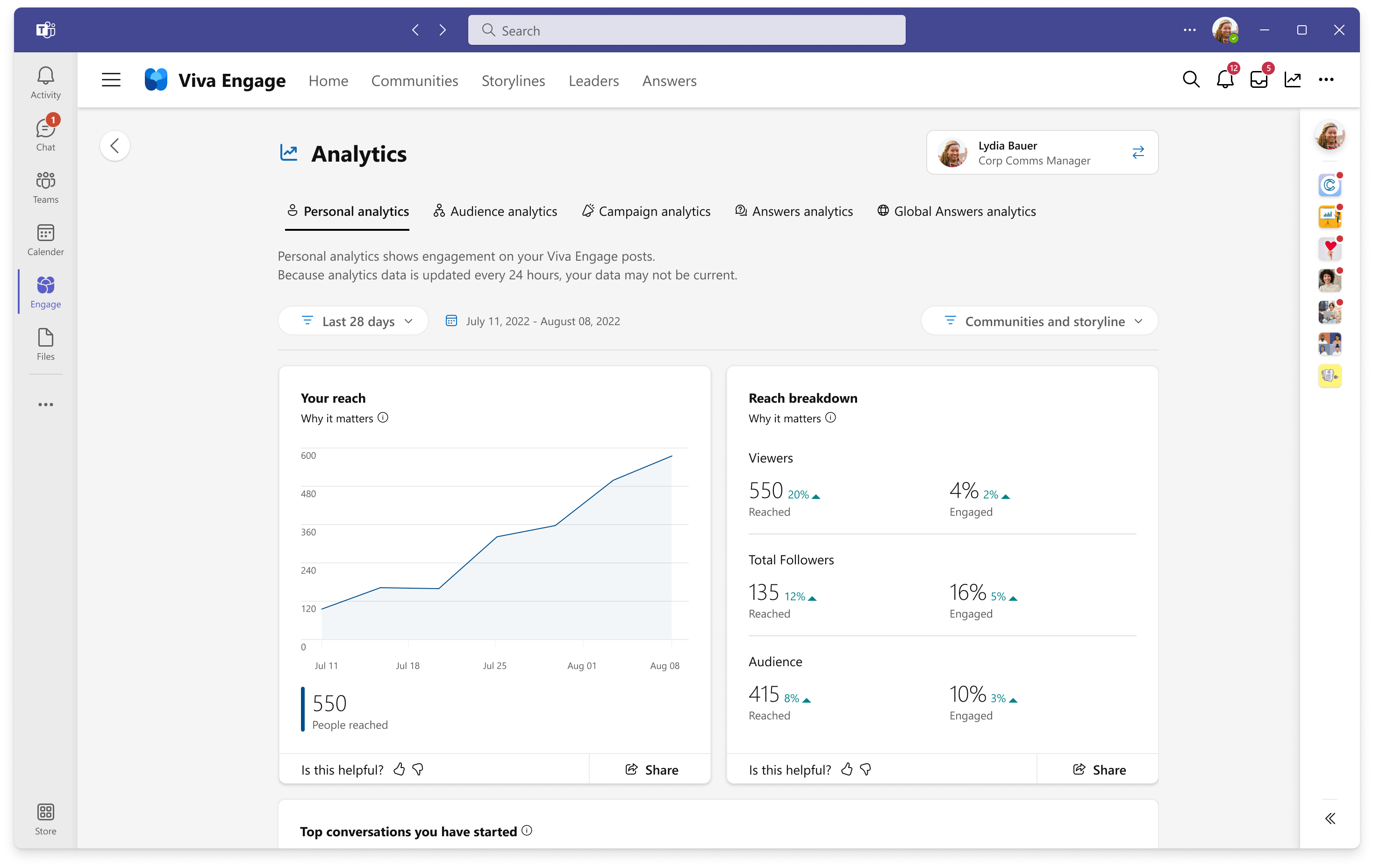
All licensed users have access to Personal analytics that help monitor the engagement on any of their storylines or community posts in Viva Engage.
Campaign analytics
Engage admins and corporate communicators have access to analytics to monitor campaign engagement to improve future campaigns. You can access campaign analytics from the campaign management dashboard, the campaign landing page, or the analytics icon on the main navigation menu of Viva Engage.

In the Manage analytics interface, the Engage admin can enable or disable the top content creator feature for the organization. This feature displays employees and leaders who create the most campaign posts.
Frequently asked questions
How often are analytics updated?
Analytics get refreshed every 24 hours. If you don’t see changes reflected immediately, check back the next day.
Where can users access analytics?
Select the analytics icon in the main Via Engage navigation menu.
Why can't my leader/delegate see audience analytics?
To view audience analytics, a leader and their delegate must be licensed users. Additionally, at least 75 percent of the leader's audience must have a premium license for audience analytics to be visible to the leader or their delegate.
See also
Set up and manage campaigns in Viva Engage
Feedback
Submit and view feedback for