Quickstart: Balance a pole with AI (Cartpole)
- Total time to complete: 50 minutes
- Active time: 5 minutes
- Machine training time: 45 minutes
Teach an AI to balance an unstable pole on a moving base with Bonsai, a predefined simulator, and sample code.
Before you start
To complete this demo, you must have a valid Microsoft or Azure account and a valid Bonsai workspace provisioned on Azure. If you need an account or Azure trial, follow the instructions in Microsoft account setup for Bonsai.
Step 1: Load the Cartpole brain
Bonsai provides a prepackaged simulator and sample code for the inverted pendulum problem (Cartpole). To build your brain:
- Sign into the Bonsai UI.
- Select Cartpole from the list of demo brains from the Getting Started dialog.
- Name your new brain (for example, "Cartpole Demo").
- Click Create Brain to load the sample brain and simulator.
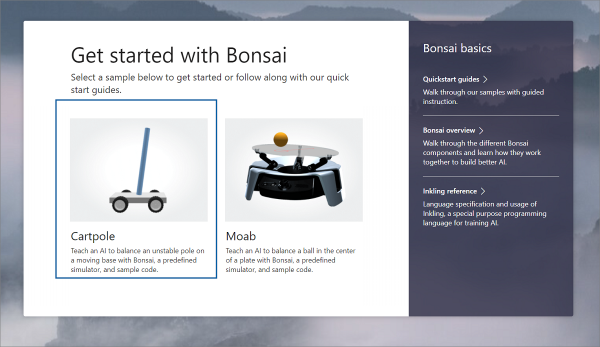
highlighted.
Step 2: Inspect the curriculum
Bonsai opens the teaching UI when your demo brain loads. The teaching UI includes a coding panel and a graphing panel. The coding panel displays your teaching code (the curriculum) written in a proprietary language called Inkling. The graph in the graphing panel represents the iterative learning process defined by the Inkling code.

'SimAction'.
Clicking the different nodes in the teaching graph highlights the relevant section in the sample code:
- State node: encapsulates the information available to the brain as the simulation runs (the observable sensor states). For Cartpole, the observable sensor states are the current position and velocity of the base and the current angle of the pole.
- Concept node: encapsulates the concept you want the brain to learn as
defined by your training goals. For Cartpole, the concept is balancing a pole
within a certain tolerance within a predefined area. The corresponding
Inkling goals are to avoid having the pole fall over (
avoid Fall Over) and to avoid having the base move off the edge of the track (avoid Out Of Range). - Action node: encapsulates the set of valid actions the brain can take in response to the observed state. For Cartpole, the available actions are pushing the base left or right on the track.
Step 3: Train the brain
Important
Running simulations consumes Azure resources. Following the quickstart as written will charge your Azure subscription approximately 1.00 USD. Repeated training or running the training longer than recommended will result in additional cost.
Open the training UI and start training the brain by clicking the green Train button in the graphing panel.
The training UI replaces the coding panel with an empty data panel and shows an updated teaching graph. When you start training, Bonsai automatically starts up a fleet of simulator instances. The fleet appears in the updated graph as a new Simulator node.
The Simulator node shows you:
- the simulator name, "BalancePoleSimulator".
- the total number of simulator instances in the fleet.
- the overall speed of the fleet in iterations per second.

(95.3%).
With each iteration, your brain earns a performance score based on how well it solved the problem. Bonsai reports training progress for your brain in the data panel as a Goal Satisfaction plot. Individual goal satisfaction values indicate how close your brain got to achieving the related goal for a given iteration. The latest overall goal satisfaction value is also reported in the concept node of the teaching graph.
The satisfaction plots should trend upward as your brain gets better at balancing the pole.
Step 4: Watch the brain in action
The Cartpole simulator includes a visualizer so you can watch your brain in action. as it works through a particular simulation. To see the visualization, scroll down in the data panel.
The visualizer renders a 3D model of a simple base (the cart) and a pole. The base moves left and right across the screen in response to the changing position of the pole.
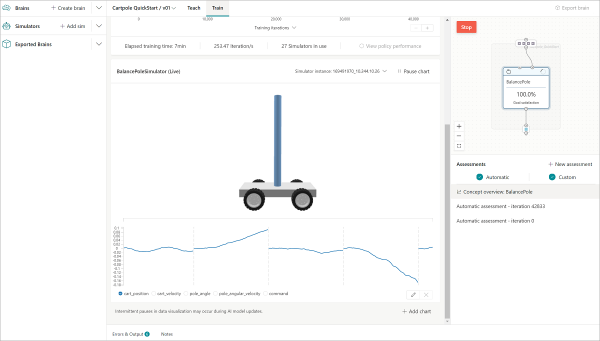
pole.
The visualizer also displays a graph of changing state variables and actions
below the rendered model. Try clicking the cart_position and pole_angle
values to track how the position of the base and angle of the pole change over
time.
Step 5: Stop training
Bonsai automatically stops training when either of the following occurs:
- the overall goal satisfaction value reaches 100%
- the graph lines become horizontal lines for a predefined number of training episodes.
A 100% satisfaction value means your brain has fully learned the current
curriculum. A horizontal plot line means the brain is no longer improving. When
a brain fails to improve after a given number of episodes (as defined by
NoProgressIterationLimit), Bonsai terminates the training to avoid wasting
computational resources.
Tip
The Cartpole demo brain typically achieves optimal performance within 750k iterations.
If you want to stop training early, click the red Stop Training button at the top of the graphing panel.
Next steps
Congratulations! You successfully trained a brain to balance a pole on a moving base.
Now that you understand the basics of the Cartpole brain, try customizing the Inkling code to change your training goals.