Run Office Scripts with Power Automate
Power Automate lets you add Office Scripts to a larger, automated workflow. You can use Power Automate do things like add the contents of an email to a worksheet's table or create actions in your project management tools based on workbook comments.
Get started
If you are new to Power Automate, we recommend visiting Get started with Power Automate. There, you can learn more about all the automation possibilities available to you. The documents here focus on how Office Scripts work with Power Automate and how that can help improve your Excel experience.
Step-by-step tutorials
There are three step-by-step tutorials for Power Automate and Office Scripts. These show how to combine the automate services and pass data between a workbook and a flow.
- Call scripts from a manual Power Automate flow
- Pass data to scripts in an automatically-run Power Automate flow
- Return data from a script to an automatically-run Power Automate flow
Create a flow from Excel
You can get started with Power Automate in Excel with a variety of flow templates. Under the Automate tab, select Automate a Task.
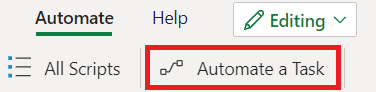
This opens a task pane with several options to begin connecting your Office Scripts to larger automated solutions. Select any option to begin. Your flow is supplied with the current workbook.

Tip
You can also start making a flow from the More options (…) menu on an individual script.
Excel Online (Business) connector
Connectors are the bridges between Power Automate and applications. The Excel Online (Business) connector gives your flows access to Excel workbooks. The "Run script" action lets you call any Office Script accessible through the selected workbook. You can also give your scripts input parameters so data can be provided by the flow, or have your script return information for later steps in the flow.
Important
The "Run script" action gives people who use the Excel connector significant access to your workbook and its data. Additionally, there are security risks with scripts that make external API calls, as explained in External calls from Power Automate. If your admin is concerned with the exposure of highly sensitive data, they can either turn off the Excel Online connector or restrict access to Office Scripts through the Office Scripts administrator controls.
Note
Power Automate supports running scripts stored on SharePoint with the Run script from SharePoint library (Preview) action. This action is currently in preview and is subject to change based on feedback. If you encounter any issues with this action, please report them through the Help > Give Feedback option in Power Automate.
Data transfer in flows for scripts
Power Automate lets you pass pieces of data between flow actions. Scripts can be configured to accept the information you need and return what you want from your workbook to your flow. Data is passed to scripts as static values, expressions, or dynamic content. Details on an individual service's connector can be found in the Power Automate Connector documentation.
Learn the details of how to pass data to and from your scripts with the following documentation.
- Learn by doing with the Pass data to scripts in an automatically-run Power Automate flow and Return data from a script to an automatically-run Power Automate flow tutorials.
- Try the Automated task reminders sample scenario to see everything in action.
- Read Script parameter and return types in Power Automate for more usage scenarios and the technical TypeScript details.
Example
The following screenshot shows a Power Automate flow that's triggered whenever a GitHub issue is assigned to you. The flow runs a script that adds the issue to a table in an Excel workbook. If there are five or more issues in that table, the flow sends an email reminder.

The main function of the script specifies the issue ID and issue title as input parameters, and the script returns the number of rows in the issue table.
function main(
  workbook: ExcelScript.Workbook,
  issueId: string,
  issueTitle: string): number {
  // Get the "GitHub" worksheet.
  let worksheet = workbook.getWorksheet("GitHub");

  // Get the first table in this worksheet, which contains the table of GitHub issues.
  let issueTable = worksheet.getTables()[0];

  // Add the issue ID and issue title as a row.
  issueTable.addRow(-1, [issueId, issueTitle]);

  // Return the number of rows in the table, which represents how many issues are assigned to this user.
  return issueTable.getRangeBetweenHeaderAndTotal().getRowCount();
}
See also
Feedback
Submit and view feedback for