Enroll device with Android work profile
Enroll your personal Android device to get access to work emails, apps, Wi-Fi, and other resources. During enrollment, you will:
- Create a work profile.
- Activate the work profile.
- Update device settings.
This article describes how to enroll your device using the Intune Company Portal app. For more information about the work profile and its features, see Introduction to Android work profile.
Before you begin
Install the Intune Company Portal app from Google Play. The Company Portal app is used to enroll and manage your device, install work apps, and get IT support.
Enroll device
Make sure you're signed in to the primary user account on your device. Work profile enrollment is not supported on secondary user accounts.
Open the Intune Company Portal app and sign in with your work or school account.
On the Company Access Setup screen, review the tasks required to enroll your device. Then tap BEGIN.

On the privacy information screen, review the list of items that your organization can and can't see on your device. Then tap CONTINUE.

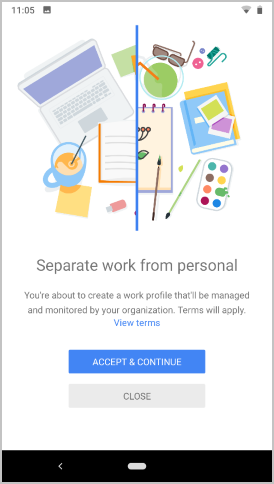
Review the Google terms for creating a work profile. Accept the terms to continue. The appearance of this screen varies based on OS version.
Review the Samsung Knox privacy policy. Select Agree to continue. This screen only appears if you're using a Samsung device.
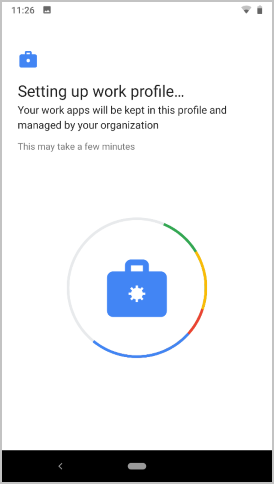
Wait a few minutes while your work profile is set up.
Select Next.
On the Company Access Setup screen, confirm that the profile has been created. Then tap CONTINUE to proceed to the next enrollment task.

Wait while the app registers your device. When prompted, sign in with your work account.
On the Company Access Setup screen, confirm that the work profile is active. Then tap CONTINUE to proceed to the next enrollment task.

Your organization may require you to update the settings on your device. In the Company Portal app, review the list of settings you need to change. Then tap RESOLVE to open the setting on your device. After you're done updating settings, tap CONFIRM DEVICE SETTINGS.
When setup and enrollment are complete, you are sent back to the Company Access Setup screen where you should see a green checkmark next to each enrollment task. Tap DONE.

Optionally, when prompted to view suggested work apps in Google Play, tap OPEN. If you're not ready to install apps, you can do it later by going to the Google Play app in your work profile.

You can also access available apps from the Company Portal menu > Get Apps.

Android Enterprise availability
Work profiles are supported in countries and regions where Android Enterprise is available (opens Google Support website). Company Portal can't set up a work profile on your device if you're outside these areas. If Android Enterprise isn't available in your country or region, ask your support person for other ways to access work resources.
Update Google Play services
If the version of Google Play services on your device is outdated, you may be unable to enroll your device. Open Google Play services on your device to check for available updates. For more information about how to update Android apps, see Update your Android apps(opens Google Support website).
Next steps
Install the apps you need for work or school. Switch to your work profile to see all available apps, and search for more apps in the work version of the Google Play store.
Need additional help? Go to Support in the Company Portal app to find your organization's IT contact information. You can also sign in to the Company Portal website with your work or school account, and go to Helpdesk.
Feedback
Submit and view feedback for