Azure Active Directory SSO integration with OptiTurn
In this article, you'll learn how to integrate OptiTurn with Azure Active Directory (Azure AD). OptiTurn is a returns management platform that helps retailers route returned items, improve warehouse operations, and manage inventory backlogs. When you integrate OptiTurn with Azure AD, you can:
- Control in Azure AD who has access to OptiTurn.
- Enable your users to be automatically signed-in to OptiTurn with their Azure AD accounts.
- Manage your accounts in one central location - the Azure portal.
You'll configure and test Azure AD single sign-on for OptiTurn in a test environment. OptiTurn supports SP initiated single sign-on and Just In Time user provisioning.
Note
Identifier of this application is a fixed string value so only one instance can be configured in one tenant.
Prerequisites
To integrate Azure Active Directory with OptiTurn, you need:
- An Azure AD user account. If you don't already have one, you can Create an account for free.
- One of the following roles: Global Administrator, Cloud Application Administrator, Application Administrator, or owner of the service principal.
- An Azure AD subscription. If you don't have a subscription, you can get a free account.
- OptiTurn single sign-on (SSO) enabled subscription.
Add application and assign a test user
Before you begin the process of configuring single sign-on, you need to add the OptiTurn application from the Azure AD gallery. You need a test user account to assign to the application and test the single sign-on configuration.
Add OptiTurn from the Azure AD gallery
Add OptiTurn from the Azure AD application gallery to configure single sign-on with OptiTurn. For more information on how to add application from the gallery, see the Quickstart: Add application from the gallery.
Create and assign Azure AD test user
Follow the guidelines in the create and assign a user account article to create a test user account in the Azure portal called B.Simon.
Alternatively, you can also use the Enterprise App Configuration Wizard. In this wizard, you can add an application to your tenant, add users/groups to the app, and assign roles. The wizard also provides a link to the single sign-on configuration pane in the Azure portal. Learn more about Microsoft 365 wizards..
Configure Azure AD SSO
Complete the following steps to enable Azure AD single sign-on in the Azure portal.
In the Azure portal, on the OptiTurn application integration page, find the Manage section and select single sign-on.
On the Select a single sign-on method page, select SAML.
On the Set up single sign-on with SAML page, select the pencil icon for Basic SAML Configuration to edit the settings.

On the Basic SAML Configuration section, perform the following steps:
a. In the Identifier textbox, type the URL:
https://optiturn.com/spb. In the Reply URL textbox, type a URL using one of the following patterns:
Reply URL https://optiturn.com/auth/saml/<Customer_Name>_azure_saml/callbackhttps://<Environment>.optiturn.com/auth/saml/<Customer_Name>_azure_saml/callbackc. In the Sign on URL textbox, type one of the following URL/pattern:
Sign on URL https://optiturn.com/session/newhttps://<Environment>.optiturn.com/session/newNote
These values are not real. Update these values with the actual Reply URL and Sign on URL. Contact OptiTurn support team to get these values. You can also refer to the patterns shown in the Basic SAML Configuration section in the Azure portal.
OptiTurn application expects the SAML assertions in a specific format, which requires you to add custom attribute mappings to your SAML token attributes configuration. The following screenshot shows the list of default attributes.
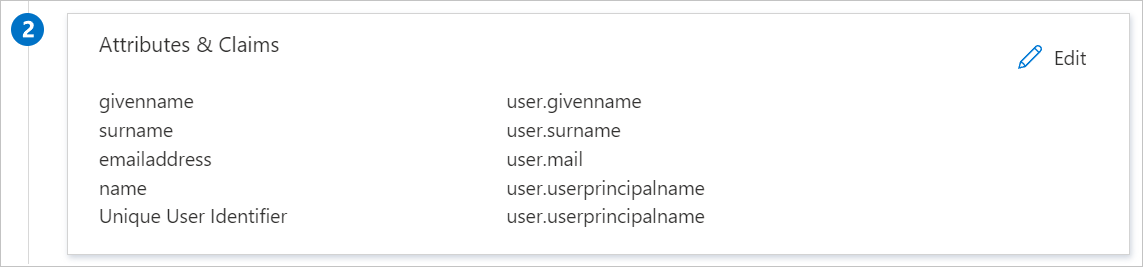
In addition to above, OptiTurn application expects few more attributes to be passed back in SAML response, which are shown below. These attributes are also pre populated but you can review them as per your requirements.
Name Source Attribute email user.mail first_name user.givenname last_name user.surname Note
The warehouse_identifier assertion attribute is recommended for ease of use, but it is not required. warehouse_identifier is an identifier for the warehouse where a given employee is physically located. We will match the identifier against a warehouse that is configured in OptiTurn. The user’s activity and data will then be “scoped” to that warehouse.
On the Set-up single sign-on with SAML page, in the SAML Signing Certificate section, find Certificate (Base64) and select Download to download the certificate and save it on your computer.
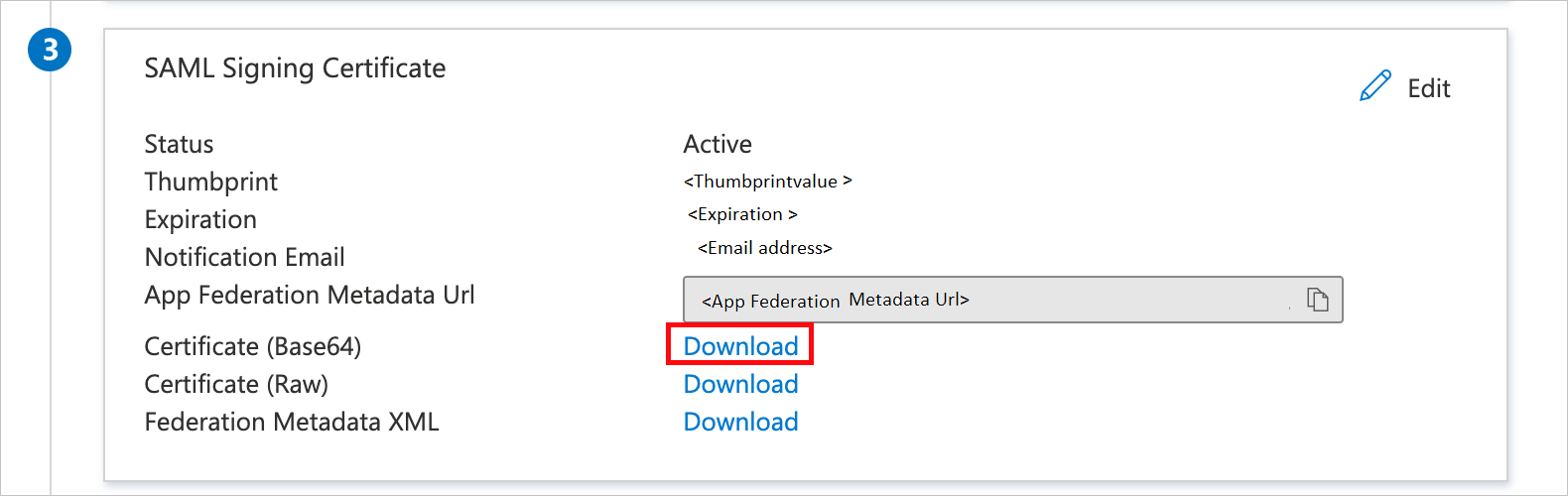
On the Set up OptiTurn section, copy the appropriate URL(s) based on your requirement.

Configure OptiTurn SSO
To configure single sign-on on OptiTurn side, you need to send the downloaded Certificate (Base64) and appropriate copied URLs from Azure portal to OptiTurn support team. They set this setting to have the SAML SSO connection set properly on both sides
Create OptiTurn test user
In this section, a user called B.Simon is created in OptiTurn. OptiTurn supports just-in-time user provisioning, which is enabled by default. There's no action item for you in this section. If a user doesn't already exist in OptiTurn, a new one is commonly created after authentication.
Test SSO
In this section, you test your Azure AD single sign-on configuration with following options.
Click on Test this application in Azure portal. This will redirect to OptiTurn Sign-on URL where you can initiate the login flow.
Go to OptiTurn Sign-on URL directly and initiate the login flow from there.
You can use Microsoft My Apps. When you click the OptiTurn tile in the My Apps, this will redirect to OptiTurn Sign-on URL. For more information about the My Apps, see Introduction to the My Apps.
Additional resources
Next steps
Once you configure OptiTurn you can enforce session control, which protects exfiltration and infiltration of your organization’s sensitive data in real time. Session control extends from Conditional Access. Learn how to enforce session control with Microsoft Cloud App Security.
Feedback
Submit and view feedback for