Add text
Use a text box component to add text to your page.
Add a text component
Open the design studio to edit the content and components of your page.
Select the page you want to edit.
Select the section you want to add the text component to.
Hover over any editable canvas area, then select the Text icon from the component panel.
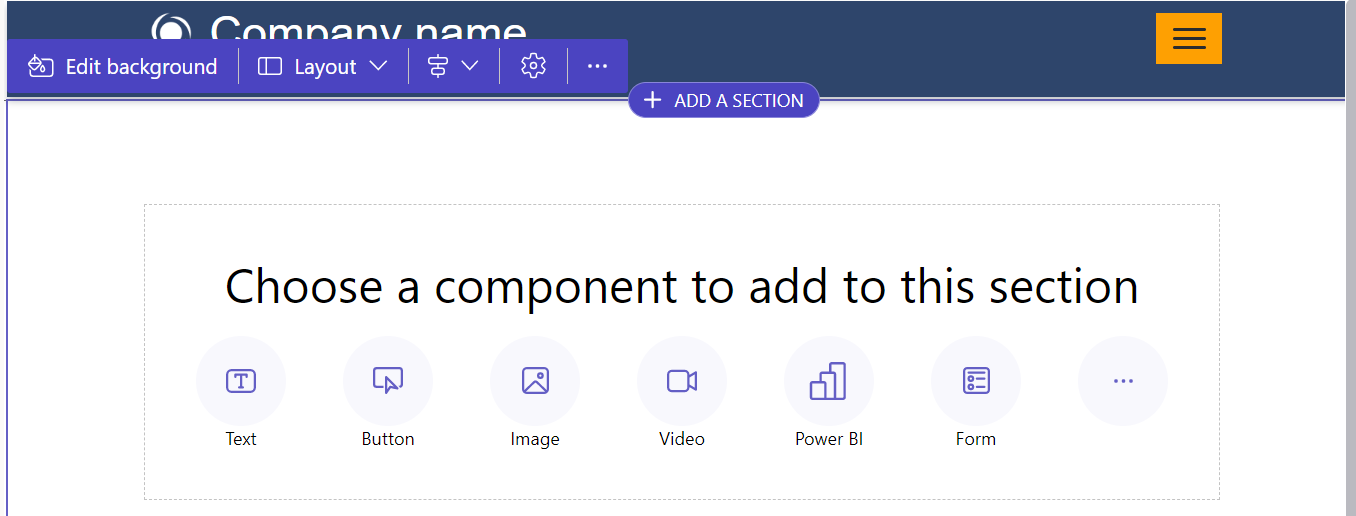
Enter your custom text in the box.

Edit a text control
After a text control is added, selecting the text control will open the properties bar where you can configure its properties.
| Property | Description |
|---|---|
| Style | Choose the following text styles for the text box: Title Heading 1 Heading 2 Heading 3 Subheading 1 Subheading 2 Paragraph Small text |
| Format | Style the selected text as bold, italics, or underlined. |
| Alignment | Align the text in the component. |
| Color | Select the text color based on the defined color palette. |
| Others | Choose an option to duplicate the section, move it up or down within the page, or delete the text component entirely. |
Feedback
Submit and view feedback for