Note: Dependabot alert rules are currently in beta and are subject to change.
About Dependabot alert rules
Dependabot alert rules allow you to instruct Dependabot to automatically dismiss or reopen certain alerts, based on complex logic from a variety of contextual criteria.
There are two types of Dependabot alert rules:
- GitHub-curated rules
- User-created custom rules
GitHub-curated rules are enabled by default for public repositories and can be opted into for private repositories. However, it's important to note that you cannot modify the GitHub-curated rules. With user-created custom rules, you can create your own rules to automatically dismiss or reopen alerts based on your own criteria.
Whilst you may find it useful to auto-dismiss low impact alerts, you can still reopen auto-dismissed alerts and filter to see which alerts have been auto-dismissed. For more information, see "Managing automatically dismissed alerts."
Additionally, auto-dismissed alerts are still available for reporting and reviewing, and can be auto-reopened if the alert metadata changes, for example:
- If you change the scope of a dependency from development to production.
- If GitHub modifies certain metadata for the related advisory.
Auto-dismissed alerts are defined by the resolution:auto-dismiss close reason. Automatic dismissal activity is included in alert webhooks, REST and GraphQL APIs, and the audit log. For more information, see "Dependabot alerts" in the REST API documentation, and the "repository_vulnerability_alert " section in "Reviewing the audit log for your organization."
About GitHub-curated rules
Note: Automatic dismissal of low impact development alerts is currently only supported for npm.
When enabled, the built-in Dismiss low impact alerts rule auto-dismisses certain types of vulnerabilities that are found in npm dependencies used in development. These alerts cover cases that feel like false alarms to most developers as the associated vulnerabilities:
- Are unlikely to be exploitable in a developer (non-production or runtime) environment.
- May relate to resource management, programming and logic, and information disclosure issues.
- At worst, have limited effects like slow builds or long-running tests.
- Are not indicative of issues in production.
This GitHub-curated Dismiss low impact alerts rule includes vulnerabilities relating to resource management, programming and logic, and information disclosure issues. For more information, see "Publicly disclosed CWEs used by the Dismiss low impact alerts rule."
Filtering out these low impact alerts allows you to focus on alerts that matter to you, without having to worry about missing potentially high-risk development-scoped alerts.
By default, GitHub-curated Dependabot alert rules are enabled on public repositories and disabled for private repositories. Administrators of private repositories can opt in by enabling alert rules for their repository.
Enabling the Dismiss low impact alerts rule for your private repository
You first need to enable Dependabot alerts for the repository. For more information, see "Configuring Dependabot alerts."
-
On GitHub.com, navigate to the main page of the repository.
-
Under your repository name, click Settings. If you cannot see the "Settings" tab, select the dropdown menu, then click Settings.

-
In the "Security" section of the sidebar, click Code security and analysis.
-
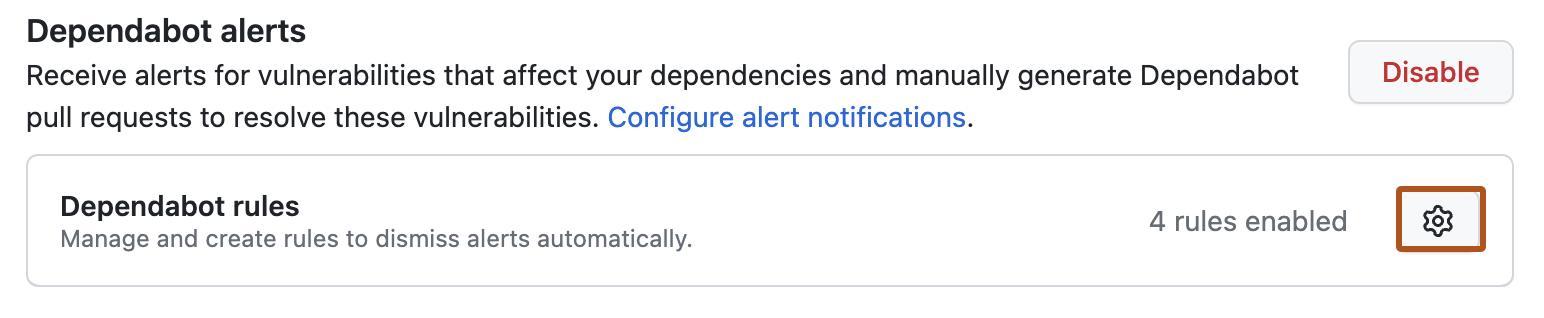
Under "Dependabot alerts", click close to "Dependabot rules".
-
Select Dismiss low impact alerts.
-
Click Save rules.


About user-created custom rules
You can create your own Dependabot alert rules based on alert criteria.
- Dependency scope (
devDependencyorruntime) - Package name
- CWE
- Severity
- Patch availability
- Manifest path
- Ecosystem
Adding a custom rule to your repository
You can add a custom rule to your public and private repositories.
-
On GitHub.com, navigate to the main page of the repository.
-
Under your repository name, click Settings. If you cannot see the "Settings" tab, select the dropdown menu, then click Settings.
-
In the "Security" section of the sidebar, click Code security and analysis.
-
Under "Dependabot alerts", click close to "Dependabot rules".
-
Click New ruleset.

-
Under "Name", describe what this rule will do.
-
Under "Alert criteria", select the criteria you want to use to filter alerts.
-
Under "Rules", select the action you want to take on alerts that match the criteria.
-
Click Create rule.

Managing automatically dismissed alerts
You can filter to see which alerts have been auto-dismissed, and you can reopen dismissed alerts.
Note: The Dependabot alerts page defaults to showing open alerts. To filter and view auto-dismissed alerts, you must first clear the is:open default filter from the view.
-
On GitHub.com, navigate to the main page of the repository.
-
Under the repository name, click Security. If you cannot see the "Security" tab, select the dropdown menu, and then click Security.

-
To filter to see all closed alerts, click Closed. Alternatively, use the
is:closedfilter query in the search bar.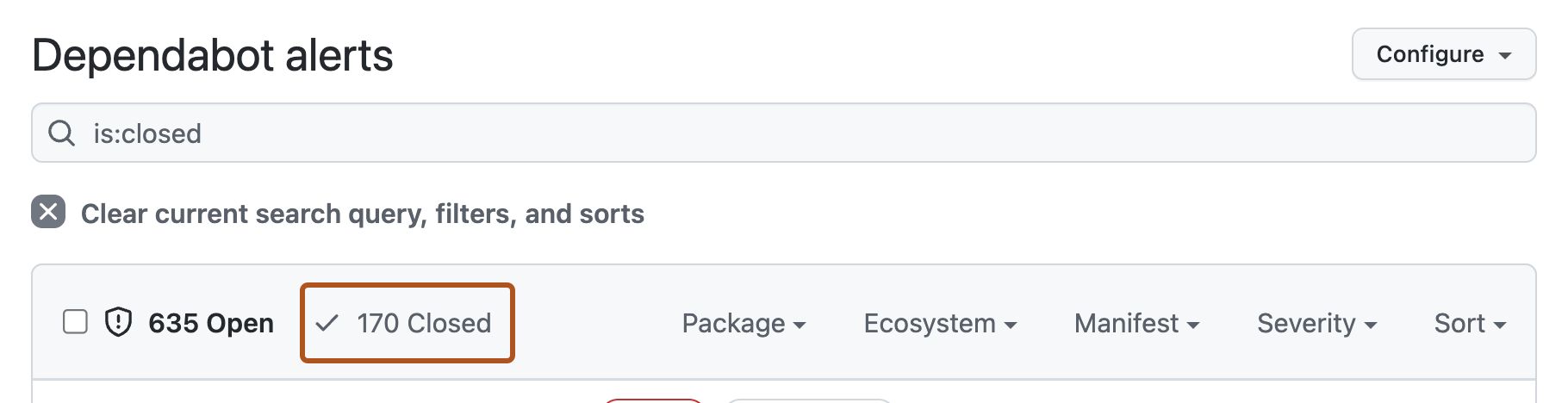
-
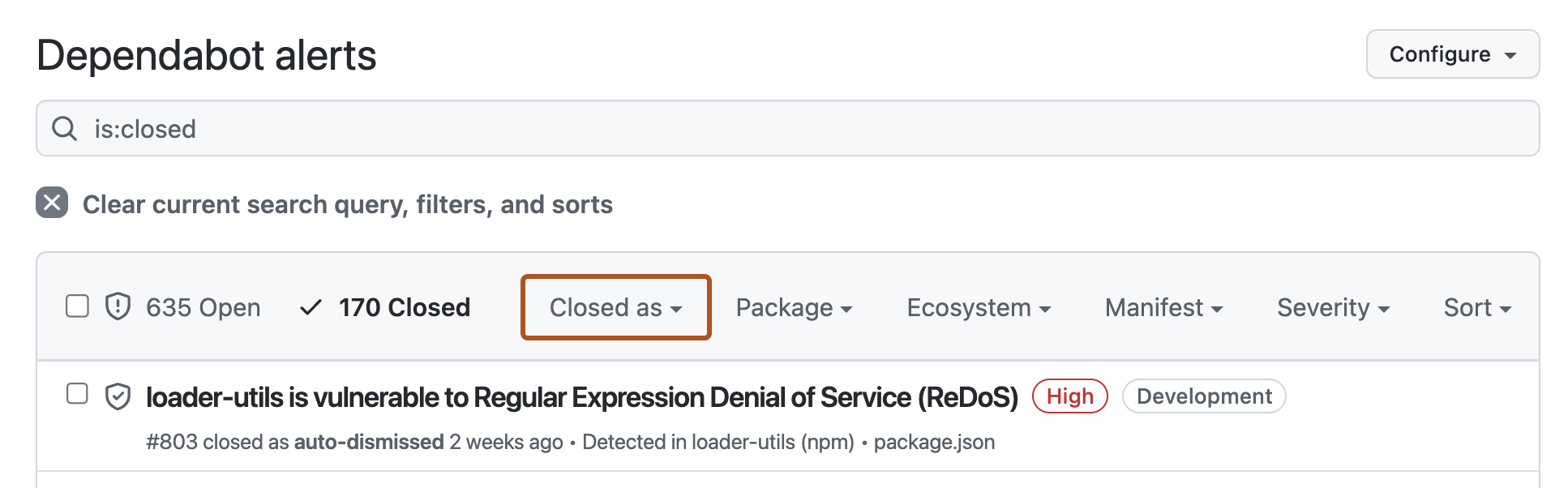
To see all auto-dismissed alerts, select Closed as, then in the dropdown menu, click Auto-dismissed.
-
To reopen an auto-dismissed alert, to the left of the alert title, click the checkbox adjacent to the alert, then click Reopen.



Publicly disclosed CWEs used by the Dismiss low impact alerts rule
Along with the ecosystem:npm and scope:development alert metadata, we use the following GitHub-curated Common Weakness Enumerations (CWEs) to filter out low impact alerts for the Dismiss low impact alerts rule. We regularly improve this list and vulnerability patterns covered by built-in rules.
Resource Management Issues
- CWE-400 Uncontrolled Resource Consumption
- CWE-770 Allocation of Resources Without Limits or Throttling
- CWE-409 Improper Handling of Highly Compressed Data (Data Amplification)
- CWE-908 Use of Uninitialized Resource
- CWE-1333 Inefficient Regular Expression Complexity
- CWE-835 Loop with Unreachable Exit Condition ('Infinite Loop')
- CWE-674 Uncontrolled Recursion
- CWE-1119 Excessive Use of Unconditional Branching
Programming and Logic Errors
- CWE-185 Incorrect Regular Expression
- CWE-754 Improper Check for Unusual or Exceptional Conditions
- CWE-755 Improper Handling of Exceptional Conditions
- CWE-248 Uncaught Exception
- CWE-252 Unchecked Return Value
- CWE-391 Unchecked Error Condition
- CWE-696 Incorrect Behavior Order
- CWE-1254 Incorrect Comparison Logic Granularity
- CWE-665 Improper Initialization
- CWE-703 Improper Check or Handling of Exceptional Conditions
- CWE-178 Improper Handling of Case Sensitivity
Information Disclosure Issues
- CWE-544 Missing Standardized Error Handling Mechanism
- CWE-377 Insecure Temporary File
- CWE-451 User Interface (UI) Misrepresentation of Critical Information
- CWE-668 Exposure of Resource to Wrong Sphere