Assessment lab duration and lab experience
Most Microsoft Applied Skills assessment labs for a given scenario typically contain 12-16 tasks; however, the number can vary depending on the skill domain being assessed. The number of tasks that need to be completed in an assessment lab is subject to change as we make updates to the lab to ensure it continues to evaluate the relevant skills needed to complete the scenario.
You will have 2 hours to complete the lab with the ability to request an additional hour if needed as you progress through the lab.
What to expect on the lab
The Applied Skills assessment lab gives you the opportunity to demonstrate your skills by completing tasks in the associated technology, such as Azure, Microsoft 365, or Power Platform. You will perform tasks in a virtual environment. The virtual machine is remotely connected to a live environment where you perform tasks on real software and applications.
In the lab, you will be asked to perform several tasks. The guidelines and requirements for completing these tasks can be found in a series of email messages that are accessed through the lab environment. You will complete these tasks using tools, such as the Azure Portal, the Microsoft 365 Admin Center, Azure CloudShell, etc. Unless the email states otherwise, you can complete the task using any method or tool.
It will take a few minutes to load the lab. You may do other activities while it loads. You will have 2 hours to complete the lab tasks. You will NOT be able to save your work and come back later, so plan to complete all the tasks in a single session. The actions you take while completing the assessment lab will be recorded for quality control purposes.
Getting started
After the lab launches, start by reviewing the Instructions, located in a pane on the right side of the lab environment. These instructions provide important information for accessing and completing the lab. Step 1 details the lab scenario.
Step 2 provides information on how to access the email messages. To access them, select the “Open Emails” button at the bottom of the Instructions pane. This will open an interface in the lab environment that simulates an Outlook inbox. Read all the emails before beginning to understand the full scope of what’s required in the lab.
Your username and password are provided in Step 3 of the Instructions. To log into the associated technology (e.g., Azure, Microsoft 365 admin console, etc.), simply select the username, and it will automatically complete the username field. Do the same for your password after entering your username.
In the Troubleshooting section of the Instructions pane, you will find key tips for navigating the lab environment.
Submitting your work
After you have completed all the tasks in the lab, select the “Submit Assessment” button to submit your work for scoring. You will be asked to confirm that you really want to leave the lab. Selecting “Yes” will end the lab section, and your work will be scored. It will take a few minutes to evaluate your work after you submit it for scoring.
After you leave a lab, you will not be able to return to it because scoring starts (in the background) as soon as you exit a lab.
Microsoft Applied Skills assessment lab experience frequently asked questions
What is an Applied Skills assessment lab?
The Applied Skills assessment lab gives you the opportunity to demonstrate your skills by completing tasks in the associated technology, such as Azure, Microsoft 365, or Power Platform. You will perform tasks in a virtual environment. The virtual machine is remotely connected to a live environment where you perform tasks on real software and applications.
In the lab, you will be asked to perform several tasks. The guidelines and requirements for completing these tasks can be found in a series of email messages that are accessed through the lab environment. You will complete these tasks using tools, such as the Azure Portal, the Microsoft 365 Admin Center, Azure CloudShell, etc. Unless the email states otherwise, you can complete the task using any method or tool.
What can I expect during the assessment process?
You will perform tasks in a virtual environment. The virtual machine is remotely connected to a live environment where you perform tasks on real software and applications.
It will take a few minutes to load the lab. You may do other activities while it loads. You will have 2 hours to complete the lab tasks. You will NOT be able to save your work and come back later, so plan to complete all the tasks in a single session. The actions you take while completing the assessment lab will be recorded for quality control purposes.
After the lab launches, start by reviewing the Instructions, located in a pane on the right side of the lab environment. These instructions provide important information for accessing and completing the lab. Step 1 details the lab scenario.
Step 2 provides information on how to access the email messages. To access them, select the “Open Emails” button at the bottom of the Instructions pane. This will open an interface in the lab environment that simulates an Outlook inbox. Read all the emails before beginning to understand the full scope of what’s required in the lab.
Your username and password are provided in Step 3 of the Instructions. To log into the associated technology (e.g., Azure, Microsoft 365 admin console, etc.), simply select the username, and it will automatically complete the username field. Do the same for your password after entering your username.
In the Troubleshooting section of the Instructions pane, you will find key tips for navigating the lab environment.
After you leave a lab, you will not be able to return to it because scoring starts in the background as soon as you exit a lab.
Do I need to type in my username and password?
No, you don’t need to type your username or password. Simply select your username from Step 3 of the Instructions pane, and your username will automatically be added to the username space in your login credentials. Do the same for your password after your username is entered.
Why did I have to wait before I could start my assessment lab?
It takes time to provision the environment in the cloud, and the environment you will access to complete the tasks is loaded only when the resources are fully provisioned.
You will be informed how long it will take to load, and you may do other activities while it loads.
The emails in the assessment lab are asking me to perform several tasks. Should I perform them in a specific order?
In general, we have tried to design the assessment labs so that you can perform the tasks in any order. However, we recommend that you read through all the emails before you start because there may be some tasks that require other tasks to be fully executed before those tasks can be performed correctly.
Remember to read the tasks carefully and only do what’s required to solve the problem posed in the task.
Some tasks require the deployment of resources in Azure. What should I do if the deployment in Azure takes a long time?
Do NOT wait for tasks to execute before moving onto another task. Move onto something that is not dependent on that task to finish executing so you can maximize your time.
In some cases, starting a task may be sufficient for scoring (for example, creating a resource in Azure); you can let the task execute in the background while you work on other tasks. If you only need to start a task, you will be notified in the guidelines provided in the associate email. You can move on to other tasks without being penalized.
Why is the lab being recorded? What does that mean?
The actions you take during the lab will be recorded for quality control purposes. This is being done to ensure that if anything unexpected happens during the assessment lab we can investigate the issue and make any necessary adjustments to the assessment lab or email content. With the pace at which technology is changing, Microsoft often changes features and functionality that could change the assessment lab experience. Recording the actions that you take during the assessment lab is one of the ways that we can rapidly identify changes that impact the assessment lab and scoring and respond.
Only the actions that you take in the assessment lab are recorded. Neither your face nor your voice will be recorded, and no actions taken outside the assessment lab environment will be recorded.
Assessment lab technical issues frequently asked questions
What should I do if the Azure portal or the Microsoft 365 admin center does NOT open immediately?
If your lab launches with a blank white screen, or an authentication error in one of the portals, try opening a new tab and navigating to https://portal.azure.com or https://admin.microsoft.com/ in the virtual machine. Make sure you do this in the virtual machine; we will NOT be able to score your work if you open the portal on your machine rather than the virtual machine. Opening the portal in this way will resolve the issue most of the time.
What happens if I lose internet connection while completing an assessment lab?
If you can reconnect within 15 minutes, you will be allowed to complete the lab. However, if you are unable to reconnect within 15 minutes, the assessment lab will be scored on what you were able to complete before the assessment lab ended. If you do not pass the assessment lab, you can retake it based on the Applied Skills retake policy.
I’m having issues logging into Azure/Microsoft 365/Dynamics 365 when I access the assessment lab. What should I do?
Clear the credential cache in the Windows Credential Manager by taking the following steps:
- Close Edge.
- Start -> Search for "Credential Manager."
- Select the specific credentials and select "Remove."
- Try logging in again.
If that doesn’t work, clear the browser cache. If you are still unable to log in, please contact Support.
When I launch the assessment lab, the emails don’t open? What should I do?
Close the assessment lab and restart. This resolves the issue most of the time. If you are still unable to open the emails, please contact Support.
My assessment lab ended abruptly. Will it be scored?
Yes. If the assessment lab ends abruptly for any reason (e.g., Azure outage, internet issues, or you cancelled or ended it without submitting for scoring, etc.) and you don’t return to it within 15 minutes, it will be submitted for scoring automatically. Note that if the assessment lab is scored for any reason, it is considered an attempt and the retake policy applies.
Assessment Lab Interface FAQs
How do I interact and use the lab interface?
Within the lab interface, some buttons expand to display a menu of options.

- Commands menu: Contains advanced lab functions. See the Commands menu section for more information.
- Display menu: Contains display settings. See the Display menu section for more information.
- Connection indicator: Displays the connection quality between your local machine and the virtual machine in the lab environment. The connection quality is displayed in milliseconds and a description of Excellent, Good, Fair and Poor. For more information about each connection quality description, or to conduct a speed test, please see Speed Test.
- Lab instruction pane: Displays the lab instructions.
- Lab instruction zoom slider: This allows you to zoom the display of the lab instruction pane.
- Instruction resizer: Drag left and right to adjust the size of the instruction pane.
- Timer/Time Remaining: Indicates the amount of time remaining in the lab session.
- Virtual machine: The virtual machine window.
Commands Menu
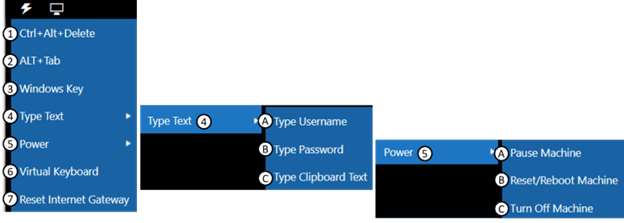
Ctrl+Alt+Delete: Sends the Ctrl-Alt-Delete key combination to the virtual machine.
ALT+Tab: Sends the ALT+Tab key combination to the virtual machine.
Windows Key: Sends the Windows key command to the virtual machine.
Type Text:
A. Type Username: Types the username into the virtual machine at the current cursor position.
B. Type Password: Types the password into the virtual machine at the current cursor position.
C. Type Clipboard Text: Opens a dialog box to paste text into from your local clipboard and paste into the virtual machine at the current cursor position.Power:
A. Pause Machine: This puts the virtual machine into a paused state. Once it’s paused, it must be resumed to continue using the virtual machine.
B. Reset/Reboot Machine: This reboots the virtual machine. This does not gracefully shut down the machine. It’s recommended to save your work before using this.
C. Turn Off Machine: This powers down the virtual machine.Virtual Keyboard: This enables an on-screen virtual keyboard that can be used to input keystrokes into the virtual machine.
Reset Internet Gateway: Resets the gateway that the virtual machine uses to connect to the internet.
Display Menu
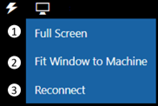
- Full Screen: Sets the lab to display in a full screen window.
- Fit Machine to Window: This resizes the virtual machine to fit the browser window.
- Reconnect: This will reconnect your local machine to the remote virtual machine, if the connection is interrupted.
How do I make my international keyboard work in the lab interface?
Learn more about using an international keyboard.
How can I see the quality of my connection to my lab?
If you are experiencing issues in your lab such as slow response time, lag in typing, or disconnections you should check the quality of your internet connection to the lab servers. This information will let you know if there is something happening with your connection.
Just to the left of the title of the lab, you can see a visual representation of the “number of bars” that you have. It will show several bars in increasing size. The more bars, the better your connection is at that moment.
You can view your lab latency (measured in milliseconds) by hovering your mouse cursor over the connection bars in the lab.
- 0 - 100 milliseconds = Excellent (4 bars)
- 100 - 250 milliseconds = Good (3 bars)
- 250 - 500 milliseconds = OK (2 bars)
- 500 milliseconds or higher = Poor (1 bars)
This measures the network latency between your browser and the server where the VMs are hosted. This is the last latency value received from your machine. Large latency numbers may cause your lab to seem sluggish or even non-responsive. The issue may be with your network, internet provider, the overall internet health, or the lab host.
How does the exit menu work?
You should not exit the lab until you have completed it and submitted it for scoring. If you do, you’ll lose any work that you done and will not be able to return to the lab to complete it (there is no “save and come back later” option).
Note that if you exit the assessment lab for any reason, your lab will be scored on the actions that you took prior to ending the lab. This will count as an attempt and the retake policy will apply.
How do I extend the amount of time on the lab timer?
Each assessment lab has a timer in the upper right corner showing you the amount of time that you have left to complete the assessment lab.
When there are less than 10 minutes remaining, you may extend the time through a pop-up window by clicking Yes. The amount of time you can extend the lab will vary depending on the lab. The time you can extend is noted in the pop-up window.
How do I remove the scroll bars in my lab’s virtual machine?
Learn more about removing scroll bars in virtual machines.
How do I make my assessment lab display in full screen?
Learn more about displaying in full screen.
How do I resize the screen resolution setting on my computer to view the lab better?
Learn more about resizing screen resolution.