Add the Viva Goals app to Microsoft Teams
This article describes how to install, pin, and interact with Viva Goals directly inside Microsoft Teams. The Viva Goals personal app brings the ability to create objectives and key results (OKRs), check in on them, track progress, and close OKRs within Microsoft Teams.

- Configure Microsoft Teams integration: For regular users
- Configure Microsoft Teams integration: For admins
- Complete the setup to use Viva Goals app in Teams
Configure Microsoft Teams integration: For regular users
There are multiple ways to install the Viva Goals app in Teams. The first way is to select the ellipsis […] button on the navigation bar on the left side, search for Viva Goals, and then select the Viva Goals app from the list of search results.

Or, from the Viva Goals app detail page, select the Add button to add Viva Goals.

Another way to add Viva Goals is to visit the Apps store, search for Viva Goals, and select the app.

On the Viva Goals app detail page, select Add.

To pin the Viva Goals app in Teams, right-click the app icon in the left navigation panel, and select Pin.
Configure Microsoft Teams integration: For admins
Preinstalling the app will ensure that your users will be able to see their OKRs directly in Teams without having to install the app from the Teams app store. It's a great way to ensure your users stay in the flow of work, since they'll be able to reference OKRs directly in Teams chats and channels without pausing to install the app.
We'll show you how to preinstall the app for a specific group of users. If you want to preinstall to all users on the tenant, you can make the same changes in the "Global (Org-wide default)" policy.
Note
To do this, you need to be a Tenant Administrator with access to admin.teams.microsoft.com.
Follow these steps to pre-install Viva Goals:
Log in to https://admin.teams.microsoft.com/ with your user ID and password.
Select Teams apps and then choose Setup policies.

Under Manage Policies, select Add to create a new policy.

Enter a name and description for your new policy.

To preinstall the Viva Goals app as part of this policy, under Installed apps, select Add Apps and search for the app by name.

After you add the app to the Apps to add list, select Add at the bottom of the dialog to confirm.
To make sure users can find the installed app, we recommend that you also pin the app and the message extension. Under Pinned apps, select Add app.

Search for and add the Viva Goals app. Select Save to confirm the changes to this policy.

Note
The app will be added by default at the bottom of the pinned list. You can use the drag handle on the right side to adjust the position of the app in the list.

If you had user pinning turned on, Teams will notify you that user preferences will be applied on top of this policy. Select Save.

You'll now see your new policy under the list in Manage policies. Note that the policy hasn't yet been applied to a group of users.

To apply the policy to a group of users, select the Group Policy Assignment tab and then select Add to create a new assignment.

Policies can be applied to any Microsoft Teams team or Microsoft 365 group. Select the group of users you want to apply the policy to.

Next, select the policy from the list and choose Apply to confirm your selection.

Now, you'll see the assignment in the list under Group Policy Assignment.

Note
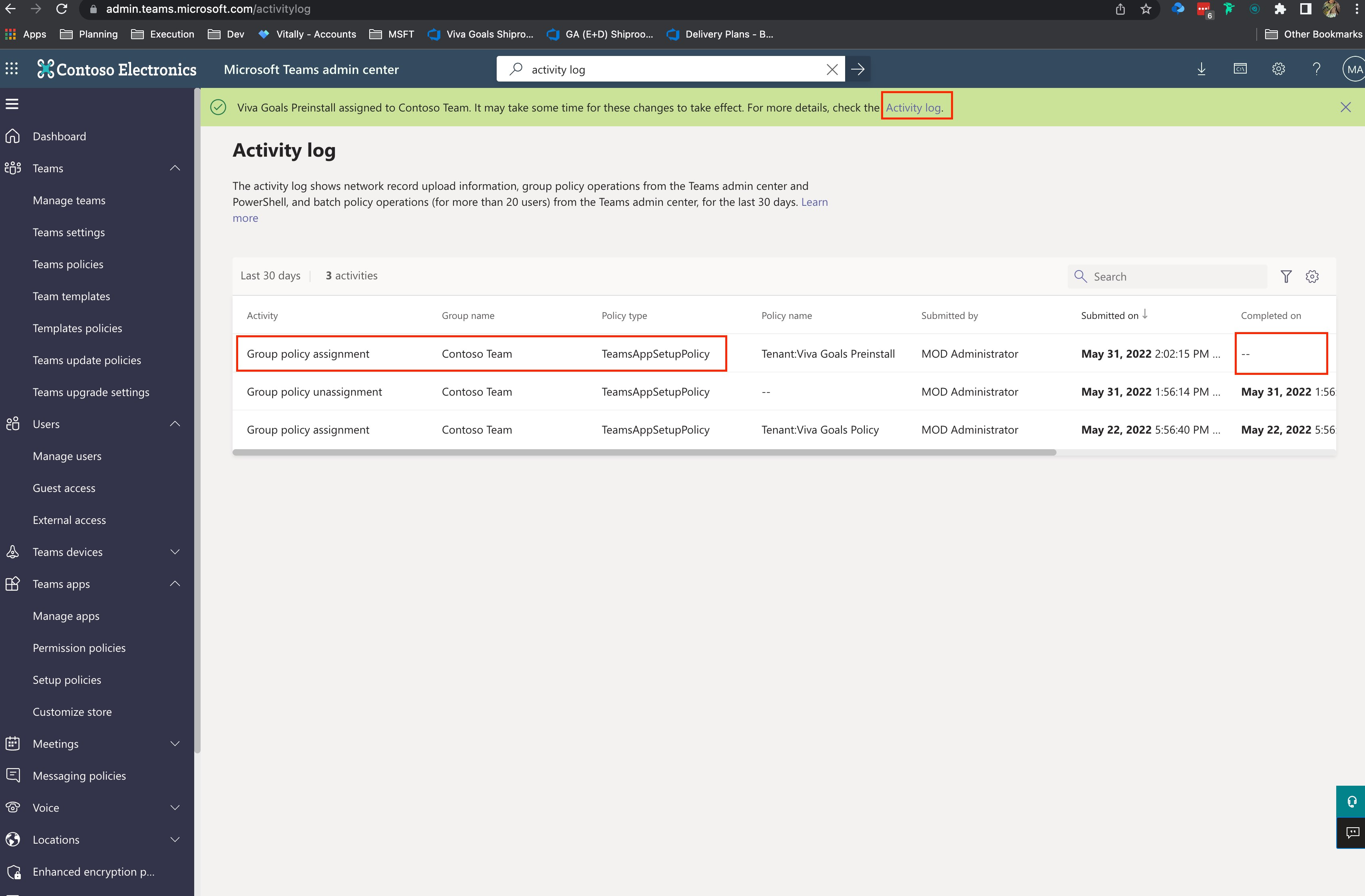
The policy can take some time to kick in. You can check this by going to the Activity log and seeing if the policy application was complete.

When you see the timestamp in the Completed on column, the policy will work for all the users in the group.
Now when a user who belongs to this group signs in into Teams, the policy will kick in. For example, "Contoso" has "Abigail Jackson" as a member, as we can see in the Microsoft 365 admin center.

When Abigail signs in into Teams, she can see that both the Viva Goals app and the message extension are preinstalled and pinned on the top left and at the bottom, respectively, in the Teams client.




Complete the setup to use Viva Goals app in Teams
If the initial Viva Goals setup is not complete, you may receive the following message when trying to use Viva Goals app in Teams: We're sorry, but something went wrong. If you are the application owner check the logs for more information. Ensure that you have completed the following Setup and Administration steps:
Open a browser and go to your Viva Goals portal.
Create an organization in the Viva Goals portal.
Invite users to Viva Goals.
Create teams and assign users to them.
Feedback
Submit and view feedback for