Navigate Security Copilot
The Security Copilot platform has navigational features to maximize its functionality. As you explore the system, reference this article for more details.
Important
The information in this article only applies to the Microsoft Security Copilot Early Access Program, an invite-only paid preview program for commercial customers. Some information in this article relates to a prereleased product which may be substantially modified before it's commercially released. Microsoft makes no warranties, express or implied, with respect to the information provided here.
Explore
Need some ideas on what to explore next? Check out these key landmarks:
- Home, My sessions, Settings and tenant options are in the Home menu
- Manage plugins
- Prompt bar
- Help
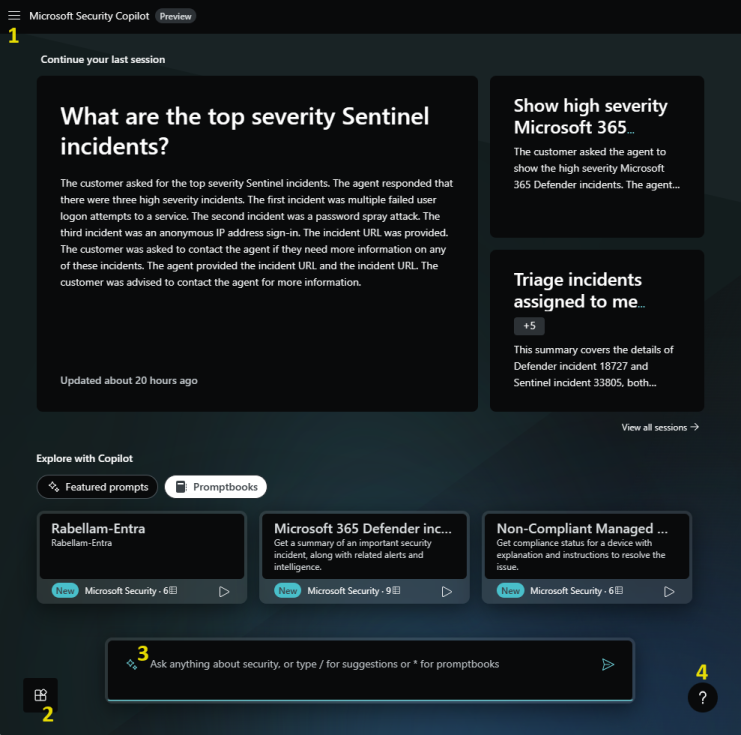
Once you've started your first prompt, more features light up:
- Process log to see what Security Copilot is up to
- Share your session with your team
- Side panel where the Pin board displays

Home menu

Home gets you back to the initial page, ready to create a new prompt.
My sessions reloads the page and changing the view to focus on past sessions you've created. Manage your sessions with search and filter options along with the ability to rename or delete sessions as needed.
Settings include theme preferences along with data and privacy settings.
Tenant switching requires specific authentication. For more information, see the following articles:
When a user signs into the Security Copilot platform for their tenant, but the security related data is in a different tenant, you must explicitly switch to that tenant. In the following screenshot, security analyst Angus MacGregor uses a Fabrikam account to login. Security Copilot is provisioned in the Contoso tenant, however. By using the tenant switch feature, the external member or guest account configured with the appropriate role in Contoso is used to conduct sessions using Contoso data.
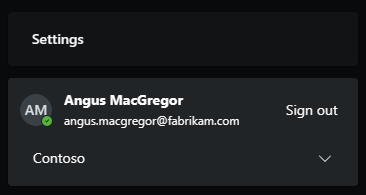
The Security Copilot portal will reload and initially show the tenant ID in the URL like this:
https://securitycopilot.microsoft.com/?tenantId=xxxxxxxx-xxxx-xxxx-xxxx-xxxxxxxxxxxxTip
Manually modifying the tenant ID portion of the Security Copilot URL will also switch the tenant.
Manage plugins
See the article Manage plugins.
Prompt bar
Check out these great articles to utilize featured prompts, find suggested prompts and create great prompts on your own.
Get help
At anytime, launch the tour from the help icon to review key features.
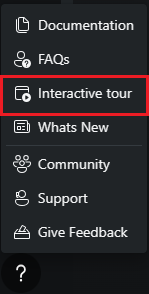
The Community option currently links to the private Teams channel for Early Access Program (EAP) customers.
For more information on the other options, see the following articles:
- FAQs - Frequently Asked Questions
- Support - Contact support
Process log
The process log appears directly under your prompt after you send it. As the response is being formed, notice the plugin chosen.
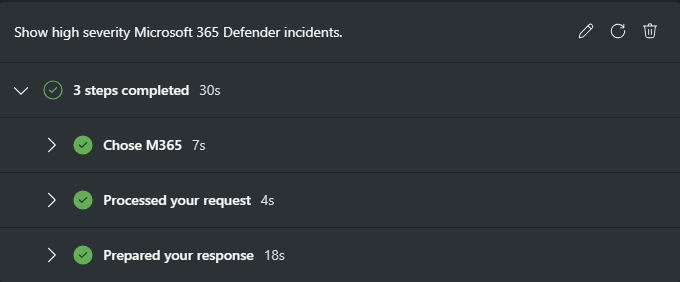
Each plugin and its capabilities directly correspond to prompt suggestions. For more information on prompt suggestions, see Prompting in Security Copilot.
For example, in the following process log, the capability of the Microsoft 365 Defender plugin, GetDefenderIncidents is referenced. At a new prompt, the capability of the plugin is entered to see the suggested prompt it translates to.

Select the link, See all system capabilities to see the filtered prompt suggestions for that plugin.

Select the See all system capabilities after only typing the / to see the unfiltered prompt suggestions for each plugin.

Many responses include direct links to data provided by the Microsoft service plugin chosen by the response. Use the direct links and the process log to build trust in Security Copilot while you verify it's delivering accurate, appropriate responses.

Pin important items to the session
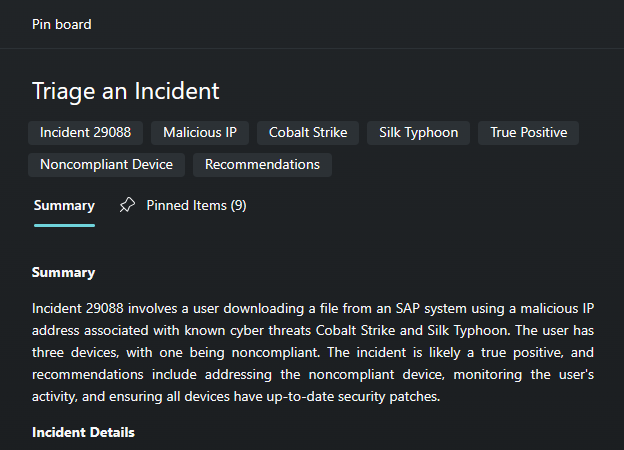
Use the pin board to keep track of important responses in your session. When a response is pinned for the first time, Security Copilot will generate a summary of the session for the pin board.
Pin multiple prompt-response pairs to expand what is included in the summary. Pinned items show a condensed response that is expandable. The last prompt pinned is ordered last in the pin board. If you pin a prompt from the middle of the session last, that's where it will be pinned on the pin board.

Along with the summary, the pin board features tags under the session name to help provide context to the session.
Share a session
At anytime during a Security Copilot session, share the work you've done. Select  to create a link.
Tip
Keep in mind, this link references the entire session, not just the portion conducted prior to selecting the Share feature.
When reviewing My sessions, the same Share feature is available.
Warning
Anyone with Security Copilot access that browses to the link will see a static display of the session shared, whether they normally have access to the underlying security data or not.
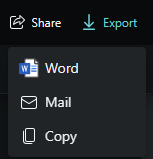
While accessing a shared session, you have the option to Export the results.
View the shared session summary and pinned items to quickly understand the shared content.