Python tool for flows in Azure AI Studio
Note
Azure AI Studio is currently in public preview. This preview is provided without a service-level agreement, and we don't recommend it for production workloads. Certain features might not be supported or might have constrained capabilities. For more information, see Supplemental Terms of Use for Microsoft Azure Previews.
The prompt flow Python tool offers customized code snippets as self-contained executable nodes. You can quickly create Python tools, edit code, and verify results.
Build with the Python tool
Create or open a flow in Azure AI Studio. For more information, see Create a flow.
Select + Python to add the Python tool to your flow.
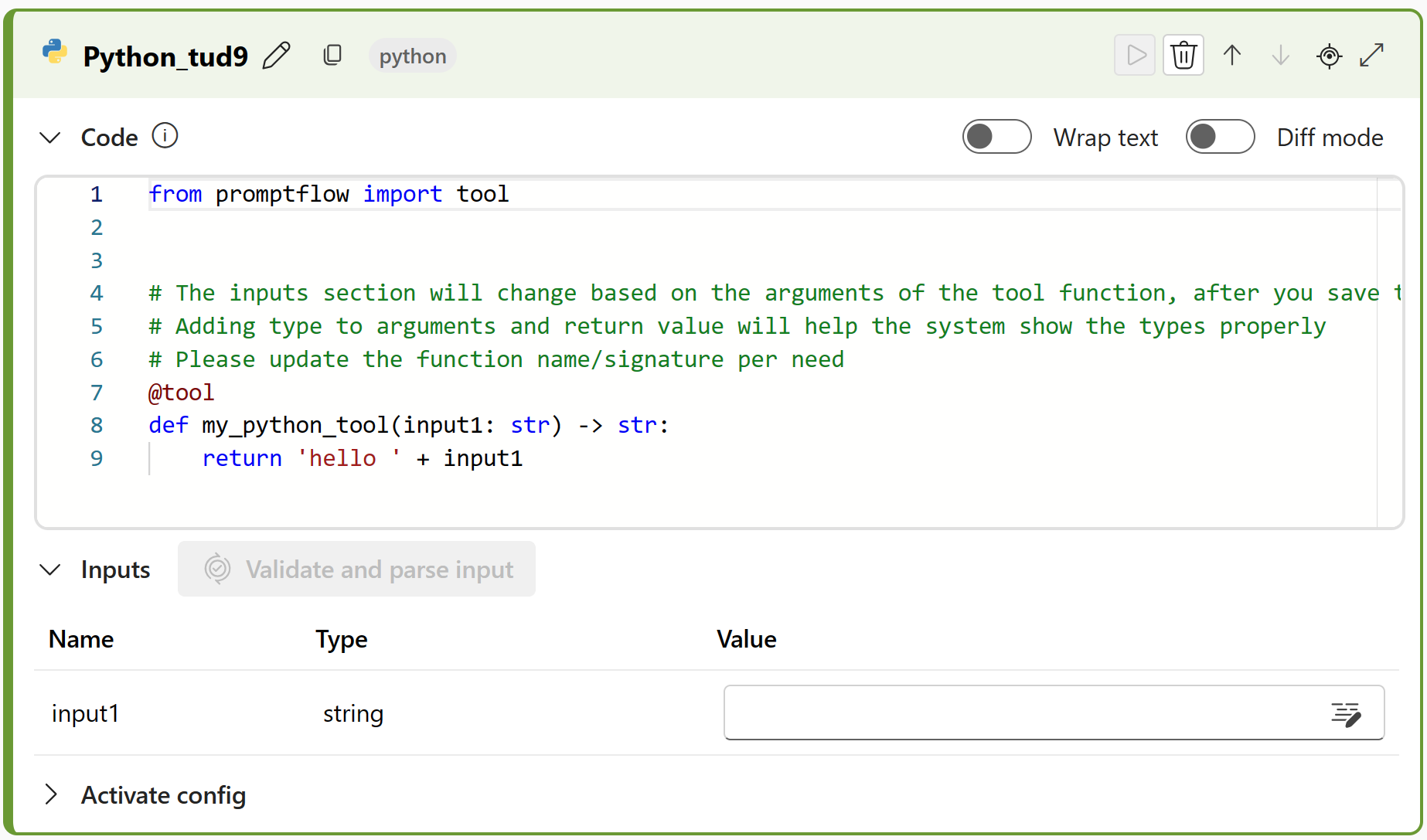
Enter values for the Python tool input parameters described here. For example, in the Code input text box you can enter the following Python code:
from promptflow import tool

@tool
def my_python_tool(message: str) -> str:
    return 'hello ' + message
For more information, see Python code input requirements.
Add more tools to your flow as needed, or select Run to run the flow.
The outputs are described here. Given the previous example Python code input, if the input message is "world", the output is
hello world.
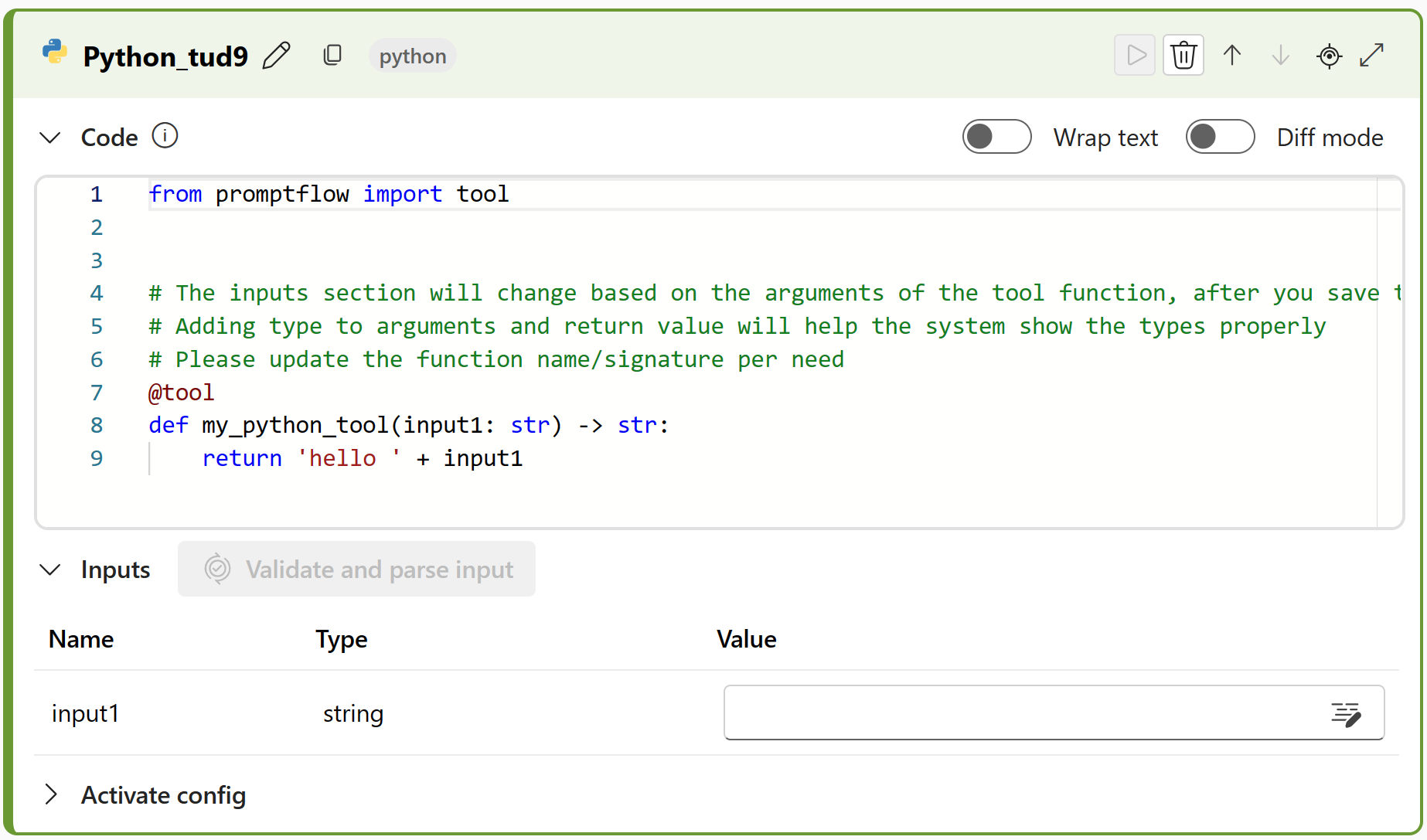
Inputs
The list of inputs will change based on the arguments of the tool function, after you save the code. Adding type to arguments and return values help the tool show the types properly.
| Name | Type | Description | Required |
|---|---|---|---|
| Code | string | Python code snippet | Yes |
| Inputs | - | List of tool function parameters and its assignments | - |
Outputs
The output is the return value of the python tool function. For example, consider the following python tool function:
from promptflow import tool

@tool
def my_python_tool(message: str) -> str:
    return 'hello ' + message
If the input message is "world", the output is hello world.
Types
| Type | Python example | Description |
|---|---|---|
| int | param: int | Integer type |
| bool | param: bool | Boolean type |
| string | param: str | String type |
| double | param: float | Double type |
| list | param: list or param: List[T] | List type |
| object | param: dict or param: Dict[K, V] | Object type |
| Connection | param: CustomConnection | Connection type will be handled specially |
Parameters with Connection type annotation will be treated as connection inputs, which means:
- Prompt flow extension will show a selector to select the connection.
- During execution time, prompt flow will try to find the connection with the name same from parameter value passed in.
Note
Union[...] type annotation is only supported for connection type, for example, param: Union[CustomConnection, OpenAIConnection].
Python code input requirements
This section describes requirements of the Python code input for the Python tool.
- Python Tool Code should consist of a complete Python code, including any necessary module imports.
- Python Tool Code must contain a function decorated with
@tool(tool function), serving as the entry point for execution. The@tooldecorator should be applied only once within the snippet. - Python tool function parameters must be assigned in 'Inputs' section
- Python tool function shall have a return statement and value, which is the output of the tool.
The following Python code is an example of best practices:
from promptflow import tool

@tool
def my_python_tool(message: str) -> str:
    return 'hello ' + message
Consume custom connection in the Python tool
If you're developing a python tool that requires calling external services with authentication, you can use the custom connection in prompt flow. It allows you to securely store the access key and then retrieve it in your python code.
Create a custom connection
Create a custom connection that stores all your LLM API KEY or other required credentials.
Go to Prompt flow in your workspace, then go to connections tab.
Select Create and select Custom.
In the right panel, you can define your connection name, and you can add multiple Key-value pairs to store your credentials and keys by selecting Add key-value pairs.
Note
Make sure at least one key-value pair is set as secret, otherwise the connection will not be created successfully. You can set one Key-Value pair as secret by is secret checked, which will be encrypted and stored in your key value.
Add the following custom keys to the connection:
azureml.flow.connection_type:Customazureml.flow.module:promptflow.connections


Consume custom connection in Python
To consume a custom connection in your python code, follow these steps:
- In the code section in your python node, import custom connection library
from promptflow.connections import CustomConnection, and define an input parameter of typeCustomConnectionin the tool function. - Parse the input to the input section, then select your target custom connection in the value dropdown.
For example:
from promptflow import tool
from promptflow.connections import CustomConnection

@tool
def my_python_tool(message: str, myconn: CustomConnection) -> str:
    # Get authentication key-values from the custom connection
    connection_key1_value = myconn.key1
    connection_key2_value = myconn.key2
Next steps
Feedback
Coming soon: Throughout 2024 we will be phasing out GitHub Issues as the feedback mechanism for content and replacing it with a new feedback system. For more information see: https://aka.ms/ContentUserFeedback.
Submit and view feedback for