Admin roles and tasks in Microsoft Viva
Setup and management of the Microsoft Viva suite starts with the Microsoft 365 global admin. The Microsoft 365 global admin can then assign additional roles for the management, tasks, and maintenance of each Viva app.
Admin options and permissions for each app rely heavily on the environments the apps are available in. For example, most Viva apps are accessed through Microsoft Teams and rely on the Microsoft Teams permissions structure.
In this article, we bring together information on the types and levels of admin roles for each Viva app.
Admin roles in Microsoft Viva
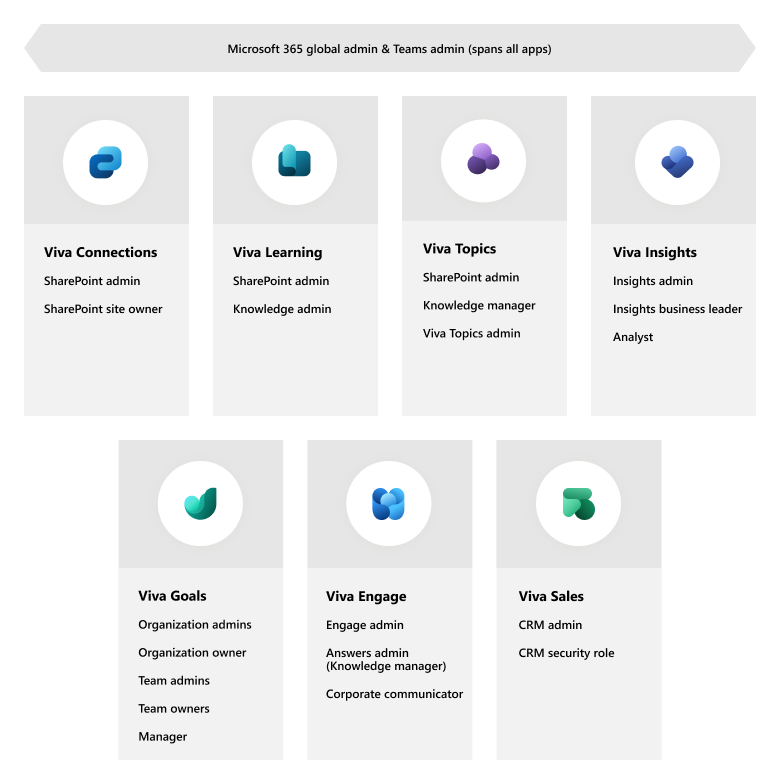
Roles spanning Microsoft Viva apps
The two roles that span Microsoft Viva apps are the Microsoft 365 global admin and the Microsoft Teams admin.
Microsoft 365 global admin
The Microsoft 365 admin role spans the Viva suite. A Microsoft 365 global admin sets up Viva, manages licenses and settings, and can assign the following roles, which may be required for some apps and tasks:
- Viva Topics - administrator for Topics (must be SharePoint admin and Groups admin)
- Viva Learning - Knowledge admin
- Viva Insights - Insights Business Leader, Insights Administrator, and Insights Analyst
- SharePoint - SharePoint admin
- Teams - Teams admin
- Viva Engage - Engage admin (Yammer administrator)
- Answers in Viva Engage - Answers admin (Knowledge manager)
Learn more about admin roles in the Microsoft 365 admin center.
Learn about Built-in Azure AD roles.
Microsoft Teams admin
The Teams admin manages the Teams service and creates and manages Microsoft 365 Groups. Teams admins can access everything in the Microsoft Teams admin center and associated PowerShell controls.
For Viva, the Teams admin manages the deployment of Viva apps and some settings for the apps.
For more information, see Use Microsoft Teams administrator roles to manage Teams.
Admin and management roles for each app
Deciding who should be assigned roles will partly depend on how much access you want a person to have.
For example, you might want to give someone site owner permissions so they can create and manage your Viva Connections dashboard. This person would also be able to manage permissions for that site, edit the home page and other pages, delete pages and other site contents, and more.
To help you decide who should be assigned which roles, here are the overviews of roles for each app and what they do in Viva.
Jump to a section:
Viva Topics
Viva Connections
Viva Learning
Viva Insights
Viva Goals
Viva Engage
Viva Sales
Viva Topics
To set up and manage Topics in the Microsoft 365 admin center, you must be a Microsoft 365 global admin or SharePoint admin. You must be a SharePoint admin and a Groups admin to set up and manage the Topic center.
| Role | What this role does in Viva |
|---|---|
| SharePoint admin and Groups admin A SharePoint admin manages all aspects of SharePoint. A Groups admin creates and manages groups in the Microsoft 365 admin center. Assigned by Microsoft 365 global admin |
A person who is both a SharePoint admin and a Groups admin can set up and manage the Topic center. They can:
|
| Knowledge manager Knowledge managers are users who manage topics in your organization. Assigned by SharePoint admin/Groups admin |
On the Manage topics page, knowledge managers can do the following tasks:
|
For more information on all the roles in Microsoft Viva Topics, see Roles in Viva Topics.
Learn more about planning and administration for Topics in Plan for Microsoft Viva Topics.
Viva Connections
Depending on the task, Viva Connections administration and permissions are managed through SharePoint Online and Microsoft Teams admin centers. The following are the basic requirements and minimum permission levels.
| Role | What this role does in Viva |
|---|---|
| SharePoint admin Manages all aspects of SharePoint Assigned by Microsoft 365 global admin |
|
| Teams admin Manage all aspects of Microsoft Teams Assigned by Microsoft 365 global admin |
Creates and selects settings for customized app |
| Site owner Manages one or more SharePoint sites Assigned by SharePoint admin |
Creates a SharePoint home site to meet technical requirements for Viva Connections |
| Site member Assigned by site owner |
Can author and edit dashboards, news, and other pages |
To learn about setup and administration for Connections, see Guide to setting up Viva Connections, in which required permissions are noted for each step. To learn about SharePoint Online roles and tasks see Introduction to roles, tasks, and timelines in SharePoint Online. To learn about Teams administration, see Manage teams in the Microsoft Teams admin center.
Viva Learning
Viva Learning is by default available in Microsoft Teams with some content already available. To set up learning content sources in Viva Learning and manage individual licensing, you'll need these permissions:
| Role | What this role does in Viva |
|---|---|
| Knowledge admin Can create and manage content, like topics, acronyms and learning resources. Can also create content centers, monitor service health, and create service requests. Assigned by Microsoft 365 global admin |
Manages the organization's learning content sources through the Microsoft 365 admin center. Users in this role have full access to all knowledge, learning and intelligent features settings in the Microsoft 365 admin center. |
| SharePoint admin Manages all aspects of SharePoint Assigned by Microsoft 365 global admin |
Manages and stores custom learning content for your organization. |
| Teams admin Manage all aspects of Microsoft Teams Assigned by Microsoft 365 global admin |
Can turn on or off the Viva Learning app at the organization level. Learn how to manage your apps in the Microsoft Teams admin center. Can create custom app permission policies to allow or block specific users from using Viva Learning. |
For more information on the roles in Viva Learning, see Admin roles and permissions in Set up Viva Learning.
The knowledge admin is an Azure Active Directory (Azure AD) role in the Microsoft 365 admin center that can be assigned to anyone in the organization. This role manages the organization's learning content sources through the Microsoft 365 admin center. For more information, see Azure AD built-in roles and Overview of Microsoft Learning.
Viva Insights
In Viva Insights, you can assign multiple roles to one person. For example, one person can be both an Insights Administrator and an Insights Analyst. However, it's a best practice to assign the admin and analyst roles to different people to prevent any misuse of or external linking of organizational data with collaboration metrics.
| Role | What this role does in Viva |
|---|---|
| Insights Administrator Assigned by Microsoft 365 global admin |
Has access to the administrator experience in the advanced insights app, which consists of these pages: Organizational data management, Privacy settings, and Manager settings. Responsible for configuring the privacy settings and system defaults and for preparing, uploading, and verifying the organizational data for Viva Insights. While the Insights admin has access to organizational data, they do not have access to Microsoft 365 data. |
| Insights Business Leader Assigned by Microsoft 365 global admin |
Insights Business Leaders can see organizational insights on the Organization trends page within the Viva Insights app. |
| Insights Analyst Assigned by Microsoft 365 global admin |
Has access to the analyst experience in the advanced insights app, which includes the ability to run custom and Power BI queries, view query results, and view the quality of organizational data. |
| People manager Access enabled by Insights administrator through the Manager settings page in the advanced insights app |
Can view organization trends in the Viva Insights app in Teams and on the web. |
For more information on all the roles in Viva Insights see Roles in Viva Insights.
Viva Goals
Viva Goals has several different roles. Included here are roles that require specific permissions:
| Role | What this role does in Viva |
|---|---|
| Organization admin Assigned by Microsoft 365 global admin |
Manages the setup of the organization and can manage users and teams. An organization can have more than one organization administrator. |
| Organization owner Assigned by Organization admin |
Manages members, teams, setup, and billing for the account. By default, they own organization-level OKRs, but organizational objectives can be owned by other members also. |
| Team owner Assigned by Organization admin |
Manages team-level OKRs |
| Team admin Assigned by Team owner |
Manages team members |
| Managers Assigned by Organization admin |
Own their own OKRs and the OKRs of employees who report to them. |
| Teams admin Assigned by Microsoft 365 admin |
Manages all aspects of Microsoft Teams Uses the Teams admin center to create setup policies to install the app and assign users. |
For more detailed information see Roles and permissions in Viva Goals.
For more information about admin settings in the admin dashboard, see Navigate the admin dashboard.
Viva Engage
| Role | What this role does in Viva |
|---|---|
| Engage admin Assigned by Microsoft 365 global admin |
Sets up Viva Engage for the organization, manages compliance, privacy and features within the application. This role is designated by adding Yammer administrators in AAD as Viva Engage is powered by Yammer technology. |
| Answers admin Assigned by Microsoft 365 global admin |
Sets up Answers within the Viva Engage application. This role is designated by adding a Knowledge manager role in AAD. All Knowledge managers have Answers admin privileges. To better align the experiences of Viva Topics management and Answers administration, you can assign the same users that manage Viva Topics to manage Answers. Find more information about assigning an AAD role to a group or how to create a role-assignable group. |
| Corporate communicator Assigned by the Engage admin or a fellow corporate communicator. |
Can create or manage campaigns and define leaders and audiences in an organization. |
| Teams admin Assigned by Microsoft 365 global admin |
Uses the Teams admin center to create setup policies to install the app and assign users. |
For more information, see Manage Yammer admins.
Viva Sales
You need to be a Microsoft 365 administrator to deploy and install the Viva Sales add-in for Outlook. You need to be a Teams administrator to deploy and install Viva Sales for Teams.
| Role | What this role does in Viva |
|---|---|
| Microsoft 365 global admin | Deploys and installs the Viva Sales add-in for Outlook. |
| Teams admin Assigned by Microsoft 365 admin |
Uses the Teams admin center to create setup policies to install the app and assign users. |
| CRM admin Assigned by Microsoft 365 global admin |
Manages settings to customize information displayed for Viva Sales in Outlook and Teams. |
| CRM security role | Viva Sales applies your organization's existing CRM access controls and user permissions. Users must have the correct permissions to view, update, and create records in their CRM systems from Viva Sales. Required roles depend on the system you are using. |
For more information on these and other roles, see Install Viva Sales.
Feedback
Submit and view feedback for