Set up and manage campaigns in Viva Engage
Campaigns are an interactive way to drive employee engagement. They provide power to build company culture, community, and belonging. Microsoft 365 Global admins, Engage admins, and corporate communicators can create, manage, and delete campaigns.
Creating and viewing the campaign landing page and analytics from the campaign management dashboard is only available to licensed admin users. Unlicensed network, global, and engage admins can only access the campaign management dashboard and delete campaigns that were created by licensed admins or corporate communicators.
Set up a campaign
In the Viva Engage Teams application, select the ellipses button from the top navigation menu to expose the admin option. Select Admin to go to the Viva Engage admin center.
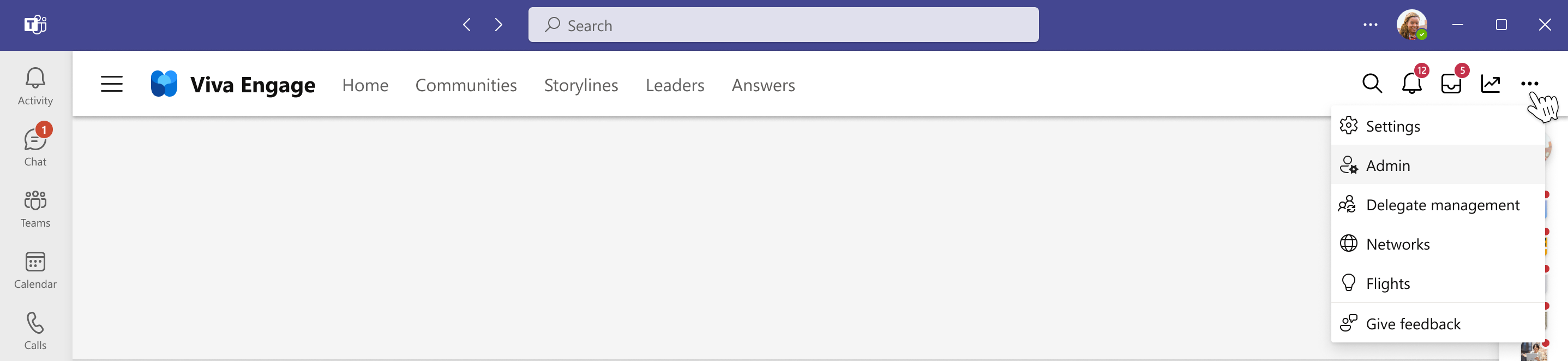
Select Campaigns on the Feature management tab to access the campaign dashboard.

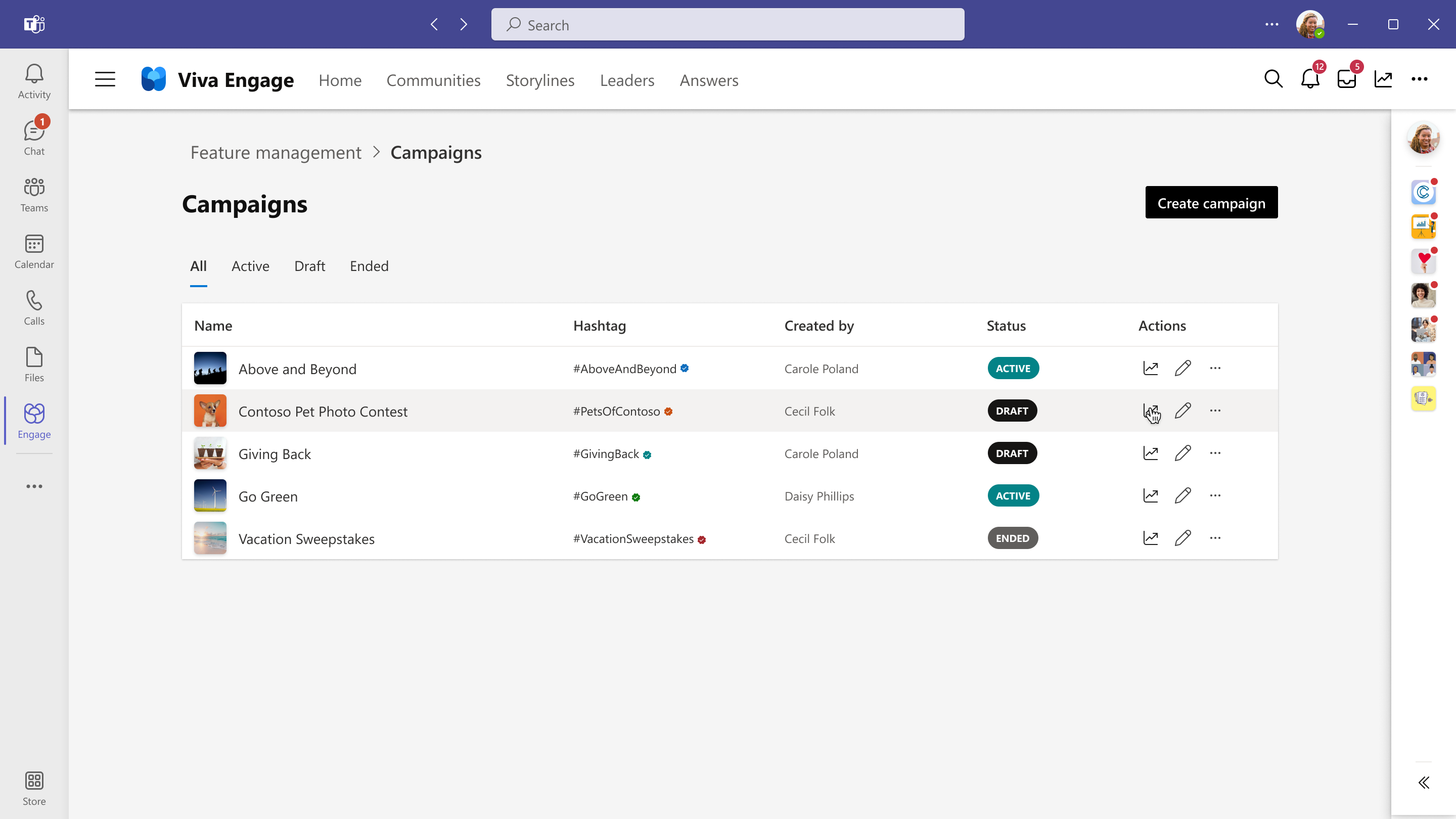
The campaign dashboard provides a list of active, ended, and draft campaigns created for the organization. From this page, you can create and edit campaigns or access campaign analytics for better understanding of the campaigns' performance and engagement.

Create a campaign
- Select Create campaign in the upper-right corner of the campaign dashboard.
- Fill in the fields according to your campaign goals. You can also customize the theme color of the campaign hashtag. Campaign name and Campaign hashtag are required fields. The campaign names only appear on the campaign management dashboard, and the campaign hashtag appears on the campaign landing page.
- Select Confirm when your campaign is ready to enter the draft state.
Because campaign hashtags are used as the binding element for all campaign content, any posted content that contains the campaign hashtag is included on the campaign landing page and in campaign analytics.

Note
As a campaign manager, you can set the default publisher of your campaign to be a certain type of post: discussion, question, poll, or praise. The type you choose will automatically populate the default publisher when users post on the campaign landing page. For example, if you set your default publisher to Question, a question format will automatically appear to the user when they post from the campaign landing page.
Corporate communicator privileges
Corporate communicators can perform the following functions to manage campaigns:
- Publish campaigns as Active and visible to all users in the network
- Set Active campaigns to Ended when a campaign is finished
- Republish Ended campaigns as Active for reoccurring campaigns
- Delete campaigns that aren't relevant or were made by mistake
- Update certain assets on a campaign page such as:
- Goal tracker
- Cover photo
- Pinned posts
- Pinned resources and links
- Theme color of the campaign hashtag
- View campaign analytics
Note
The corporate communicator must manually update the goal tracker asset.
Publish or end a campaign
To publish a campaign, select the ellipses button on the campaign management dashboard or on the campaign landing page.
Select Publish campaign to make the campaign Active.


When a campaign is published, it becomes Active in the campaign management dashboard. The campaign landing page is visible to any Viva Engage licensed user who selects a post or comment that has the verified campaign hashtag.
Note
The three campaigns that appear in the Top campaigns module on the right side of your home page are ordered based on number of followers. When you follow a campaign, it's removed from Top campaigns and replaced by a new campaign.
When a campaign ends, the follow button and default publisher on the campaign landing page are disabled. But users can still post in communities and storylines using the campaign hashtag, and those posts appear on the campaign landing page.
Build campaign awareness
Users can discover campaigns through posts that contain the campaign hashtag or via the campaigns discovery modules throughout Viva Engage.
Verified campaign hashtag
- When users select a post or comment that contains the verified campaign hashtag, they're routed to the campaign landing page, where they can follow the campaign.
Note
To build campaign awareness and reach, campaign managers and leaders across the organization are encouraged to share as many posts as possible with the campaign hashtag to their storyline and in communities. You can also share the campaign link through posts, emails, and Microsoft Teams chats for users to easily access the campaign landing page.
Campaigns modules
- Top campaigns module: On the right side of the Home feed, users see a Top campaigns module that lists current campaigns to follow and participate in.
- Followed campaigns module: When a user follows a campaign, they see a Followed campaigns module on the right side of their storyline.
Note
To participate in any campaign from the Home feed, users can create or comment on a post by using the campaign hashtag in a community, on a storyline, or from the campaign landing page.
Manage campaign analytics and engagement
Engage admin and corporate communicators have access to analytics that help monitor campaign engagement and improve future campaigns. They can access campaign analytics from the analytics icon on the top navigation menu of Viva Engage, the campaign management dashboard, and the campaign landing page.

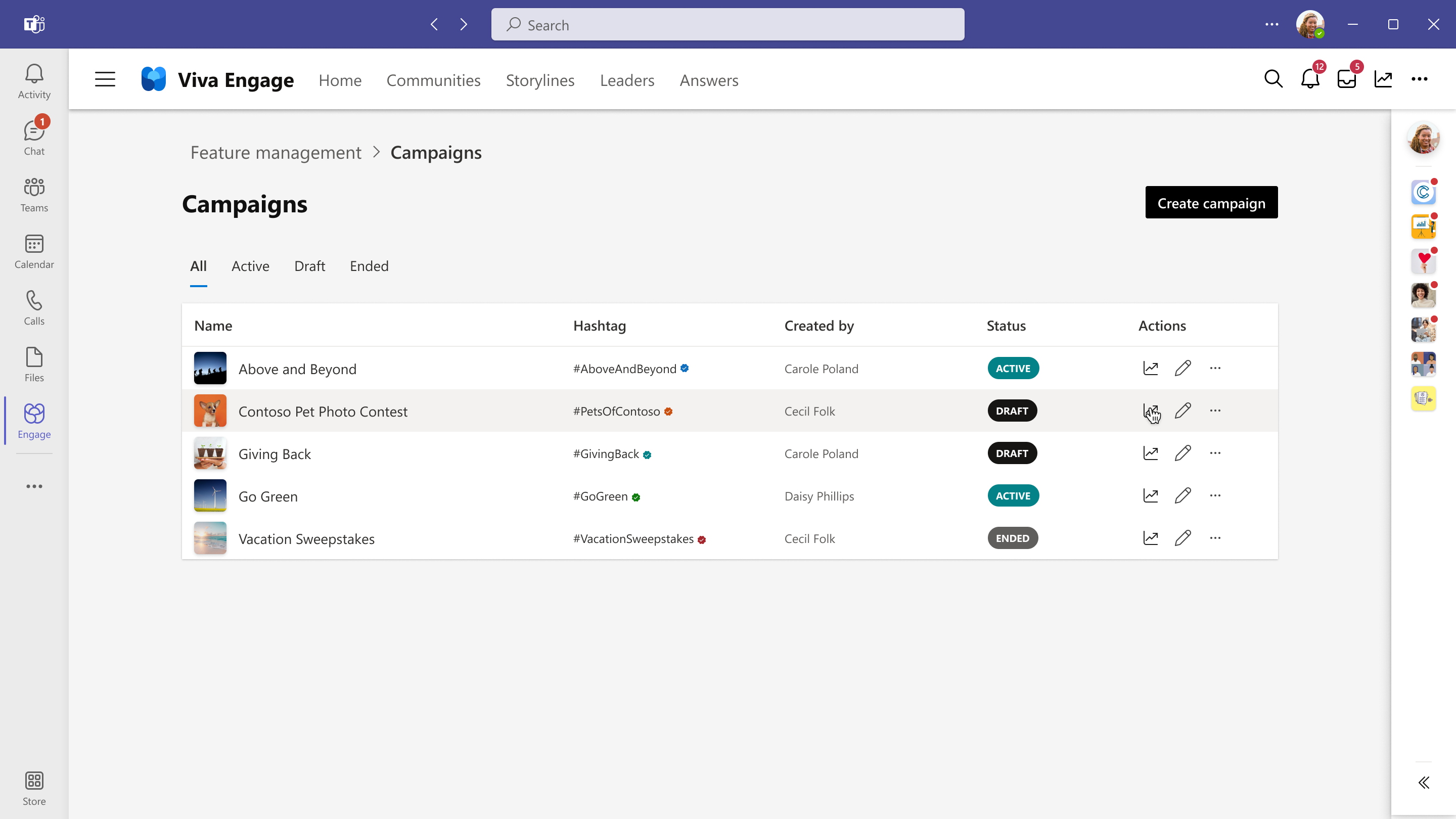
From the campaign management dashboard, select the graph icon in the right column under Actions to navigate to campaign analytics.
From the campaign landing page, select View more analytics from the Summary analytics module to navigate to campaign analytics.

You're redirected to the campaign analytics dashboard, which contains key data to help monitor the success of your campaign.



Frequently asked questions
Can I create a campaign for a hashtag that's already in use?
If the hashtag is being used by another campaign, it can't be used again. If the hashtag hasn't been made into a campaign, it can be used, but the content created before the campaign is Active isn't included in views or analytics.
How often are campaign analytics refreshed?
Analytics are refreshed daily. If you don’t see changes reflected immediately, check analytics the next day.
See also
Feedback
Submit and view feedback for